
How to apply PaperCut emergency Update for vulnerability
PaperCut is a widely used print management solution in many organizations. Recently, a critical vulnerability was identified affecting PaperCut MF and NG servers, particularly relating to external card lookup functionality. This guide outlines best practices for addressing the latest vulnerability, including details on updating your system and resources for further support.
Understanding the Latest PaperCut Vulnerability
The latest PaperCut vulnerability affects how the system handles external card lookups, which are often used for user authentication or tracking. Exploiting this vulnerability could allow unauthorized access or exposure of sensitive data.
Promptly address this issue to maintain the security and integrity of your print management environment.
Best Practices for Addressing the Vulnerability
Review Official PaperCut Advisories
Visit the Aug 2026 urgent security advisory overview page for details about the vulnerability, affected versions, and recommended actions.
Update PaperCut to the Latest Version
Ensure you are running the latest supported version of PaperCut MF or NG. Updates often include critical security patches. Follow the official instructions on the PaperCut Update Manual to perform the upgrade.
Review KB article for Updating to PaperCut 25 and up from previous versions
Important Updates for installations and upgrade for PaperCut Ver.25 and higher
Step 1: Confirm and Update External Card Lookup Configurations
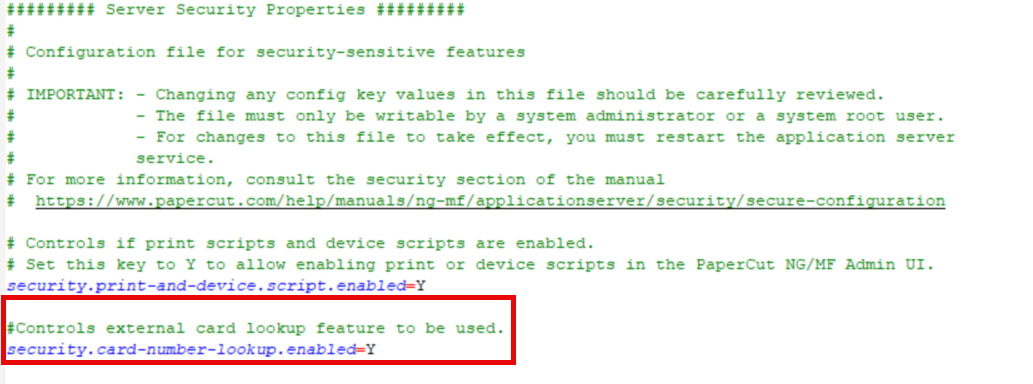
For our TBS Libraries with TBS Kiosks/cPads, we use an external database for card number lookups. PaperCut states that you now need to explicitly enable the feature by adding the following to security.properties in the PaperCut
MF/server directory.
Add the following text to the file under the "security.print-and-device.script.enabled=Y" line, like so:
#Controls external card lookup feature to be used.
security.card-number-lookup.enabled=Y
Step 2: Update Database Connection URL for External Card Lookup
Log in to the PaperCut Admin Portal.
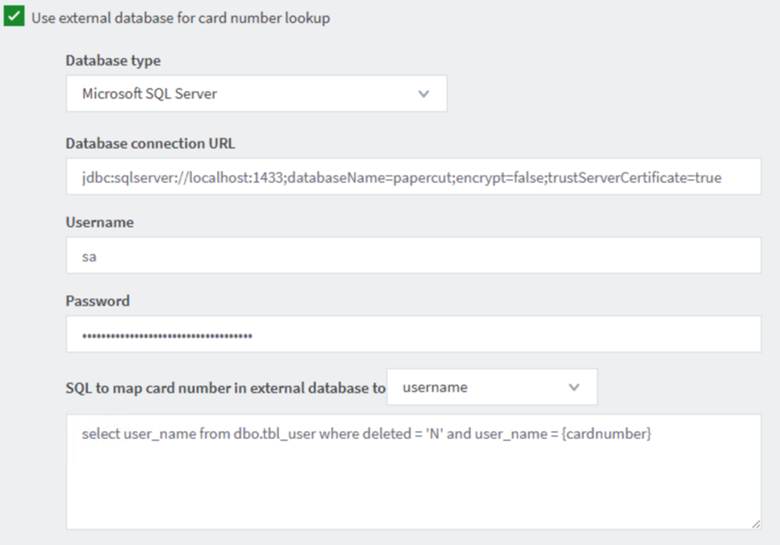
Navigate to Options > Advanced > External Card Lookup.
Under Database Type, ensure that you are using Microsoft SQL Server. Note: If this is 'legacy', it MUST be changed.
Under Database Connection URL, ensure the connection string is formatted as follows:
jdbc:sqlserver://localhost:1433;databaseName=papercut;encrypt=false;trustServerCertificate=trueSave and apply the settings.
Step 3: Restart PaperCut Services
Restart the PaperCut Application Server service to apply changes.
After restarting, log in to the PaperCut portal and verify the database connection works as expected.
FAQs on Updates and External Card Lookup
Where can I find the latest update for PaperCut?
Visit the PaperCut Software Updates page to download the latest version.Is my version affected?
Check the Security Advisory for a list of affected versions. If your version is listed, update as soon as possible.Do I need to reconfigure my card lookup integration after updating?
After updating, review your card lookup integration settings to ensure compatibility and that secure protocols are in use.Who can I contact for further help?
For technical assistance, contact PaperCut Support.
Additional Resources
Summary
Addressing the latest PaperCut vulnerability requires prompt action—review advisories, update your software, and secure external card lookup configurations. Stay informed by checking official resources regularly and maintain best practices for ongoing system security.