
Important Updates for installations and upgrade for PaperCut Ver.25 and higher
NOTE: These changes are REQUIRED.
This article provides comprehensive instructions for the changes required for the new SQL Drivers to work with PaperCut MF version 25.0 and later. Follow these required steps to ensure connectivity and proper system behavior. The process includes updating JDBC driver files, modifying configuration settings, and updating related scripts.
Prerequisites
Administrator access: You will need administrative privileges to copy files and edit configuration files.
PaperCut MF version 25.0.12.76509 or later: These instructions specifically apply to version 25.0 and above.
Backup: Before making any changes, back up the PaperCut database.
-
Review significant changes: If upgrading from a version older than 24.0.0, review the changes in both version 24 and 25 before proceeding. See:
Step 1: Install or Upgrade PaperCut Application and Secondary Servers.
1. Download PaperCut Release
-
Ensure you are running the latest supported version of PaperCut MF or NG. Updates often include critical security patches. Follow the official instructions on the PaperCut Update Manual to perform the upgrade.
PaperCut MF version 25.0.12.76509 or later download link: PaperCut Downloads
Run the installer and follow the prompts.
For installation of PaperCut from scratch continue with this before continuing.
Step 2: Install or Upgrade the JDBC Driver
1. Copy the JDBC JAR File
Locate the appropriate JDBC driver JAR file, for example: mssql-jdbc-13.2.1.jre11.jar.
-
Copy this file from your PaperCut installation directory:
Source:
[app server install dir]/server/repository/database-drivers/sqlserver/mssql-jdbc-13.2.1.jre11.jarDestination:
[app server install dir]/server/lib-ext/
Example command (Windows):
copy "C:\Program Files\PaperCut MF\server\repository\database-drivers\sqlserver\mssql-jdbc-13.2.1.jre11.jar" "C:\Program Files\PaperCut MF\server\lib-ext\"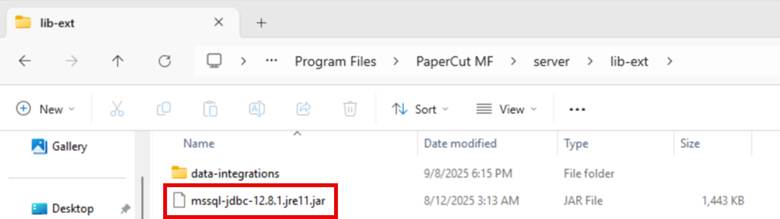
2. Copy the Authentication DLL
Locate the JDBC authentication DLL, for example: mssql-jdbc_auth-13.2.1.x64.dll.
-
Copy this file to the following directory:
Source:
[app server install dir]/server/repository/database-drivers/sqlserver/mssql-jdbc_auth-13.2.1.x64.dllDestination:
[app server install dir]/server/bin/win/lib64/
Example command (Windows):
copy "C:\Program Files\PaperCut MF\server\repository\database-drivers\sqlserver\mssql-jdbc_auth-13.2.1.x64.dll" "C:\Program Files\PaperCut MF\server\bin\win\lib64\"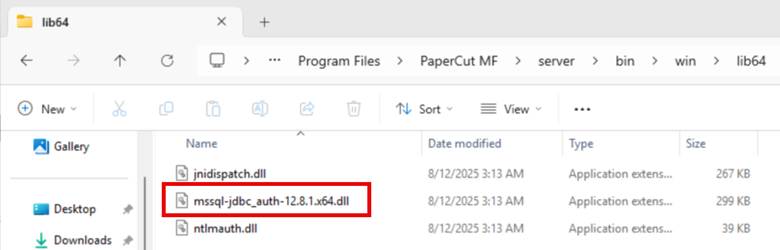
Step 3: Update the JDBC Connection String
Update the JDBC connection string in the server.properties file to include additional parameters for encryption and certificate trust.
1. Edit the server.properties File
Navigate to [app server install dir]/server/.
Open server.properties in a text editor with administrator privileges.
Locate the line beginning with database.url=.
Append the following to the end of the line (if not already present):
;encrypt=false;trustServerCertificate=trueExample:
database.url=jdbc:sqlserver://localhost:1433;databaseName=papercut;encrypt=false;trustServerCertificate=trueSave the file.

2. Automating the Update with PowerShell (Optional)
If you manage multiple installations, you may automate this update using a PowerShell script:
$path = "C:\Program Files\PaperCut MF\server\server.properties"
$lines = Get-Content -Path $path
$pattern = '^database\.url='
$updated = $lines | ForEach-Object {
    if ($_ -match $pattern) {
        if ($_ -notmatch 'encrypt=false;trustServerCertificate=true') {
            $_ + ";encrypt=false;trustServerCertificate=true"
        } else {
            $_
        }
    } else {
        $_
    }
}
$updated | Set-Content -Path $path -Encoding UTF8
Write-Host "Update complete."
Step 4: Update Database Connection URL for External Card Lookup
Log in to the PaperCut Admin Portal.
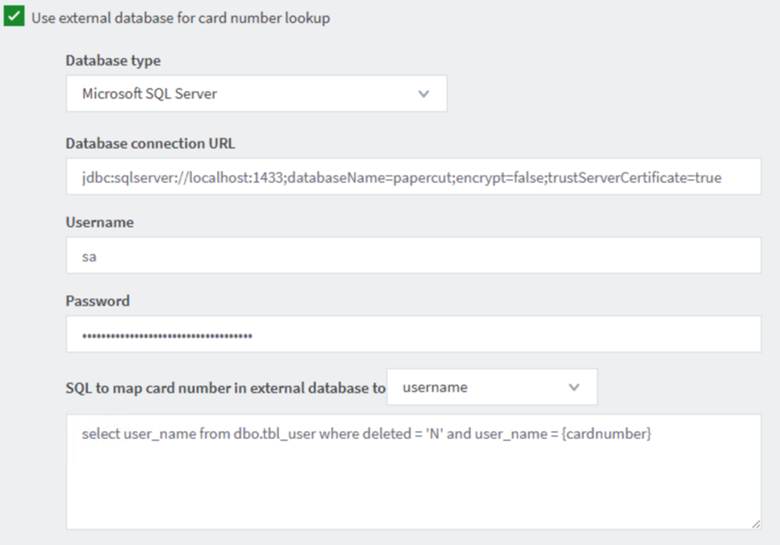
Navigate to Options > Advanced > External Card Lookup.
Under Database Type, ensure that you are using Microsoft SQL Server. Note: If this is 'legacy, it MUST be changed.
Under Database Connection URL, ensure the connection string is formatted as follows:
jdbc:sqlserver://localhost:1433;databaseName=papercut;encrypt=false;trustServerCertificate=trueSave and apply the settings.
Step 5: Restart PaperCut Services
Restart the PaperCut Application Server service to apply changes.
After restarting, log in to the PaperCut portal and verify the database connection works as expected.
Step 6: Update Printer Scripts for MyPC Printers
To ensure pop-up notifications work correctly for public PC printing via MyPC, update your printer scripts. If you skip this step, users will not receive the necessary pop-up prompts.
Locate your printer script file(s), such as POPUP_script_MyPC.txt in your installer’s scripts folder or HERE.
Replace the contents with the following up-to-date script:
function printJobHook(inputs, actions) {
if (!inputs.job.isAnalysisComplete) {
actions.log.debug("Job analysis not complete, exiting.");
return;
}
// Debug inputs and actions
actions.log.debug("inputs.job: " + JSON.stringify(inputs.job));
actions.log.debug("actions.client: " + JSON.stringify(actions.client));
// Inform the user of their classification (fixed HTML string)
var response = actions.client.promptOKCancel("<html><span style='font-size:17pt;'>Please visit any Print Release Station to retrieve your Print Job!</span></html>");
if (response == "OK") {
// Add your action code here for clicking OK
actions.log.debug("User clicked OK");
} else if (response == "CANCEL") {
// Add your action code here for clicking Cancel
actions.log.debug("User clicked Cancel");
actions.job.cancel();
} else if (response == "TIMEOUT") {
// Add your action code here for timeout
actions.log.debug("Prompt timed out");
actions.job.cancel();
}
}