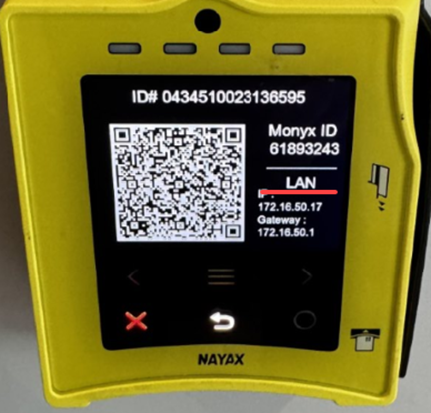
How to setup a Nayax VPOS Touch using Ethernet on the network
Parts Needed: Nayax Ethernet Adapter Cable (RJ11 to RJ45)
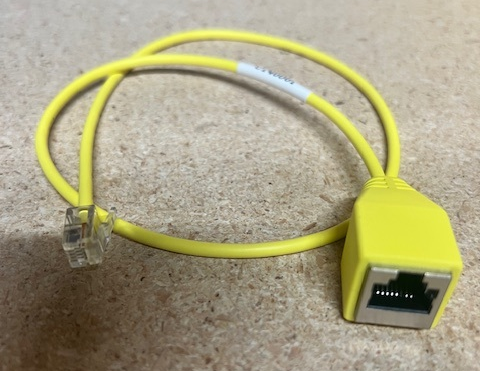
Part Number: C140001
IP Information Needed:
- Static IP Address for each device (recommended)
- Subnet
- Gateway
- DNS Server 1
- DNS Server 2 (If applicable)
NOTE: Devices can use DHCP, but it is not recommended unless the network is PCI compliant.
INTRO:
In some cases, the VPOS Touch cannot communicate reliably over cellular networks. One option to bypass this is to connect the device via Ethernet. This tutorial covers the steps to set up an Ethernet connection to the VPOS Touch device.
Note: To connect the device via Ethernet, the steps highlighted in this tutorial MUST be followed as written. Deviation from this tutorial during device setup could complicate further troubleshooting. The Nayax device is designed to fall back on a cellular connection if the Ethernet connection fails.
Please also review this article for firewall rules and routing information for how the devices connect to Nayax: Endpoints and ports for a networked Nayax VPOS Touch Device | TBS Libraries KB
SETUP:
Note: to set up the readers, they must be able to get the new setting via the Cellular Network. Ensure that these settings are established before placing the reader in an area with no cell reception.
-
Enable Ethernet/WiFi on the Card Reader
Operations
Machines
Operator (Enter Customer Name)
Search

-
All of the readers under that customer will be displayed
Click on the reader you wish to add Ethernet to
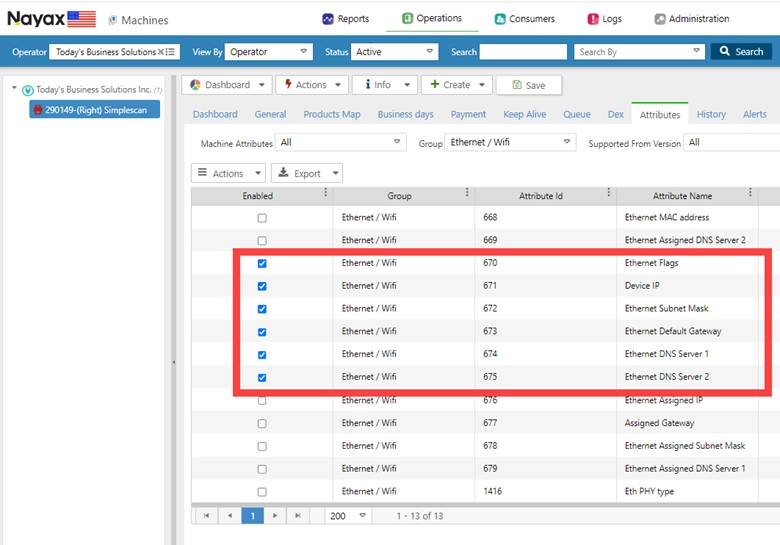
Click on Attributes
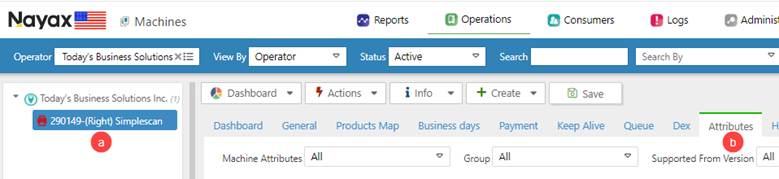
Under the Group Pulldown. Scroll down to the "Ethernet / WiFi", and this will display all of the options for Ethernet.
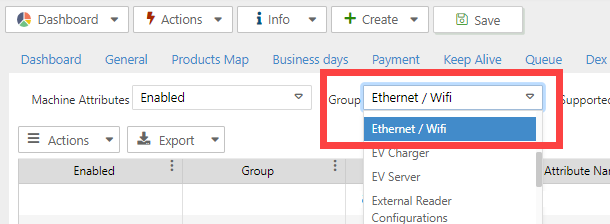
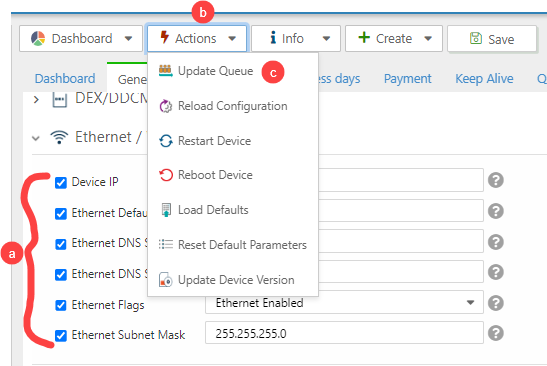
This will filter out all options, leaving only the Ethernet settings. Only enable the items listed below and click "SAVE".
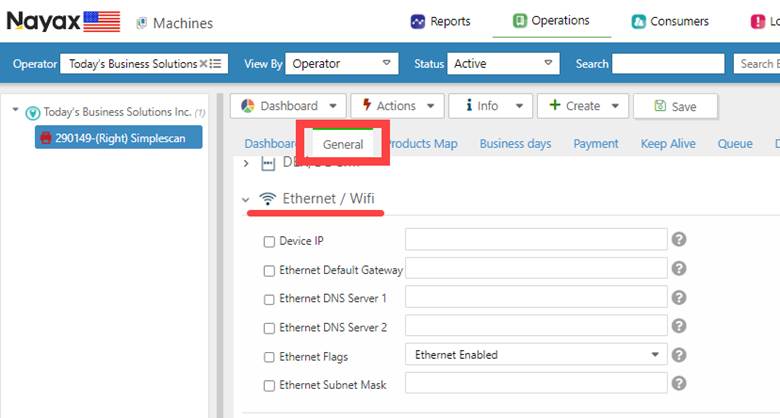
Click on the General Tab and a new Option will appear “Ethernet / WiFi”
-
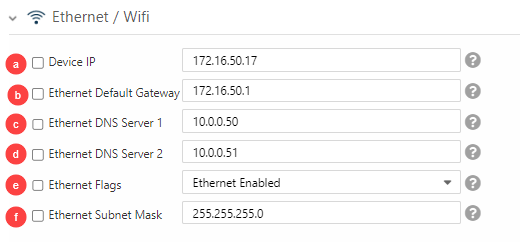
To set up Static IP, enter all of the info requested:
Device IP
Default Gateway
DNS Server 1
DNS Server 2
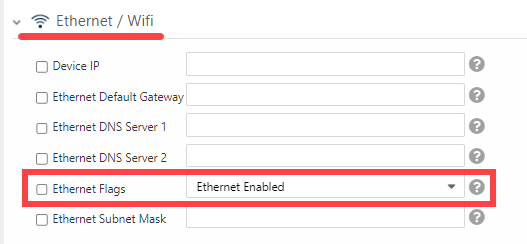
Set the Ethernet Flags to “Ethernet Enabled”.
Subnet Mask
NOTE: If using DHCP, only set ‘Ethernet Flags’ to Ethernet Enabled.
CLICK SAVE!

IF USING DHCP, You can see if it is online/on the network by checking the Device info:
-
To push the changes to the Reader,
Choose all of the fields (Do this for Static or DHCP)
Click on Actions
Choose “Update Queue”
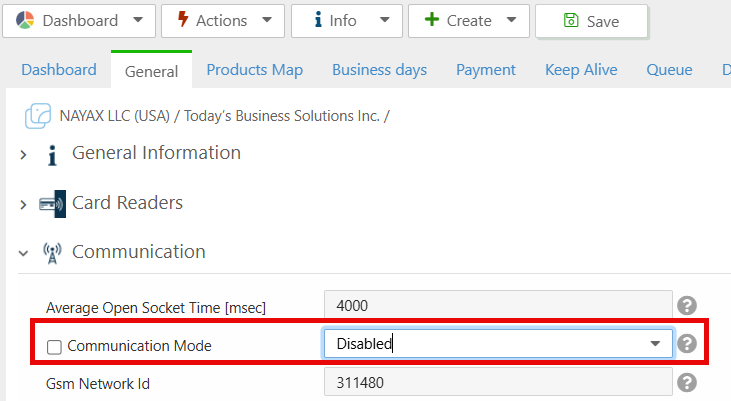
NOTE: You will also need to disable the Communication Mode since Ethernet is now being used.
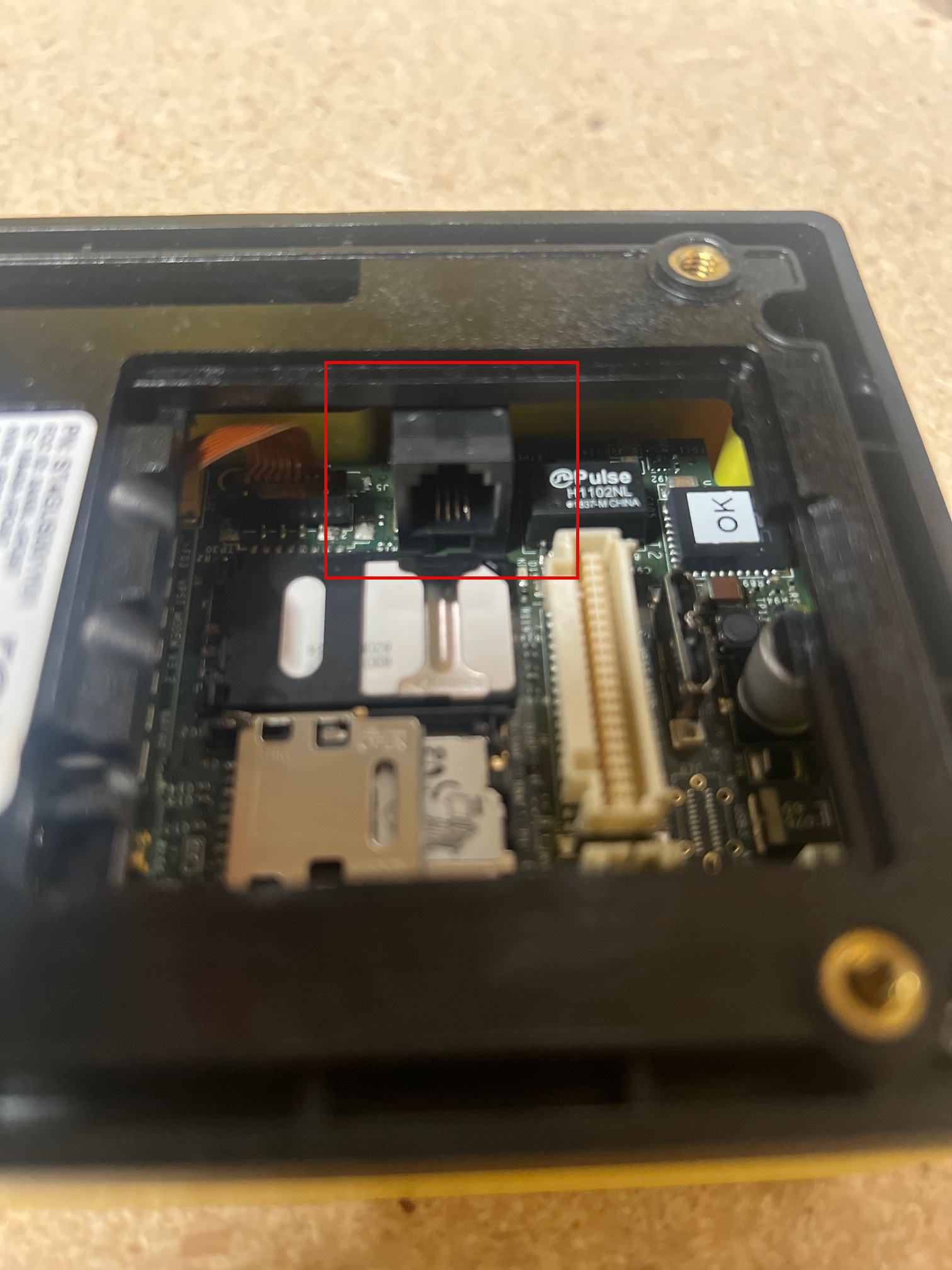
9. On the vPOS Touch itself, you will need to plug in the Nayax Cable (Part# C140001) into the device here:
IMPORTANT:
If the MAC address is required for connecting devices through a customer's network, please follow these steps: (MAC address will always be of the format 02.00.00.X.Y.Z, where the last 3 bytes are derived from the SN)
1. Obtain serial number (Example: 0404043518526484)
2. Convert serial number to HEX (16F79B6654414) [NOTE: Click Here to use a Decimal to Hexadecimal converter found on the internet.]
3. Last byte (14 in the example) will be placed in place of X
4. Second to last byte (44 in the example) will be placed in place of Y
5. Third to last byte (65 in the example) will be placed in place of Z
6. End result should be 02.00.00.14.44.65
TROUBLESHOOTING:
Ensure the new settings are pushed to the reader over the Cellular Network.
If the reader cannot connect via IP, it will attempt to connect to the Cellular Network. So, the Info screen will show the traditional screen with the RSSI Value.
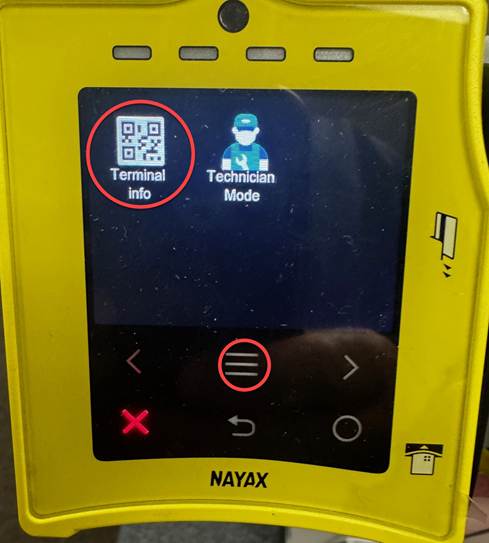
If the IP address appears on the Info page but you still cannot connect, test the network port with your laptop to verify that the Static or DHCP IP address provided can reach the Web and that the MAC isn't being blocked.