
How To: Troubleshooting Nayax Devices on a ScanEZ Station
The Cause
Nayax device having an issue, or not working properly.
The Solution
1. Confirm if the device is installed in a TBS9900 or standalone.
Payment > General > Page 1
- Here you will see if this ScanEZ Station is using TBS9900 w/CC or Nayax Standalone using Marshall Protocol.
Nayax Standalone Setting Option:

Payment > Nayax - Confirm COM Port is correct based on Device Manager. You should be looking for 'USB Serial Port'.
Nayax Standalone Configuration

NOTE: For TBS Technicians, please see the attached knowledge base article for Marshall Protocol configuration in Nayax: How to setup Marshall Protocol Nayax Device with ScanEZ Station | TBS Libraries KB (tbsit360.com)
TBS9900 with Credit Card Setting Option:

Payment > 9900 – Confirm Coinbox with Credit Card Reader is TRUE.
TBS9900 with Credit Card Configuration

2. Log into Nayax Portal and Copy settings from Template (Based on Step 1) 'TBS ScanEZ 9900 – DO NOT EDIT' or 'TBS ScanEZ Marshall – DO NOT EDIT' using ‘Compare Machine Attributes’.
- (NOTE: DO NOT COPY ‘DEFAULT CREDIT’ and Pay attention to Mobile Network Name. Communication Mode: VPN=Verizon, MQTT=AT&T/T-Mobile.)
- For TBS Technicians, please see the attached knowledge base article on how to do this: How to compare and copy settings from machine to machine | TBS Libraries KB (tbsit360.com)
3. Schedule an update for the latest firmware. (This should be scheduled unless you work during these off-hours.) The update could take up to 1.5 hours.
- For TBS Technicians, please see the attached knowledge base article on how to schedule firmware updates: How To: Upgrade Nayax Firmware (On-Demand or Schedule) | TBS Libraries KB (tbsit360.com)
4. If the issue persists, try to RELOAD CONFIGURATION
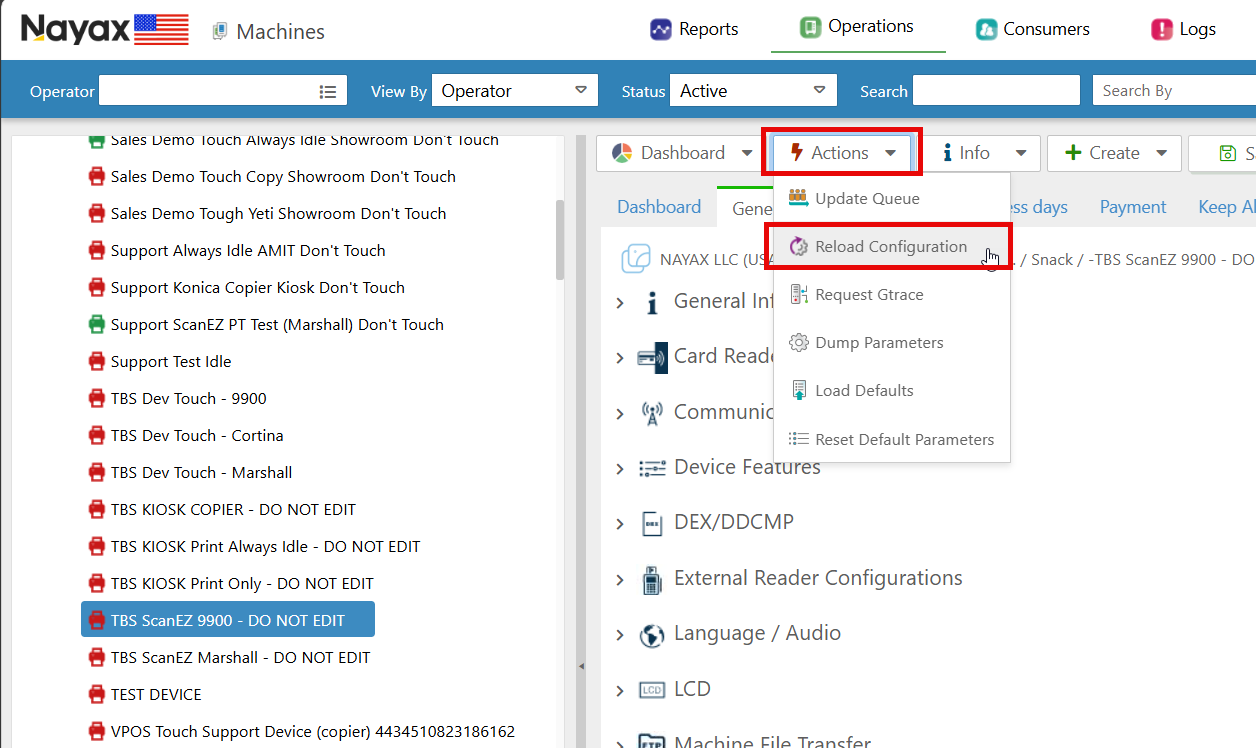
5. If the issue persists, the customer must be in front of the machine. Follow these steps one at a time.
a. Factory Reset the device (Hardware reset)
i. Press the 3 white lines on the Nayax reader:

- Select Technician Mode
- Enter 123123 (password)
- Scroll Down to “Factory Reset” and Click the arrow to initiate. This will cause the machine to reboot.
b. Reset Default Parameters (software reset) once the device has been rebooted from the Factory Reset. This will, again, cause a reboot.

c. Once it is rebooted from above, Reload the Configuration. Wait about 5-10 minutes (should reboot on its own)

d. Restart the terminal one last time. (Additional Reboot) This can be done from the Nayax Portal (ACTIONS > RESTART) or from the device (REBOOT) under the terminal's menu.
6. Escalate ConnectWise ticket to Tier 2 with Internal notes of all tasks completed for troubleshooting. Provide as much information as possible in the internal notes of the ticket.