
How to setup Marshall Protocol Nayax Device with ScanEZ Station
The Cause
ScanEZ Station with Credit Card only. Nayax Configuration
The Resolution
Prerequisites
-
To setup a Nayax Device with Marshall Protocol you will need the following:
-
Marshall Power Supply
- Nayax Part NAYX-M22002
-
USB to Serial Adapter
- Nayax Part NAYX-C310004
-
VPOS Touch Marshall Harness/ AMIT Marshall Harness
- Nayax Part, VPOS Touch: NAYX- C130011
- Nayax Part, AMIT: NAYX-C120010
-
Marshall Power Supply
Nayax Portal Setup
- The Cashless MDB address attribute must be enabled on the Machine within the Nayax Portal. If not enabled, see below:
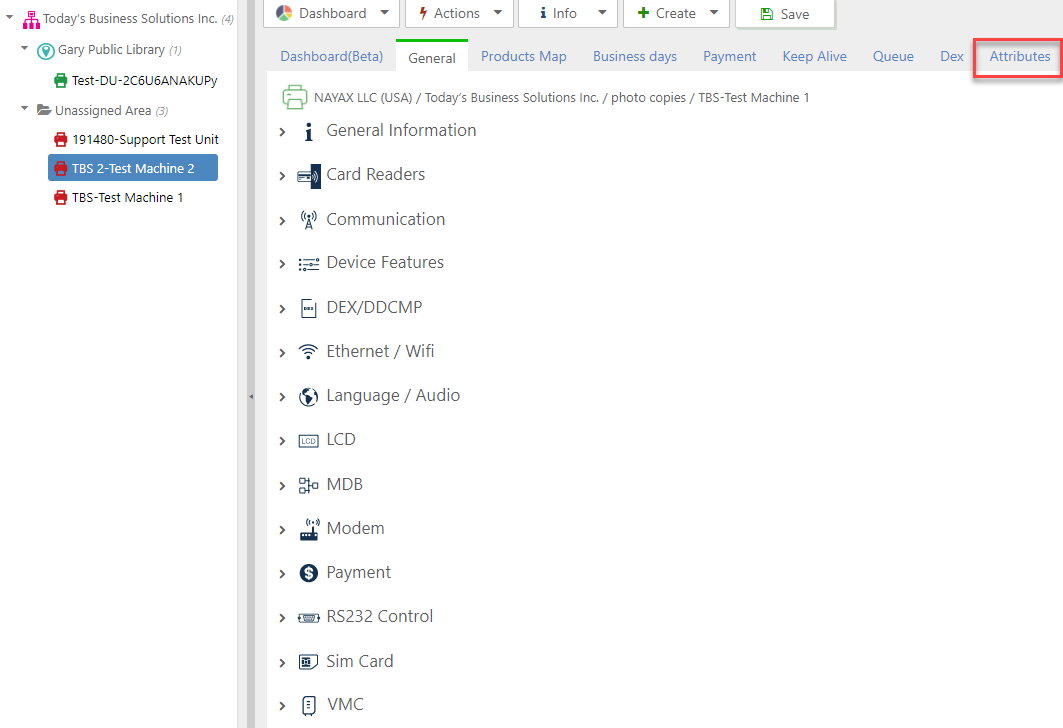
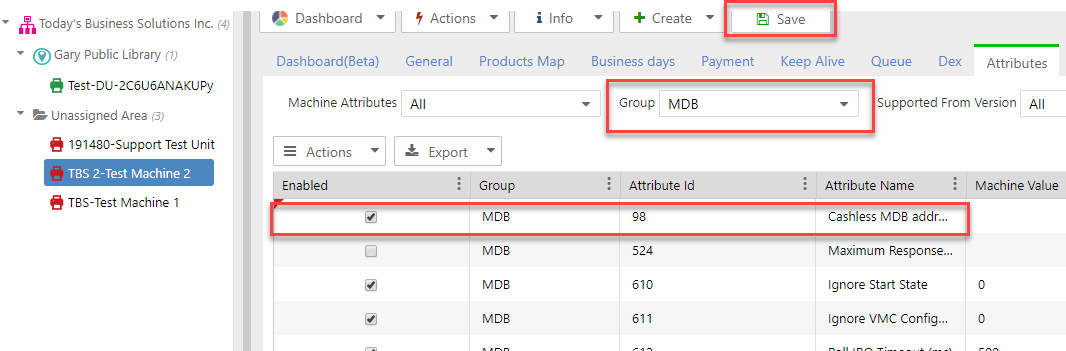
- Once enabled the value of the attribute will need to be changed to Marshall VMC
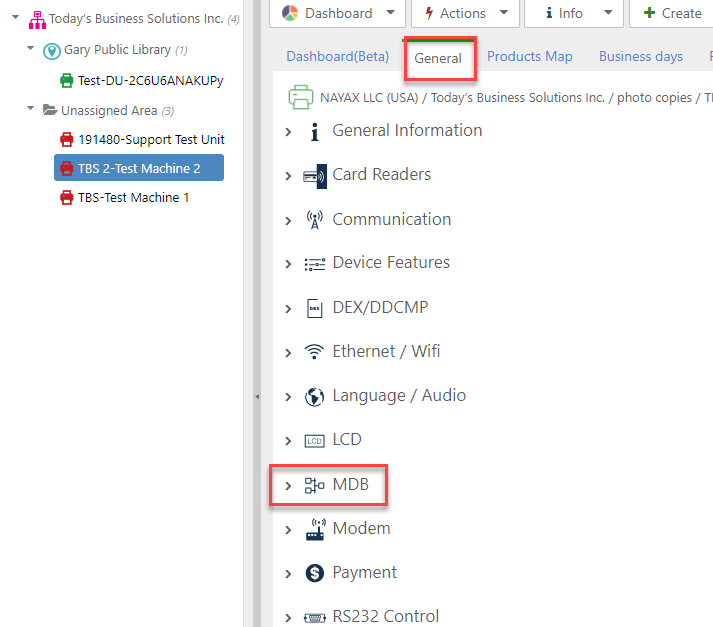
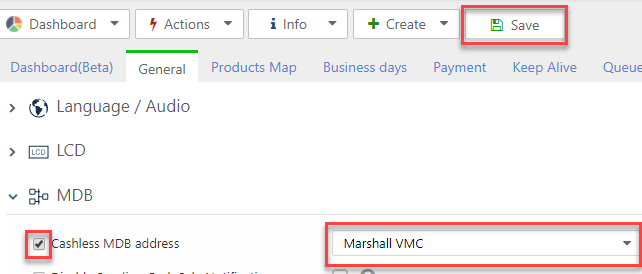
- Configure the rest of the machine as normal. This is the only attribute that is needed for Marshall VMC.
2024 Update: We now have templates created to keep this simple and standardize how all devices are setup. With this, it will enable the Cashless MDB Address automatically.
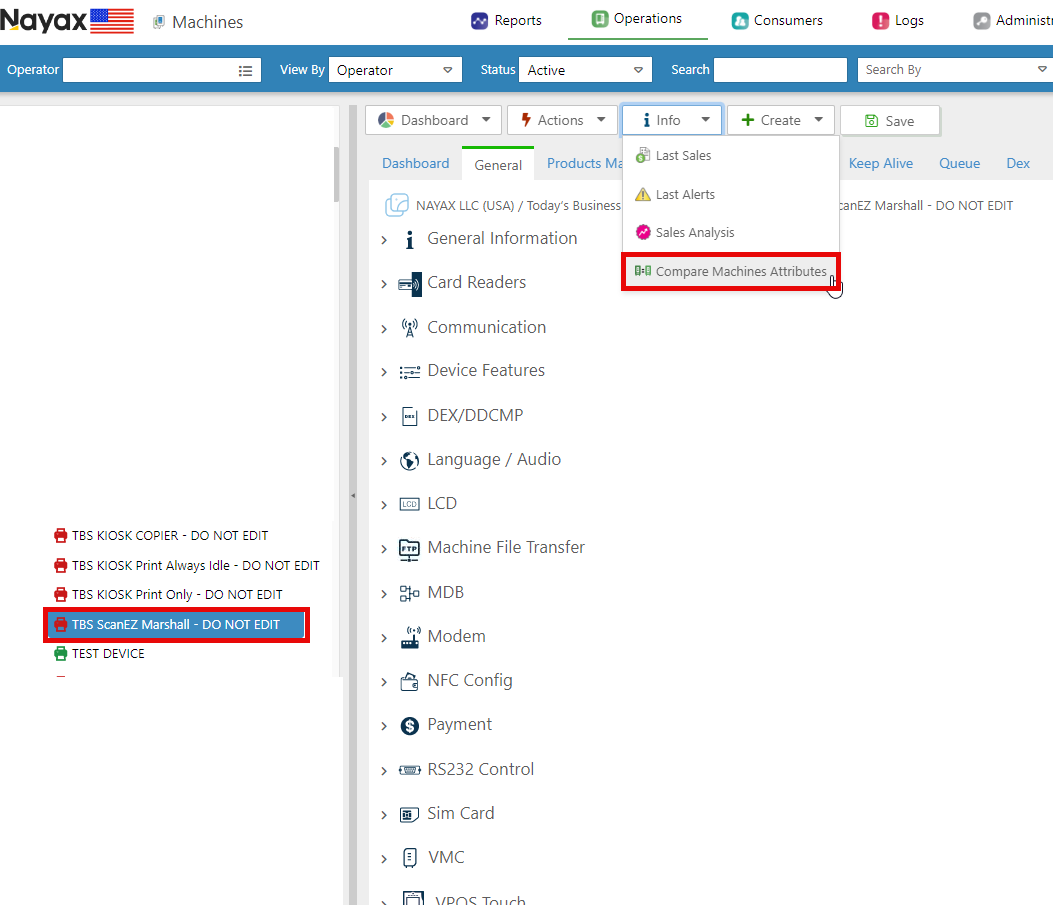
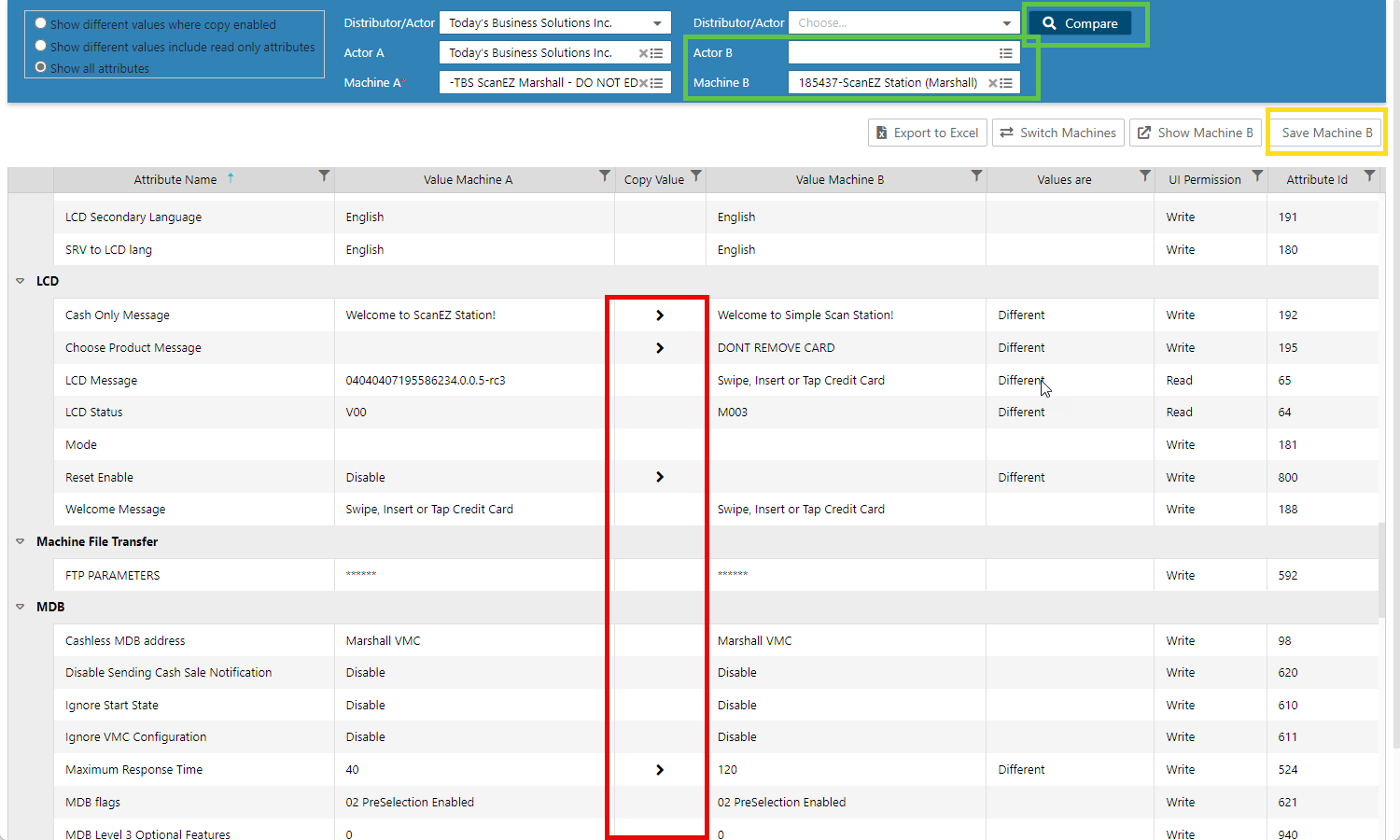
From here, select the device you want to copy TO. Machine A should always be the ‘do not edit’ template and Machine B is the Target Device you want to COPY TO. Once you select the device, hit COMPARE, then select all the settings (arrows) you want to copy. NOTE: if the device is AT&T or Verizon, make sure the communication mode doesn’t change. (AT&T/T-Mobile should be MQTT and Verizon should be VPN Enabled)
Connecting Hardware
-
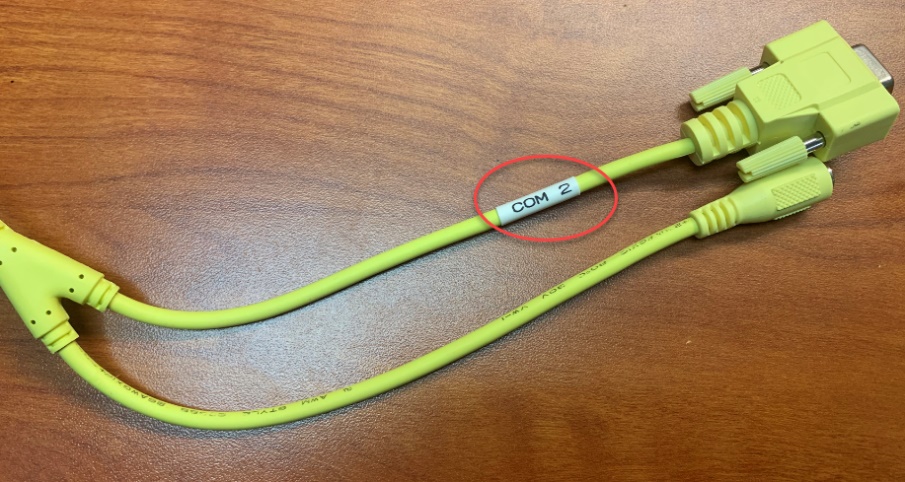
Connect AMIT/VPOST Harness into USB to Serial Port Adapter.
- Note COM2 must be used, COM2 is the serial port daisy chained with the power plug.
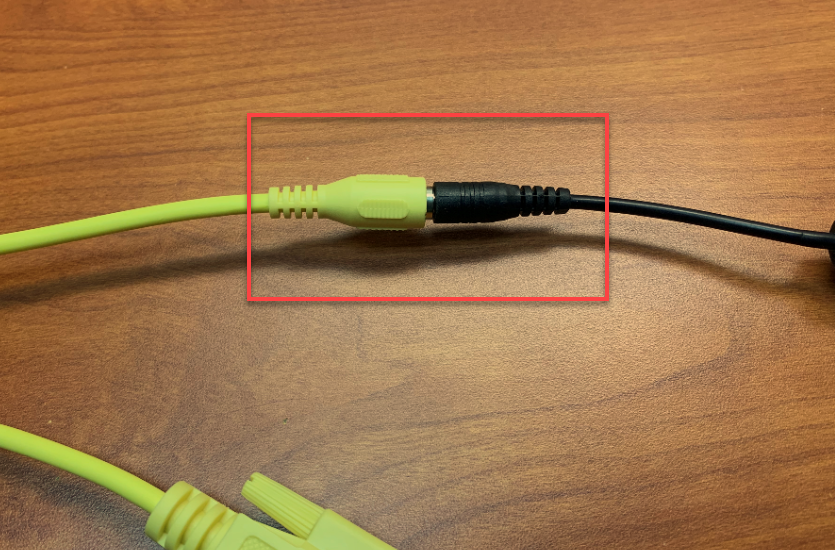
- Connect AMIT/VPOST Harness into power supply.
- Connect AMIT/VPOST Harness into Nayax device
- Note on AMIT devices you must plug in to the I/O port
- Connect VPOSTouch as normal.
Configure ScanEZ Station Software
- Note: ScanEZ software must be licensed for the Nayax device.
-
Plug USB to Serial Adapter into PC
- Once plugged in you will see USB Serial Port (COMX) in Device Manager, make note of this COM number it will be needed.
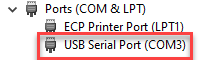
- Note drivers must be installed for Windows to detect the Serial port. The FTDI Virtual COM Port driver can be downloaded here. If drivers are not installed it will show as Unknown Device in Device Manager.

- On Payment > General > Payment Option One select Nayax.
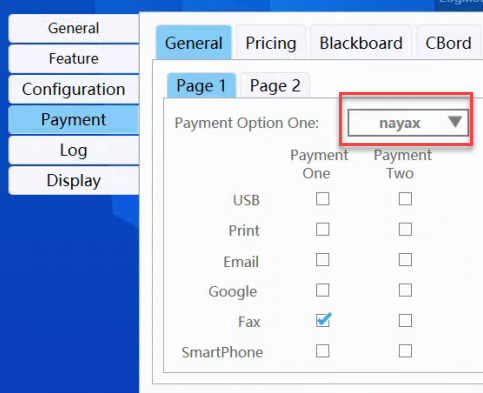
- On Payment > Nayax > Port enter the COM port identified in Device Manager during setup.

- Ensure this is correct, if wrong COM is selected the device will not function
Additional Customizations:
- When using the Marshall Protocol with a VPOS Touch the default screen will be the Cash Only image and text until activated by machine. This would seem as an error message, but this is normal operation.
- To customize the Cash Only Message, change the value in Cash Only Message attribute. You may need to enable the attribute first to modify it. Note: This is already modified in the ‘TBS ScanEZ Marshall - DO NOT EDIT’ Template.
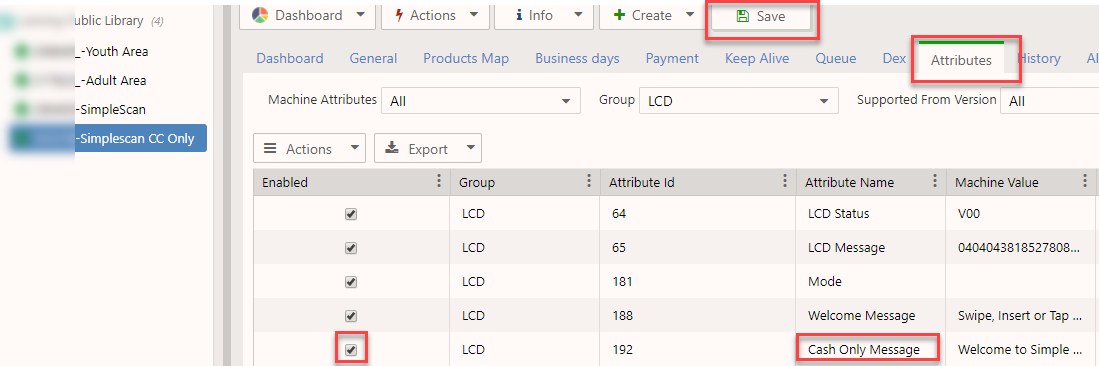
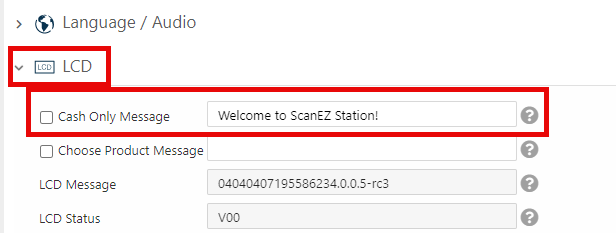
-
To customize the Cash Only Image, you must first send Nayax Support the image to upload (Image specs 240x320px .png or .jpg). Once the image has been uploaded, they will provide an FTP Download link.
- Current image: custom.png;; (in template)
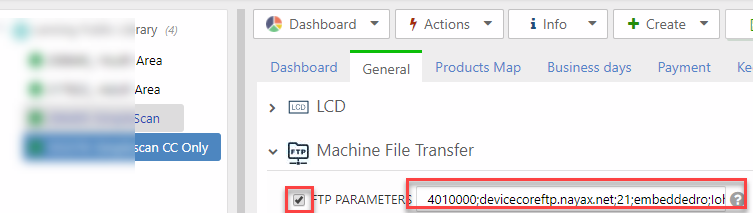
- FTP Parameter: (copy exact below) 4010000;devicecoreftp.nayax.net;21;embeddedro;Ioh1Eqgv;/support/ScanEZ/Custom.png;;f801;Custom.png;
-
To enable the custom image, you must first enable the FTP PARAMETERS attribute under Machine File Transfer. This will allow you to download the uploaded images to the device.
- NOTE: This cannot be copied from template. This must be done per machine as it downloads the image to the device.
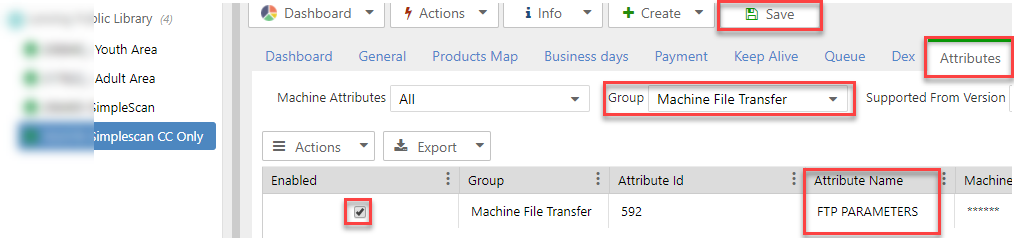
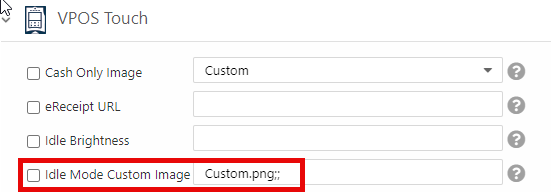
- To enable the custom image, under VPOS Touch change the value in Cash Only Image to Custom.png;; and check the attribute box. DO NOT HIT SAVE YET
- You will also need to download the logo to the device under Machine File Transfer and add the FTP Download link provided by Nayax on the FTP PARAMETERS field and check the attribute box. DO NOT HIT SAVE YET
-
Select Actions > Update Queue to send the settings to device.
- Ensure both attributes are checked
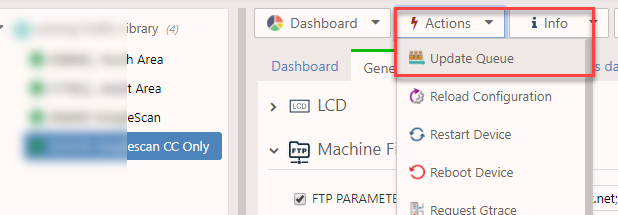
- The device should show a “FTP Download” screen once it receives the command. If no download screen is shown do a Poll or Restart the device. If the image still does not show, ensure the correct FTP Download link was added and send the commands again.
- TEST!