
How to Troubleshoot Nayax Devices when connecting to a ScanEZ Station
If your Nayax device is not working properly with your ScanEZ Station, don’t worry—you can usually resolve the issue by following a series of troubleshooting steps. This guide will walk you through the process to get your device back up and running smoothly.
Step 1: Identify the Device Setup
First, determine whether your Nayax device is installed in a TBS9900 unit or is running as a standalone device. This will help guide the troubleshooting process.
-
For Standalone (Marshall Protocol):
On your ScanEZ Station, navigate to Payment."Nayax" should be chosen.
Check that the COM Port matches the one shown in your computer’s Device Manager (look for “USB Serial Port”).
NOTE: For TBS Technicians, please see the attached knowledge base article for Marshall Protocol configuration in Nayax: How to setup Marshall Protocol Nayax Device with ScanEZ Station | TBS Libraries KB (tbsit360.com)
-
For TBS9900 with Credit Card:
On your ScanEZ Station, go to Payment > 9900.
-
Ensure that Coinbox with Credit Card Reader is set to TRUE.
For "Idle Mode" or "Vend Request Most", this should be set to TRUE.
Step 2: Copy Correct Settings from Nayax Portal
Log into the Nayax Portal and ensure your device’s configuration matches the correct template:
Use the ‘Compare Machine Attributes’ tool.
-
Copy settings from the template:
For TBS9900: 'TBS ScanEZ 9900 – DO NOT EDIT'
For Standalone/Marshall: 'TBS ScanEZ Marshall – DO NOT EDIT'
Do not copy the ‘DEFAULT CREDIT’ setting unless told otherwise.
-
Pay close attention to the Mobile Network Name:
VPN = Verizon
MQTT = AT&T or T-Mobile
Step 3: Schedule Firmware Update
To ensure your Nayax device has the latest features and fixes, schedule a firmware update:
Updates can be performed from the Nayax Portal.
Note: Updates may take up to 1.5 hours, so plan accordingly—preferably outside of busy hours.
NOTE: For TBS Technicians, please see the attached knowledge base article on how to schedule firmware updates: How To: Upgrade Nayax Firmware (On-Demand or Schedule) | TBS Libraries KB (tbsit360.com)
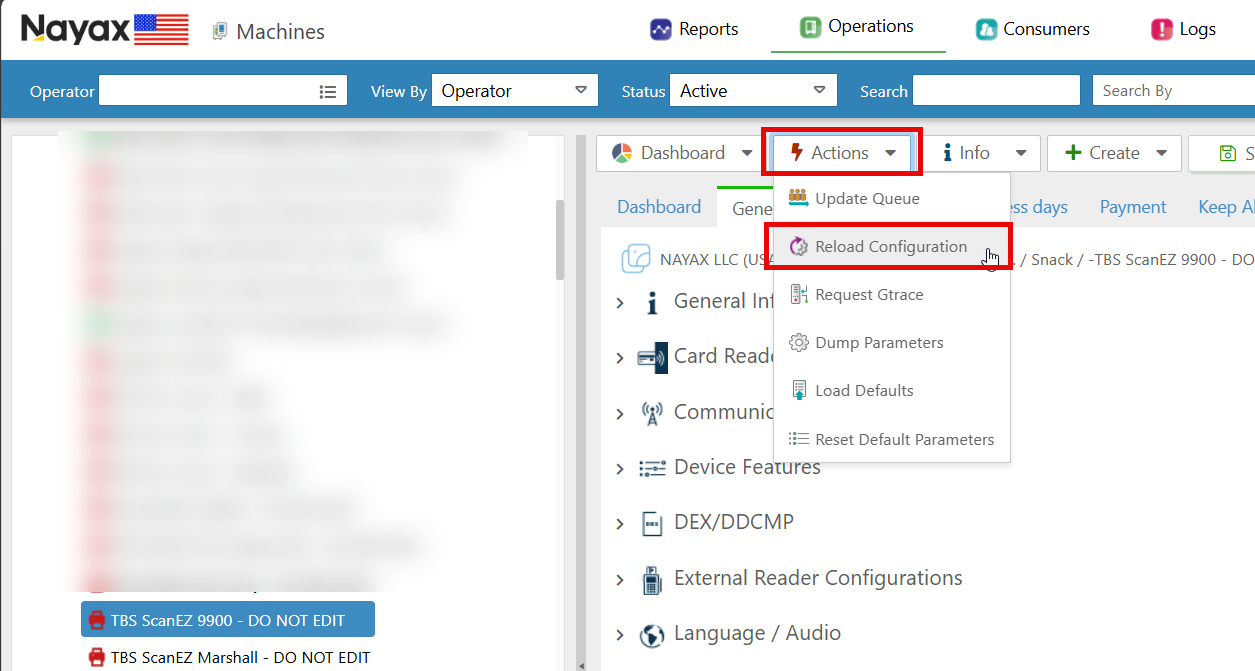
Step 4: Reload Device Configuration
If your device still isn’t working correctly, try reloading the configuration:
This can usually be done through the Nayax Portal or directly from the device menu.
Step 5: Perform Factory Reset and Additional Steps (If Issue Persists)
If the above steps haven't resolved the issue, you’ll need to perform a series of resets. Make sure you are in front of the machine for these steps.
-
Factory Reset (Hardware Reset):
On the Nayax reader, press the three white lines to access the menu.
Select Technician Mode.
Enter password: 123123.
Scroll down to Factory Reset and press the arrow to initiate. The device will reboot.
-
Reset Default Parameters (Software Reset):
After the factory reset and reboot, reset the device’s default parameters from the same menu. The device will reboot again.
-
Reload Configuration:
Once the device has rebooted, reload the configuration. Allow 5–10 minutes for the process to complete and the device to reboot automatically.
-
Restart the Terminal:
Perform one final reboot. You can do this from the Nayax Portal (Actions > Restart) or from the device’s menu (Reboot).
Step 6: Escalate to Support If Needed
If you’ve completed all the troubleshooting steps and the issue still isn’t resolved, escalate your ConnectWise support ticket to Tier 2. Be sure to include detailed notes about every troubleshooting step you’ve completed.
List all actions taken and any error messages or observations.
Provide as much detail as possible to help the support team assist you efficiently.
By following these steps, most Nayax device issues with your ScanEZ Station can be resolved. If you have any questions or need further assistance, don’t hesitate to reach out to your support team!