
How to connect and configure Sharp Copiers for TBS Kiosks/Cpad Control
Additional Parts Needed: Cartadis Cable XCOKL239-KIT061 (provided by TBS)
CONFIGURING THE COPIER/KIOSK INTERFACE
The Kiosk/cPAD does NOT require a D-VEND Kit. The Kiosk/cPAD cable supplied by Cartadis cable is plugged directly into the copier board. It would be the same connector that the D-VEND Kit plugs into.
The Kiosk/cPAD Cable has 2 single-wire connectors, which must be plugged together (See Picture Below). This connector enables the copier's Color ButtonTBS9900.
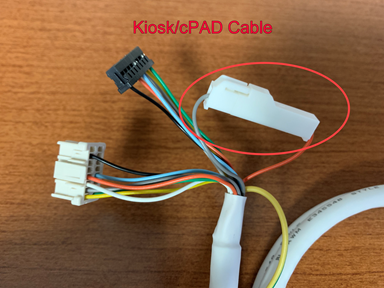
CONFIGURING SHARP COPIER INTERFACE (documented by a Sharp Technician)
CONFIGURING TBS KIOSK/CPAD
How to setup TBS9900 and Kiosk/cPad Stand for copier control and printing | TBS Libraries KB
CONFIGURING CPAD IN PAPERCUT SPECIFIC TO SHARP
When using a SHARP for copy control, this field is set to 'parallel' by default. Go to DEVICES > Select device > ADVANCED CONFIG > PG1. Find ‘ext-device.cartadis_cpad.copier-make’ and change to 'parallel_rev'.

UPDATING EN_US.PCLANG FILE
by default, Ledger paper sizes are tracked as Legal due ot the limitations of below. You can edit this in the cPad en_US.pclang file.
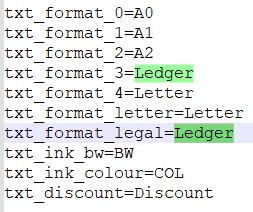
HOW TO Customize logos and text in cPad Firmware | TBS Libraries KB
ADDITIONAL INFORMATION
If you do not change this, the 'parallel' driver will reverse the paper sizes in papercut tracing and charge incorrectly for copying.
The SHARP Copy Interface is limited to 2 paper sizes, so we can only report LETTER and LEDGER to papercut. If you allow Legal paper, this will be tracked as LETTER.
IMPORTANT: If this setting gets reset back to 'parallel', the driver is not in the cPad Drivers folder. Please contact TBS Support to help with this.