
How to setup TBSKiosk/cPad Stand for copier control and printing
COPY/PRINT Kiosk or cPad Stand & Copy ONLY Kiosk or cPad Stand - Standard Modes
COPY/SCAN/FAX
Control off-the-glass copying? - YES
This is configured under the DEVICES > select device > SUMMARY > TRACKING section. To configure copy pricing, you can select the DEVICES > Charging tab or the hyperlink next to the Page Cost in the screenshot below.

Enable cash copies? – YES
To enable and control the cash copies button, you must first create a user. Under the USERS tab is a ‘Create Internal User’ under ACTIONS (top right). You will need a device-specific username to track this specific machine for reporting, a password, and an ID number.
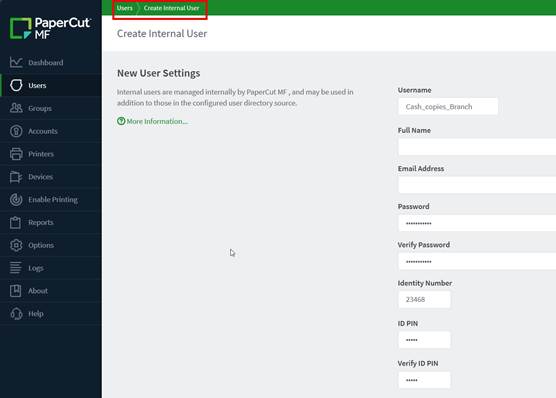
Once your user is created, go to DEVICES > Select device > ADVANCED CONFIG > PG1. Find and edit the following:

NOTE: You can hit UPDATE after each setting OR UPDATE ALL at the bottom of each page.
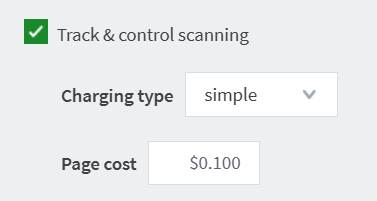
Can I control scanning? – Konica Minolta is the only Interface this function is available
This is configured under the DEVICES > select device > SUMMARY > TRACKING section. The charging type must be set to SIMPLE. Cartadis cPad cannot use the Advanced Charging type or charge differently for a specific threshold, such as more money for the first page.
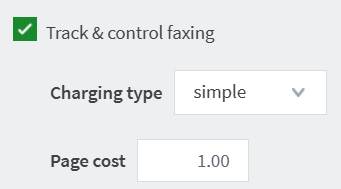
Can I control faxing? - Konica Minolta is the only Interface this function is available
This is configured under the DEVICES > select device > SUMMARY > TRACKING section. The charging type must be set to SIMPLE. Cartadis cPad cannot use the Advanced Charging type or charge differently for a specific threshold, such as more money for the first page.
PRINTING
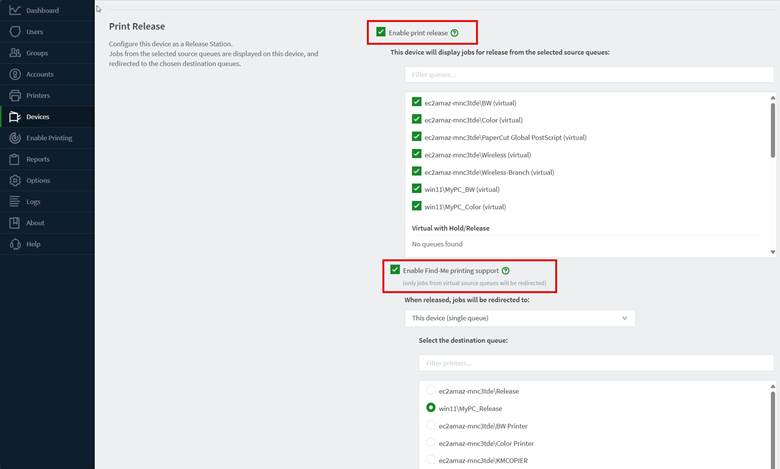
Control printing? - YES
This is configured under the DEVICES > select device > SUMMARY > PRINT RELEASE section. Once enabled, you will need to select your SOURCE Queues (also known as HOLD queues or Virtual Queues in PaperCut). Once you choose your Source queues, you will then need to enable Find-Me printing Support and Choose your release queues.
PAYMENT
Must Enable Credit Card Holds? – YES
When using copy, scan, and/or fax a credit card hold needs to be configured. Go to DEVICES > Select device > ADVANCED CONFIG > PG1. Find ‘ext-device.cartadis_cpad.credit-card-preauth-enabled’ and set to Y.

NOTE: You can hit UPDATE after each setting OR UPDATE ALL at the bottom of each page.
In Nayax, you must enable this as well. Select the device and go to the GENERAL > MDB tab configure ‘MDB Flags’ to be ‘128 Use Max Price for Auth’


NOTE: There are templates configured in Nayax for TBS hardware setup.
Credit Card Payment Types Accepted? – Insert, Tap or Swipe
This is configured in Nayax Portal. Go to GENERAL > CARD READERS > and configure ‘Transaction Start Method’ to ‘Mag+Contact+Contactless’.

NOTE: Swipe is only accepted when the Credit Card does NOT have TAP/CHIP capabilities.
Payment with Cash? – Yes, Kiosks Only.
Kiosks can support standard coin/bill operators or be upgraded to High-Capacity coin-op/bill recyclers. A High-Capacity Coin-op/Bill Recycler can hold up to $90 in coins and up to $30 in $1s as change for the customer.
Payment with Credit Card? – Yes.
Nayax is supported for payment on all configurations of Kiosks, TBS9900s, and cPad Stands.
Use Cash, Credit and Papercut Accounts together? – NOT ALWAYS
When using Papercut Accounts, this is the only time you can use this as payment with Credit Card or Cash. To be more specific:
- Can I use Cash and Credit Card at the same time? – NO
- Can I use cash and Papercut Account at the same time? – YES
- Can I use Credit Card and PaperCut Account at the same time? – YES
Add Funds to my PaperCut Account using Cash? – YES
When using the ability to Add Funds to PaperCut Account, you can use cash. There are 2 ways to do this during your session:
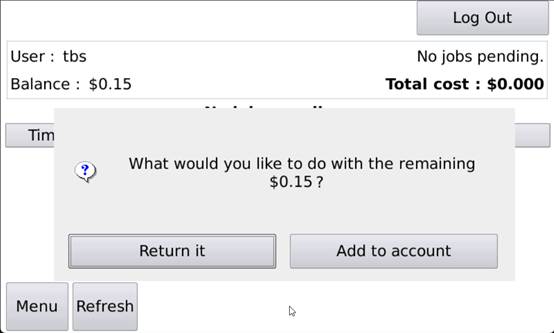
- Once you have completed printing/copying and logged off, you will be prompted to either Add Funds to the Account or Return the change.
- Go to the COPY page, or MENU change of the cPad
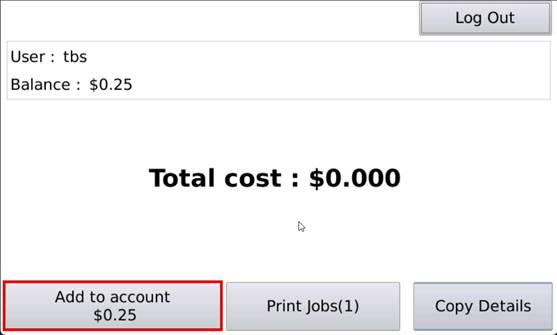
To enable this, Go to DEVICES > Select device > ADVANCED CONFIG > PG2 and find ‘ext-device.cartadis_cpad.recharge-account-enabled’. Set this to Y and UPDATE.

Add Funds to my PaperCut Account using Credit Card? – NO
When using Credit Card HOLDs for copy/scan/fax configuration, the transaction finishes at the end when you log off. You cannot add funds in this way because PaperCut and Nayax treat this as 2 transactions. The first transaction is for the copy/print/scan/fax charge, and the 2nd transaction is for adding the remaining funds to your account. This is called ‘Split Tender’ and is not supported.
This value under DEVICES > Select device > ADVANCED CONFIG > PG2 and find ‘ext-device.cartadis_cpad.recharge-account-enabled’ must be set to N.

Restrict certain Groups of Users to add Funds to PaperCut Account? – YES
When allowing funds to be added to accounts, you would want to block certain groups, like guest passes from being able to do this. Go to DEVICES > Select device > ADVANCED CONFIG > PG1. Find ‘ext-device.cartadis_cpad.adding-money-forbidden-for-users-matching-exp’ and set. This is a Java-based HEX code. Below is an example to block any alpha-numeric card number and a card number that starts with a ‘9’.

ADDITIONAL CONFIGURATION FOR COPYING
Force User balance – needs to be enabled with copying due to the ‘escrow’ feature in Papercut. If this is not enabled, a user could log into a cPad, but no balance will be displayed. This is an intermittent issue.

Copier models within advanced config settings? Need a List
COMMON QUESTIONS:
Can I control and charge for printing FROM a USB? – NOT ALWAYS
For the majority of copier brands, this is not supported at all, but with Konica Minolta, it can only be controlled when using the kiosk/cPad for COPY ONLY and no print release is enabled in the cPad.
How many copies/prints can I make when using cash? – UNLIMITED
When using cash, as long as you keep replenishing cash into the coin tower, the session will not end unless due to inactivity.
How many copies/prints can I make when using Credit Card? – BASED ON DEAULT CREDIT.
When using a credit card, this is limited to the default credit set. For example, if you set your default credit limit to $5.00, you can print jobs up to $5.00, then you will need to log off and log back into the kiosk/cPad and swipe your credit card again for another $5.00. If you try to make more copies than you have money for, the copy job will stop once it runs out of money and will not complete the remaining copies if there aren’t enough funds.
NOTE: Doing so would also add another $5 hold to your account, so in this scenario, you would have $10 in holds on your Credit Card.
Can I Print/Copy/Scan/Fax all within the same session? YES
When logged into the kiosk/cPad, you can do all the above within the cash/credit card limit.
When is it OK to enter Cash or use my Credit Card? – ANYTIME
When using the kiosk/cPad for Copy, the 9900 is configured for ‘standard mode,’ which means payment can be made before or after logging into the cPad to copy/print.
NOTE: When printing, you can also wait until you are prompted for payment after selecting your print jobs.
How do I get my money back if I decide not to copy/print/scan/fax?
If you enter in cash or use your Credit Card before logging into the kiosk/cPad and change your mind, you can hit the coin return ‘plunger’ to end the transaction in the 9900, and it will return your cash and/or end your credit card session without any hold being put on the card. If you are already logged into the kiosk/cPad, you can log out. This will return your cash and/or end your credit card session without putting any hold onto the card.
NOTE: If you are already logged into the kiosk/cPad, the coin return ‘plunger’ is disabled.
Can my copier support duplex discounts and scan/Fax control? – MODEL DEPENDANT
Click the link below for detailed information based on copier models and functions.
Cartadis - CPAD Copier Functionality Compatibility.pdf