
How to change MyPC Desktop Profile Password
If you use MyPC on your client computer, your login is tied to a Windows user account—this could be a local account or part of your organization’s domain. When you change your Windows password, it’s important to update that password in MyPC desktop profile too. This ensures you can continue to access your profile without any interruptions. In this article, we’ll walk you through the steps to edit your MyPC desktop profile and update your password.
Why You Need to Update Your MyPC Desktop Profile Password
Your MyPC profile stores your Windows user credentials so you can log in seamlessly. If your Windows password changes (for example, due to a regular password update or a reset), MyPC will try to use your old password and may show login errors or prevent you from accessing your desktop profile. To avoid these issues, it’s best to update your password in MyPC as soon as you change it in Windows.
How to Edit Your MyPC Desktop Profile Password
Follow these simple steps to update your password for your MyPC desktop profile:
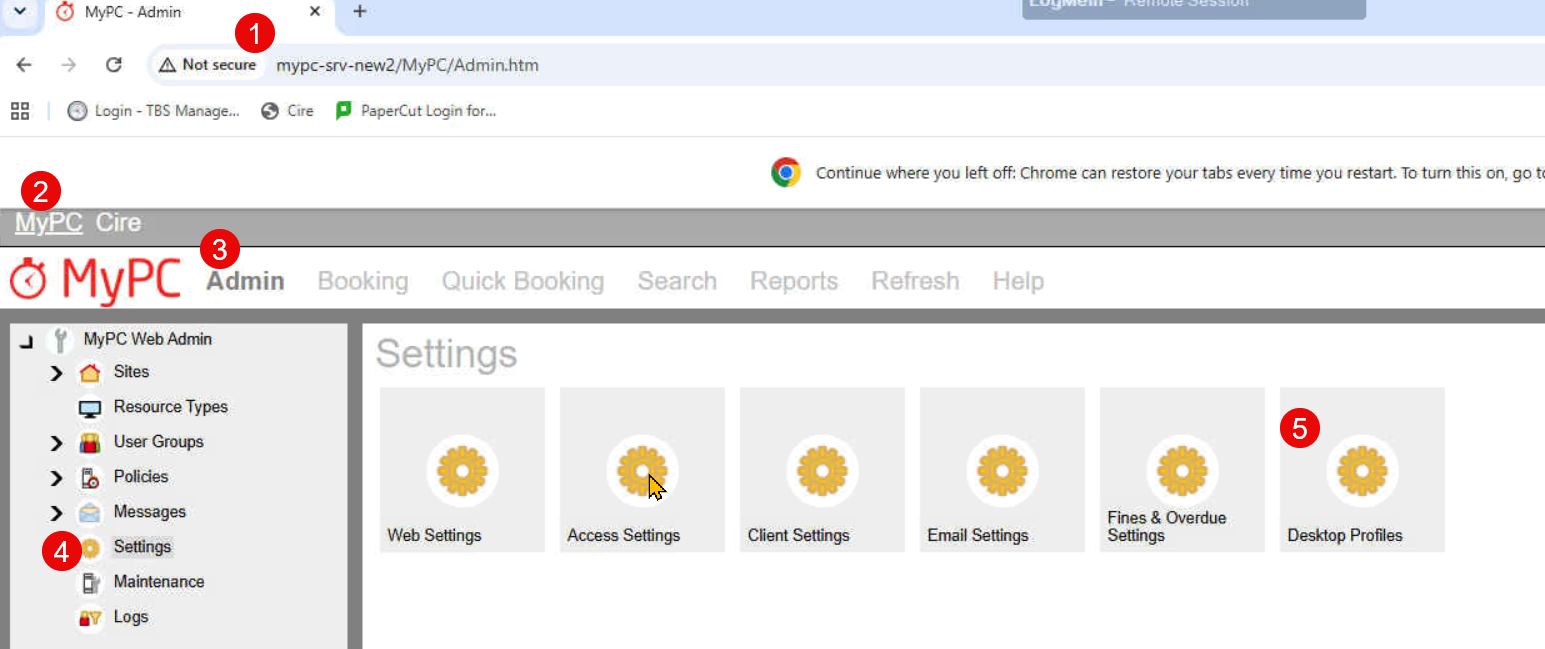
What Happens Next?
Once you’ve updated your password, MyPC will use the new credentials the next time you log in or access your desktop profile. This helps keep your access smooth and avoids errors due to mismatched passwords.
Tips and Troubleshooting
If you forget to update your password: You may see login errors or be unable to access your profile. Simply follow the steps above to update your password and try again.
If you’re unsure which profile to update: Confirm the Windows username or computer name associated with your MyPC desktop profile. Your IT department can help if you’re not sure.
If you still can’t log in: Double-check that you typed your new password correctly. If problems persist, contact your IT support team for assistance.
Need More Help?
If you have any questions or run into issues updating your MyPC desktop profile password, don’t hesitate to reach out to TBS support team.