
How PaperCut software communicates between components
Overview of Core Components
PaperCut's print management solution is built around the following main components:
Application Server: The central processing unit for account management, quotas, job logic, reporting, and web interfaces.
Print Provider: The service installed on Windows print servers that interacts directly with the Windows Print Spooler, monitors print jobs, gathers job metadata, and communicates with the Application Server.
Monitor Threads: Dedicated threads within the Print Provider that monitor printer queues via Windows Spooler APIs, trigger job analysis, and relay information to the Application Server.
Archiving + Ghost Trap: How archiving and ghost trap play into the papercut system from a single server to multi servers.
Single Server Layout
In a single server setup, all components—Application Server, Print Provider, and web interfaces—are installed and run on the same physical or virtual machine. This architecture suits environments with moderate print volume and server load.
Operational Flow
User submits a print job to a Windows shared printer.
The Windows Print Spooler receives the job, and the Print Provider’s monitor threads detect spooler events (job added, paused, resumed, etc.).
Monitor thread queries job details via Windows API (GetJob, JOB_INFO_2). If necessary, it opens the spool file (.SPL) to analyze job metadata such as page count and attributes.
The Print Provider sends job metadata to the Application Server over HTTP/XML-RPC.
The Application Server processes the job using configured logic (quotas, filters, scripts), determines the required action (charge, hold, release, delete).
The Application Server instructs the Print Provider how to proceed (hold, release, redirect, archive).
The Print Provider acts accordingly, and the job is either released to the Windows Print Spooler (and thus to the printer), held for release, or deleted.
All job activity is logged in the Application Server’s database for reporting and auditing.
Edge Cases and Considerations
Thread Stalls: If a monitor thread is stuck in the GetJob API (e.g., due to Windows Error 87 or spooler issues), jobs on the affected printer queues will not be processed until the Print Provider times out and restarts the thread. This can temporarily hide new jobs.
Application Server Down: If the Application Server is unavailable, the Print Provider cannot process jobs, leading to delays or job loss depending on configuration.
Network Isolation: Ensure firewall rules allow communication on required ports (9191/9192) between clients and the server.
Resource Contention: All processing is centralized, so server overload can degrade performance for all users.
Multi-Server Layout (Primary-Secondary / Distributed Environment)
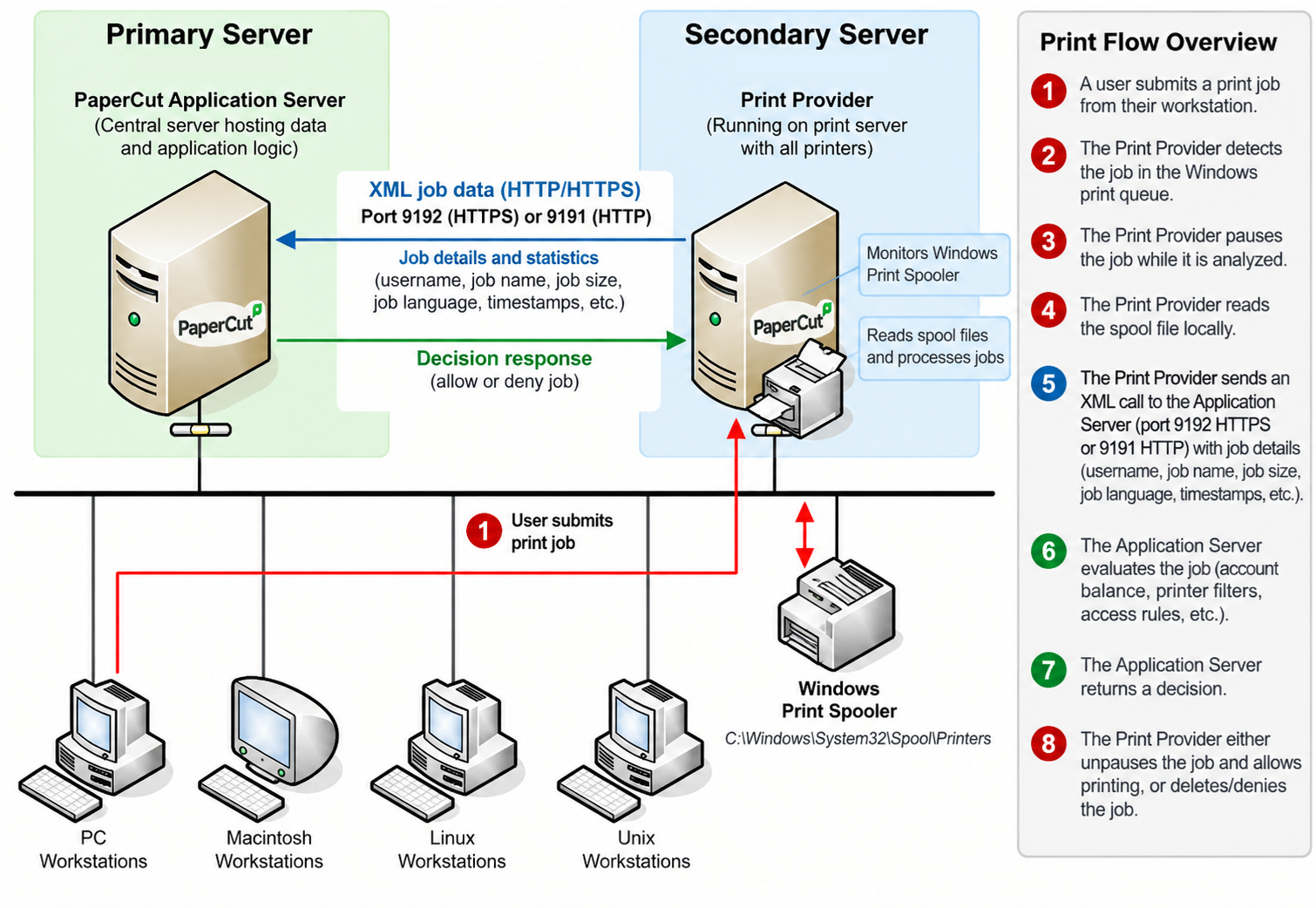
For larger organizations or distributed sites, PaperCut supports a multi-server architecture. This typically involves a Primary Application Server and one or more Secondary Print Servers, each running the Print Provider. Client print jobs are routed to the print server, and all job metadata is centralized on the Application Server.
Prerequisites
Primary Application Server: As in a single server, with additional capacity for handling metadata from multiple sites.
Secondary Print Servers: Windows servers at remote or departmental locations, running the Print Provider.
Reliable network connectivity between all Secondary Print Servers and the Primary Application Server (required for XML web service communication).
Firewall rules to allow intra-server communication on ports 9191/9192.
Consistent time synchronization (NTP) across servers for accurate job logging.
Operational Flow
User submits a print job to a shared printer hosted on a Secondary Print Server.
The Secondary Print Server’s Print Provider monitors the local Windows Print Spooler using monitor threads.
Upon print job detection, the Print Provider gathers job metadata and initiates a connection to the Primary Application Server over HTTP/XML-RPC.
The Application Server processes the job as per configured policies (accounting, quotas, filters, scripts).
The Application Server responds to the Secondary Print Provider with instructions (hold, release, delete, etc.).
The Secondary Print Provider acts on the job accordingly; the job is released to the local spooler, held, or deleted.
All job activity is logged centrally on the Application Server, even for jobs processed on remote servers.
Key Points in Multi-Server Deployments
Initiator of Communication: The connection is always initiated from the Print Provider to the Application Server, never the other way around. This design simplifies firewall rules and allows Secondary Print Servers to operate in environments with outbound-only network policies.
Failover and Redundancy: If the Primary Application Server is unreachable, jobs on Secondary Print Servers may be delayed or lost, depending on local cache and policy configuration. Plan for high availability if needed.
Load Distribution: Print processing load is distributed across Secondary Print Servers, reducing the burden on the Primary Application Server to mostly metadata processing and reporting.
Edge Connectivity: In environments with unreliable WANs, consider site-local caching or fallback printing policies to avoid print outages.
Consistent Configuration: Printer and queue configuration (names, driver versions) should be standardized across Secondary Print Servers to ensure consistent accounting and policy enforcement.
Component Responsibilities and Limitations
Application Server: Handles all decision-making, account management, policy enforcement, reporting, and web UI. Does not directly interact with the Windows Print Spooler or render print jobs.
Print Provider: Installed on each print server (primary or secondary); responsible for monitoring the Windows Print Spooler, extracting job metadata, and enforcing hold/release/delete actions as instructed by the Application Server.
Monitor Threads: Use Windows Spooler APIs (FindFirstPrinterChangeNotification, GetJob) to track queue activity. Are not port monitors and do not run in PrintIsolationHost. If threads hang, affected printers become unmonitored until recovery.
-
What They Do Not Do:
Do not render print jobs (handled by printer drivers and PrintIsolationHost).
Do not send data directly to physical printers (handled by Windows Spooler and port monitors).
Do not convert or render archive preview thumbnails.
Ghost Trap and Print Archiving
Print Archiving and Ghost Trap split work between the two components. The Print Provider service copies the spool file and then the Application Service stores the archive and uses Ghost Trap to turn that spool into viewable images.
What each piece does
Ghost Trap is PaperCut’s sandboxed Ghostscript. It is not the archiver. It converts PostScript/PDF (and PaperCut uses it as the viewer engine for supported PDLs) into page images so the Job Log can show thumbnails and an in-browser preview. PaperCut’s setup guide says install it on the primary PaperCut server. PaperCut detects it and starts using it.
Print Archiving is the feature that keeps a copy of the job. Default store on the primary is:
[app-path]\server\data\archive
Flow with Primary + Secondary Setup
Jobs print to queues on print server. The Print Provider already pauses and analyzes the job and talks to application server. With archiving on, it does one extra thing: it copies the Windows spool file (PS, PCL, EMF, XPS, PDF, etc.) into the central archive on the application server. That copy is supposed to happen during spooling so print itself is not delayed much.
Because the spool file lives on the print server and the archive that admins browse lives on application server, PaperCut requires a shared central archive:
Share the archive folder on the primary (or put it on a file share both can see).
On the print server, set ArchiveDir= in
[app-path]\providers\print\win\print-provider.conf
to the UNC, e.g. ArchiveDir=\\172.19.3.124\print-archive (or the hostname share).Run the PaperCut Print Provider on both servers as a domain account that can read/write that share. Local System cannot write across the network.
NOTE: Application server DOES NOT PULL spool files from print server. The Secondary Print Server PUSHES the file into the central archive.
Where Ghost Trap actually runs
Step |
Where |
What happens |
|---|---|---|
Job hits the queue |
Print Server (spoolsv + Print Provider) |
Spool file created |
Archive copy |
Print Server → share on Application Server |
Provider copies spool into ArchiveDir |
Thumbnail / first-page image |
Application Server + Ghost Trap |
Known PDL → preview image |
Admin opens the viewer |
Application Server + Ghost Trap |
Extra pages rendered on demand |
Retention cleanup |
Application Server, overnight maintenance |
Jobs older than “Keep jobs for up to X days” deleted |
Ghost Trap CPU belongs on Application Server, not Secondary. Application Server’s extra cost is disk I/O and copying the spool across the network. PaperCut warns archiving adds CPU, especially on small VMs, because of that conversion work.
What does not get archived
The Provider copies the spool only after the job is released for printing. Held Find-Me / hold-release jobs are not archived while they sit. Cancelled jobs and jobs that expire in the hold queue are not archived. Direct Print Monitor jobs are never archived.
Supported preview PDLs include EMF, PCL5, PCL6, PDF, PostScript, and XPS. Proprietary languages (e.g. Canon UFR) can still store a spool file but Ghost Trap cannot render a thumbnail. See How to troubleshoot print archiving and "pc-pdl-to-image" errors for more information on troubleshooting or How to install or reinstall Ghost Trap for Papercut.
Why this setup breaks in practice
If the Application Server’s Provider still runs as Local System, or ArchiveDir is wrong, or the share perms/password have expired, jobs still print and track, but Job Log thumbnails are broken, and there is no archive file. That is the usual “secondary server archiving forgotten” failure.
Overnight, the Application Server’s maintenance job deletes archive content past the retention setting. The archive is files on disk, not inside the PaperCut database, so it needs its own backup if you care about it.
Common Edge Cases and Troubleshooting
Monitor Thread Failures: If a thread does not return from GetJob or is stuck due to a Windows error, PaperCut will eventually recycle the thread after a timeout. During this period, jobs on the affected queue are unmonitored.