
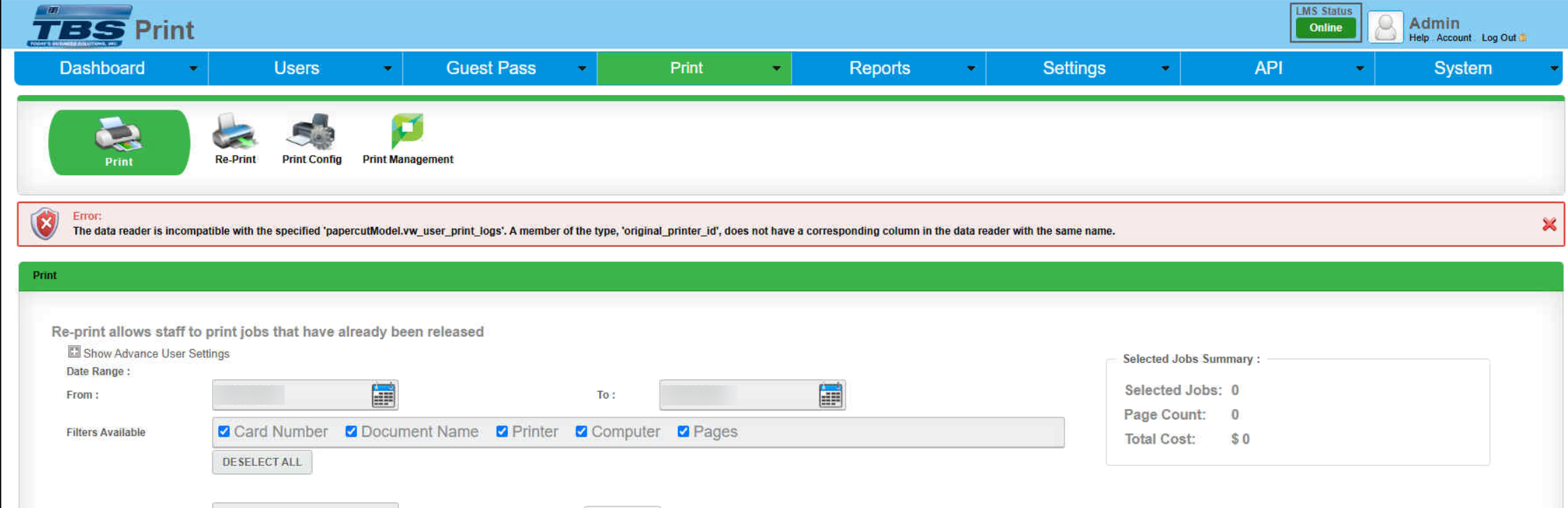
Re-print portal displays 'the data reader is incompatible' error
If you’re seeing the error “the data reader is incompatible with the specified 'papercutmodel.vw.user.print.logs'. a member of the type 'original_printer_id', does not have corresponding column in the data reader with the same name” after upgrading PaperCut or the TBS Portal, don’t worry—this is a common issue. It usually happens when the application’s data model (used in code) is out of sync with the actual structure of the database view or table it reads from. Let’s walk through why this occurs and how to fix it using SQL.
Understanding the Error
This error typically means that your application’s code expects a column called original_printer_id in the SQL view or table papercutmodel.vw.user.print.logs, but that column doesn’t exist in the database view anymore.
Why does this happen? During upgrades, database views or tables may change—columns can be renamed, added, or removed, but the application code may not be updated accordingly.
What’s the result? When the application tries to map its model to the database and can’t find the column, it throws this error.
How to Fix the Error
You have two main options:
Add the missing column (original_printer_id) to the view in SQL. If the Column is already checked, then uncheck it, save and check it again.
Update the application’s data model to match the current view structure.
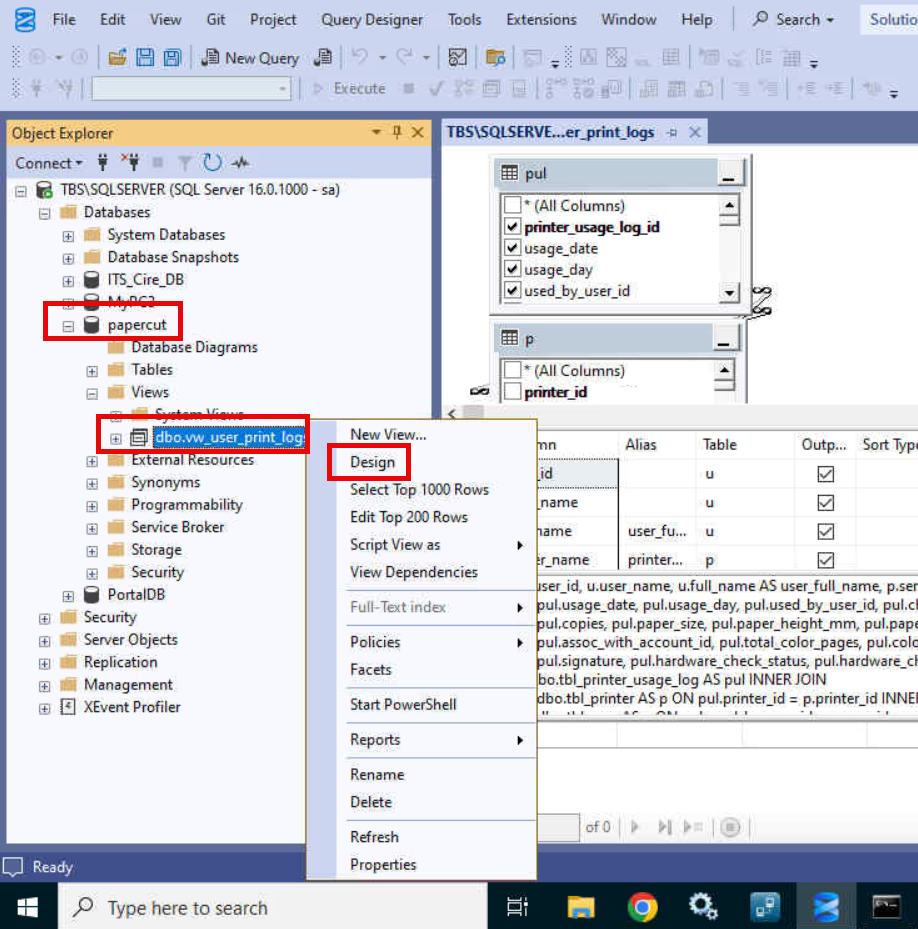
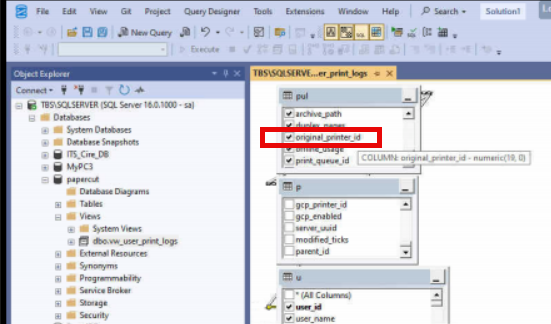
In most cases, adding the column in SQL is faster and keeps compatibility with any other code that expects it. Below, we’ll focus on this SQL-based fix.
Step 4: Save and Test
After updating the view, save your changes.
Relaunch the TBS Portal and go to the re-print tab.
Test the workflow that was causing the error to confirm it’s resolved.
Tips and Troubleshooting
Always back up your existing view definition before making changes.
If you’re unsure about the source of original_printer_id, talk to your development team or check version control/documentation.
If the column is genuinely obsolete, consider updating the application model as a longer-term fix.
Summary
This error is a classic case of the application model and database structure getting out of sync, often due to upgrades. Restoring or mocking the missing column in the view is usually the quickest fix. If you need more help, reach out to the team or check your schema history for changes related to original_printer_id.