
How to Invite TBS User to MyPC Cloud
If you’ve just set up your new MyPC Cloud system, you’ll need to give TBS access so we can help support your environment. Don’t worry—it’s a quick process, and we’re here to walk you through each step! Follow this guide to invite us and set up the right permissions.
Step 1: Activate Your MyPC Cloud Account
First, check your inbox for an email from the MyPC Cloud system. This email will have instructions and a link to activate your admin account. Make sure you complete this step before moving on.
Step 2: Invite TBS as a User
Once your account is active and you’re logged in, it’s time to invite TBS to your MyPC Cloud system. Here’s how:
-
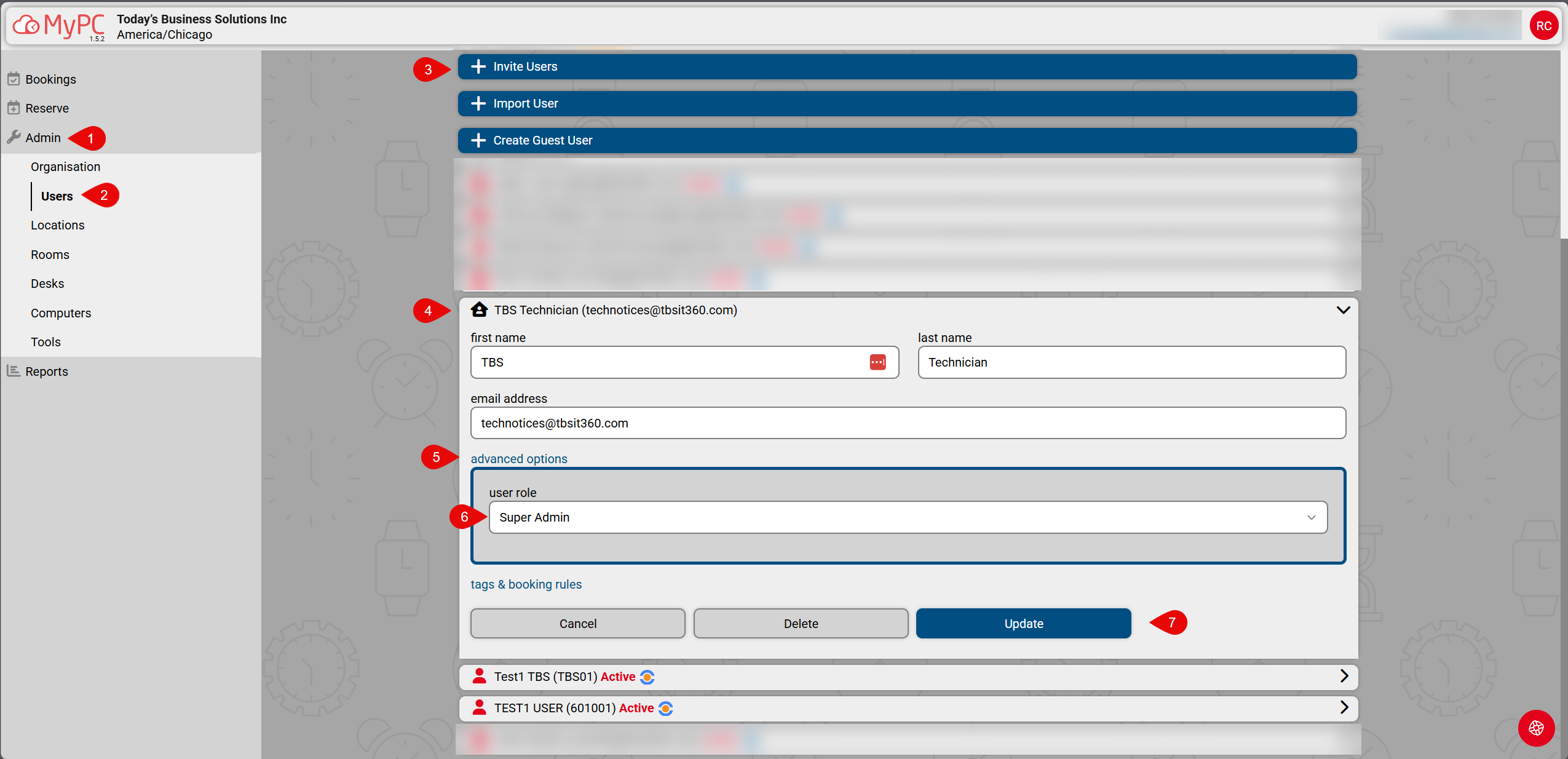
Click on the Admin tab. (Step 1 in screenshot)
This is usually located on the left-side menu or at the top of your dashboard.
-
Select the Users tab. (Step 2 in screenshot)
This will show you the list of current users on your system.
-
Click the Invite Users button. (Step 3 in screenshot)
This option lets you add new users to your MyPC Cloud account.
-
Fill out the invite form with the following details: (Step 4 in screenshot)
First Name: TBS
Last Name: Technician
Email: technotices@tbsit360.com
Double-check that the email address is entered exactly as above so our team receives the invitation.
Click INVITE to send the invitation.
Step 3: Set TBS User Role to Super Admin
After TBS accepts the invite and activates our account, you’ll need to make sure we have the right level of access. Here’s what to do:
-
Find the new user called "TBS Technician" in your user list.
You can look for our name or search for the email address you just entered.
Click on the TBS Technician user to open their profile. (Step 4 in screenshot)
-
Select Advanced Options. (Step 5 in screenshot)
This may appear as a button or a link within the user profile.
-
Set the User Role to SUPER ADMIN. (Step 6 in screenshot)
This gives TBS the access needed to provide full support and management for your MyPC Cloud system.
Click UPDATE to save your changes. (Step 7 in screenshot)
Need Help?
If you have any questions or run into any issues, please don’t hesitate to reach out to us through your project ticket. We’re here to help every step of the way!
Thank you for trusting TBS with your MyPC Cloud support. We look forward to working with you!