
How to connect USB Isolator
If you need to connect a USB isolator to your Cpad setup, you’re in the right place! This guide will walk you through the process, step by step, to ensure everything is connected correctly. Don’t worry—no advanced technical skills are required. Just follow along, and you’ll have your barcode scanner connected via a USB isolator in no time.
What You’ll Need
Cpad (your main device)
USB hub
USB isolator
Barcode scanner
Before You Begin
Take a quick look at your Cpad. It only has two USB ports, so you may already have a USB hub connected. If not, that’s going to be our first step!
Step 1: Connect the USB Hub to the Cpad
-
Find an available USB port on your Cpad.
If your barcode scanner is already connected directly to the Cpad, unplug it for now. You’ll be connecting it differently in a moment.
Plug the USB hub into one of the Cpad’s USB ports.
Step 2: Connect the USB Isolator to the USB Hub
-
Choose any free port on your USB hub.
Most USB hubs have at least four available ports, so pick whichever one you like.
-
Plug the USB isolator into the chosen port on the USB hub.
The isolator will help protect your devices from electrical surges and interference.
Step 3: Connect the Barcode Scanner to the USB Isolator
-
Take your barcode scanner and plug its USB cable into the output side of the USB isolator.
Make sure the connection is firm and secure.
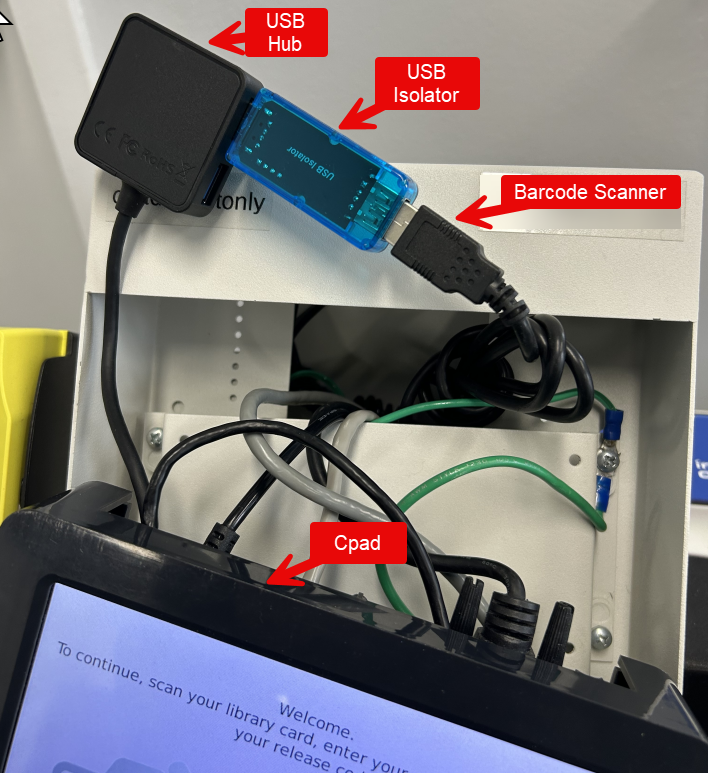
How Should Everything Be Connected?
After following these steps, your devices should be connected in the following order:
Cpad → USB hub → USB isolator → Barcode scanner
This setup ensures your barcode scanner is protected and can communicate properly with your Cpad.
Troubleshooting Tips
Devices not recognized? Double-check all cable connections and make sure everything is plugged in firmly.
Still having issues? Try connecting the USB isolator to a different port on the USB hub, or restart your Cpad.
Barcode scanner not working? Barcode scanner may need to be reprogrammed. PaperCut and Cpad settings may needs to be checked.
Need More Help?
If you’re still having trouble or have questions about your specific devices, feel free to reach out to your support team for assistance. They’ll be happy to walk you through any tricky steps.
That’s it! You’ve now connected your USB isolator to the Cpad, making your barcode scanning setup safer and more reliable. Great job!