
How to Add a Computer to MyPC Cloud
Adding new computers to your MyPC Cloud system is a straightforward process, whether you're setting up a single workstation or a whole fleet. This guide will walk you through all the steps of adding a PC to the system.
Access the Admin Panel
-
Log in to MyPC Cloud.
Start by signing in with your admin credentials.
-
Navigate to the admin section.
Look for the admin or configuration area. Here, you’ll find options to manage rooms, desks, and bookings.
Add a New Computer
-
Open the “Computers” section.
Within the admin panel, find and click on “Computers.”
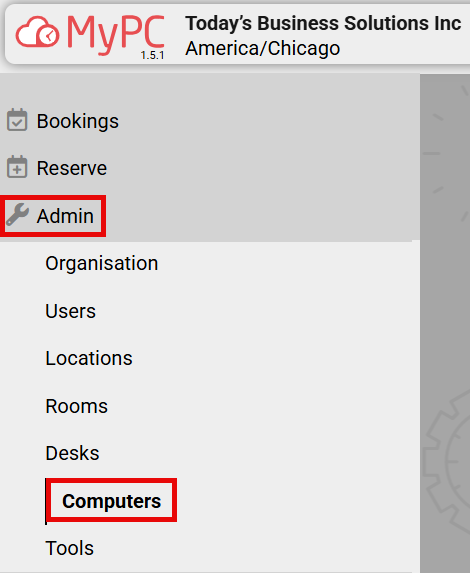
Click “Add New.”

Enter Computer Details
-
Name and ID Name:
Give your computer a clear, descriptive name (e.g., “Computer 101”). The ID Name should match the NetBIOS name of the actual computer for easy identification.
-
Physical Location:
Select the location from the dropdown list. Locations might be floors, buildings, or zones that you’ve already set up.
-
Default Booking Duration:
Set how long a typical booking lasts (for example, 60 minutes). Users can adjust this when making a reservation if needed.
-
Description:
Add any extra details or notes about this computer. This is optional but can be helpful for staff.
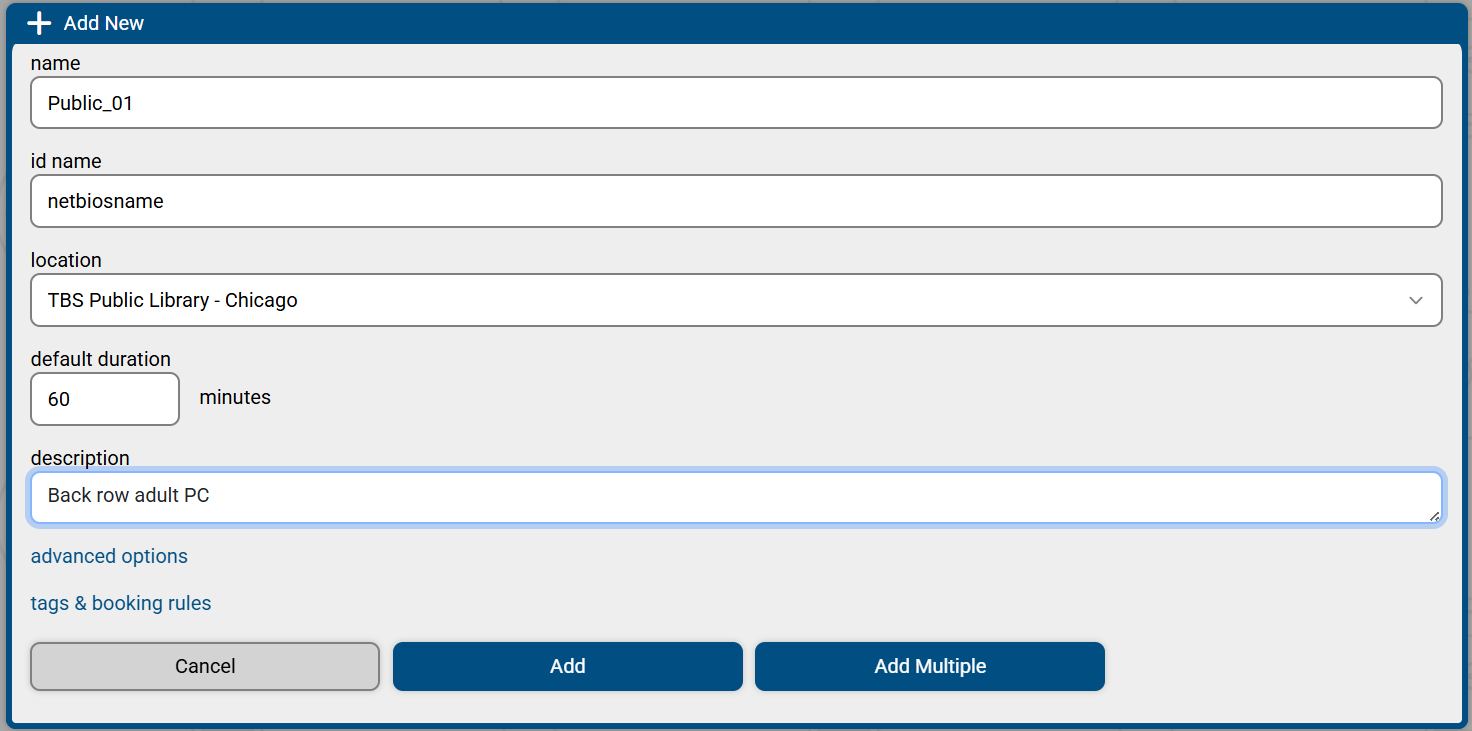
Click ADD.
Bulk Computer Creation
If you have several computers to add at once, you have two main options: batch creation or CSV import.
Adding Multiple Computers at Once
Follow the steps for adding a single computer.
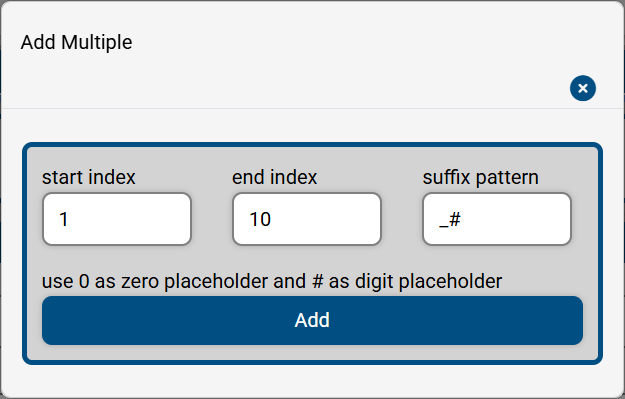
Instead of clicking “Add,” choose Add Multiple.
Enter the start and end index numbers (e.g., 101 to 120).
Click Add. The system will create computers with the same settings and names, just numbered sequentially.
Importing Computers from a CSV File
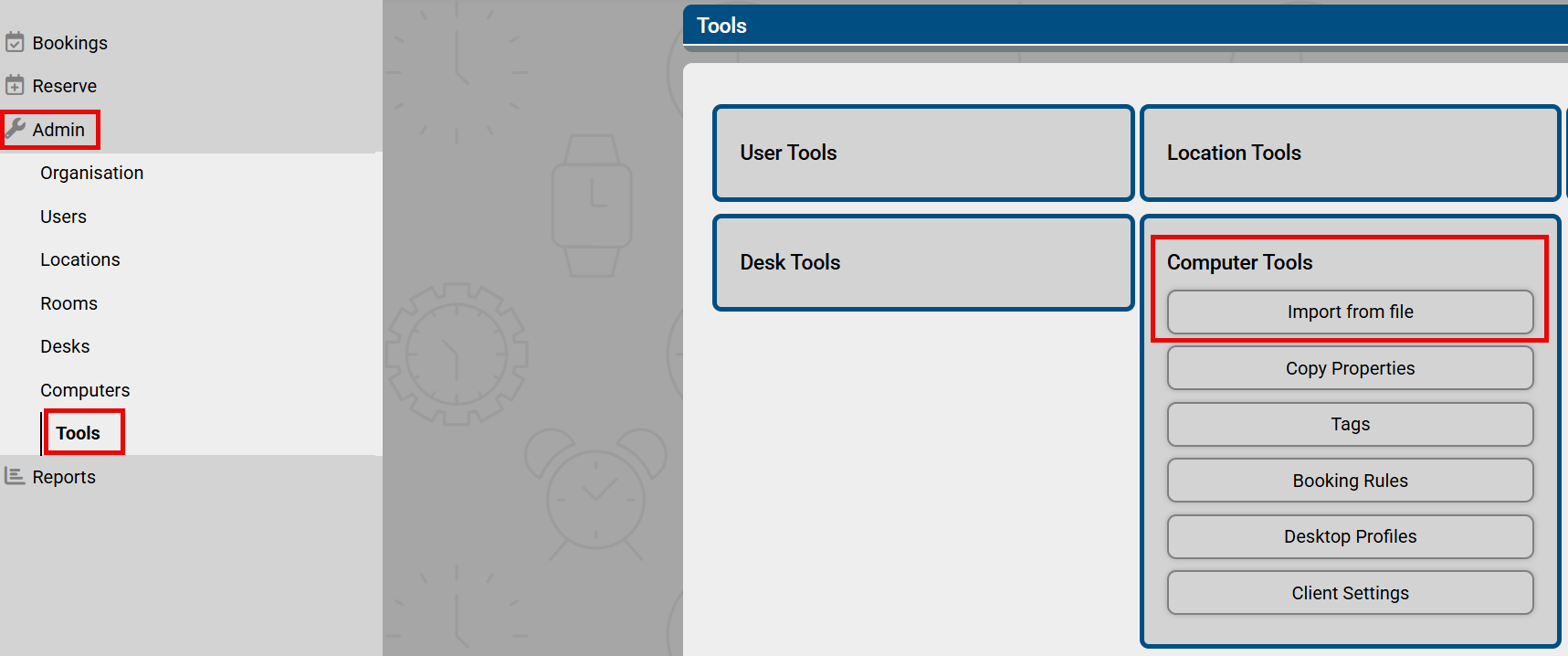
Go to the admin section and select Tools.
Click on Computer Tools.
Click on Import from file, download the CSV template and fill it out with your computer details.
Upload the completed CSV file (up to 28Mb). MyPC Cloud will add all listed computers.
If there are any errors, you’ll be able to download a file showing what needs to be fixed.

Additional Information:
This article references MyPC Cloud Helpsite Article: How to add a computer - MyPC Cloud Help Centre
Video for steps: Click Here
That’s it! With these steps, you can add and manage computers in MyPC Cloud efficiently, whether you’re handling one or a hundred. If you need further help, don’t hesitate to reach out to our support team.