
How To Configure Idle Mode for TBSKiosks for Printing Only
Setting up Always Idle Mode on your TBS KIOSK streamlines payment for users—one tap or card insert and they're done! This guide walks you through the complete configuration process, so you can get this feature up and running quickly and smoothly.
What Is "Always Idle" Mode?
With Always Idle Mode enabled, when someone selects a print or scan job at the ScanEZ station, the TBS-9900 instantly sends a Vend Request (including the item and its exact price) to the TBS Kiosk. The user simply taps or inserts their card, and the transaction processes right away—no extra steps or double-tapping required.
Important Compatibility Notes
Not compatible with copiers. Only use with Print Release or ScanEZ stations.
-
Required firmware and software:
TBS-9900: X7 2.2+ (or X6 4.3+)
Nayax: v4.0.24.12+
cPAD Firmware 3.7.0 +
-
Access needed to:
TBS-9900 front panel (Black/Green/Red/Blue buttons)
Nayax Portal (Operations → Machines section)
PaperCut Portal to configure cPad Device (Devices)
Step 1: Set Up the TBS-9900 Coin Box
On the TBS-9900, press the Black button repeatedly to reach the Main Menu.
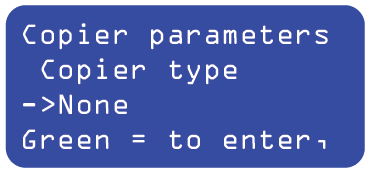
Go to Copier Parameters
-
Select Copier type:
Press Green to enter.
Press Red to modify. Set to None (this is essential!).
Press Green to save.
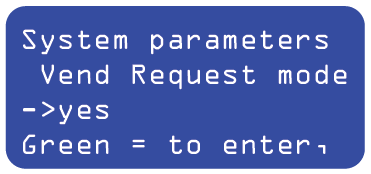
Navigate to System Parameters
Scroll with the Black button until you find "Vend Request mode".
Press Green to enter.
Press Red to modify. Set to Yes.
Press Green to save (enables Always Idle Mode).
-
Press Black repeatedly to exit back to the Hello! screen.
NOTE: You should see an error about the card reader not being configured for Idle Mode. This is the next step.
Tip: Use Red/Blue buttons to change values, Green to save/advance, Blue to go back.
Step 2: Configure Your Nayax Device in the Portal
Log into the Nayax Portal.
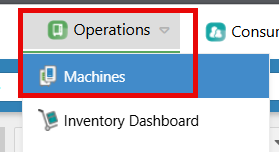
Go to Operations → Machines.
Find the correct Serial/Machine you are updating.
-
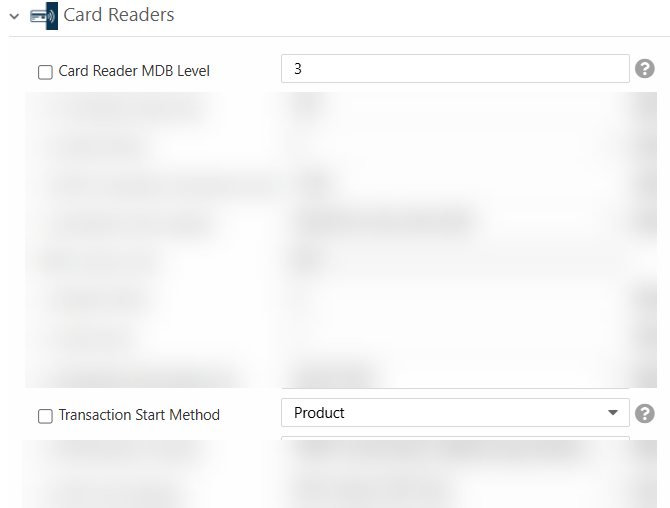
In the Card Readers section:
Check box and set Card Reader MDB Level = 3
Check box and set Transaction Start Method = Product
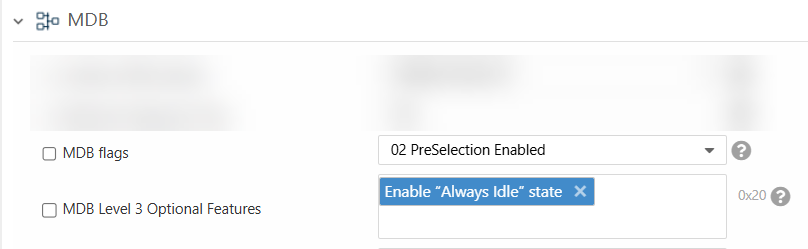
In the MDB section:
Check box and set MDB Flags = 02 Preselection Enabled
Check box and set MDB Level 3 Optional Features = Enable “Always Idle” State
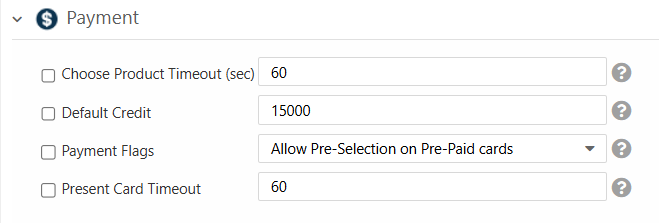
In the Payment section:
Set Choose Product Timeout = 60 (in seconds)
Set Default Credit = 15000 ($150 max limit for Nayax)
Set Payment Flags = Allow Pre-Selection on Pre-Paid cards
Set Present Card Timeout = 60 (in seconds)
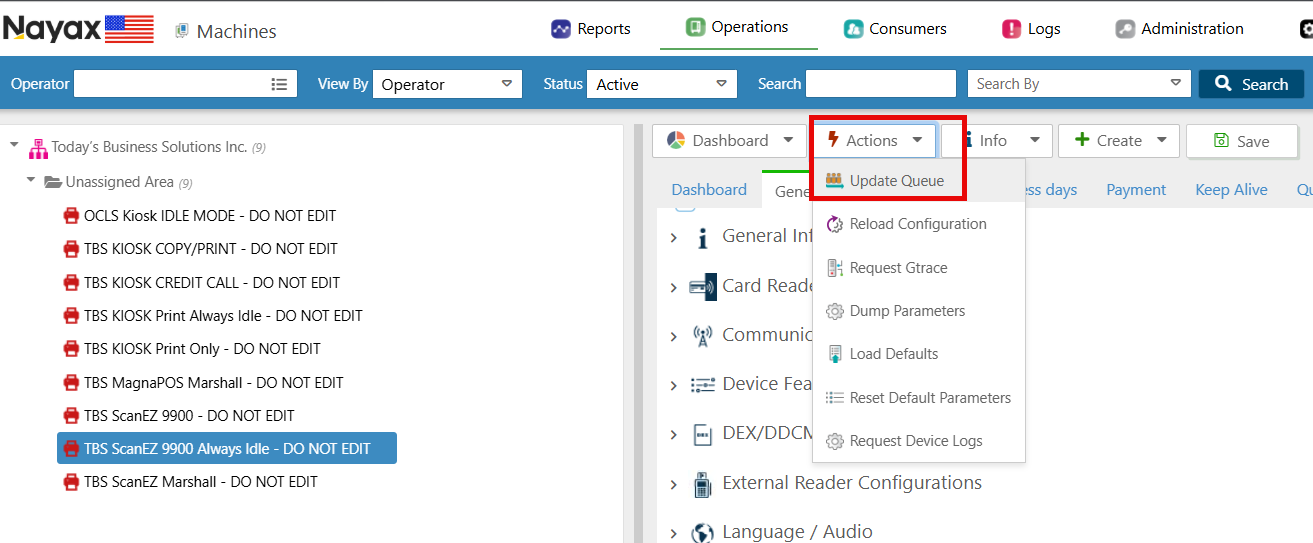
Click the ACTIONS > UPDATE QUEUE push your configuration to the device.
Once parameters are collected, you can restart the device.
NOTE: Best Practice is to shut down the coin tower for 4-5 minutes to allow the Nayax device to fully drain all power.
IMPORTANT!
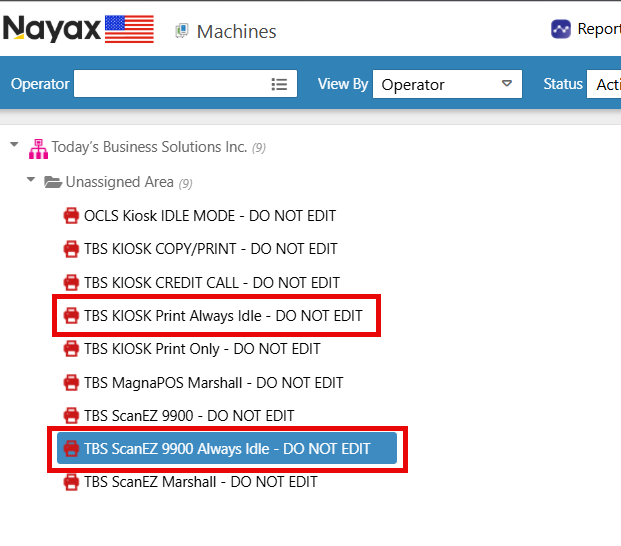
TBS Templates can be copied. These templates are all 'do not edit', so they are easy to search. DO NOT EDIT THESE TEMPLATES!
Step 3: Set Up the cPad in PaperCut
Log into the PaperCut web portal. (/admin)
Go to the Devices tab and select your 'device\cpad' you want to edit.
-
-
On the Summary tab, go to External Device Settings:
-
Scroll Down to Tracking:
Disable Track & control copying
-
-
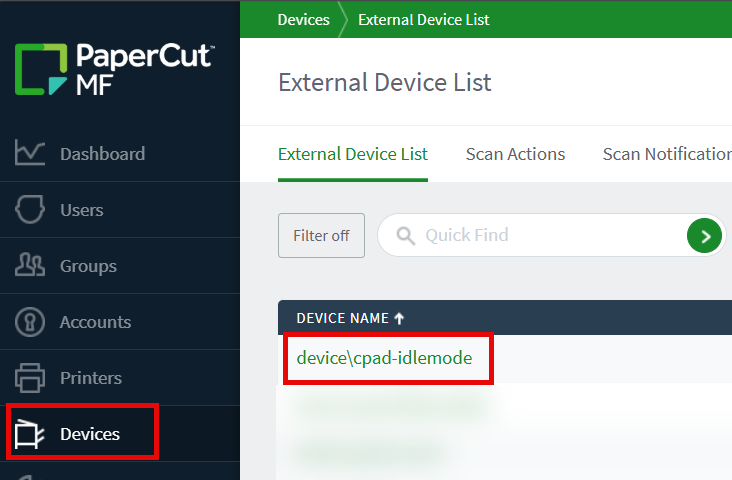
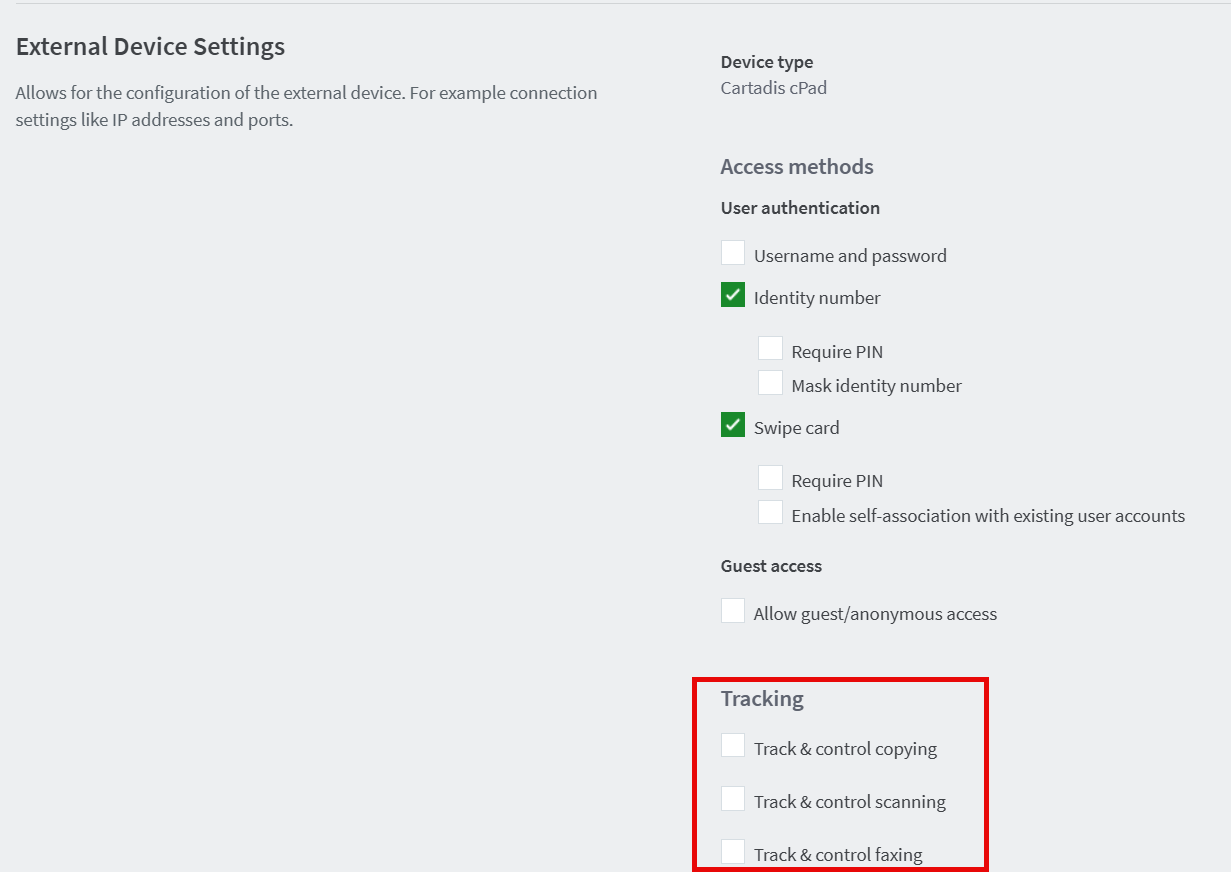
On the Advanced Config tab:
-
Scroll down to "ext-device.cartadis_cpad.bank_card_always_idle_session_mode_enabled"
Set this to "Y" (yes=enabled)
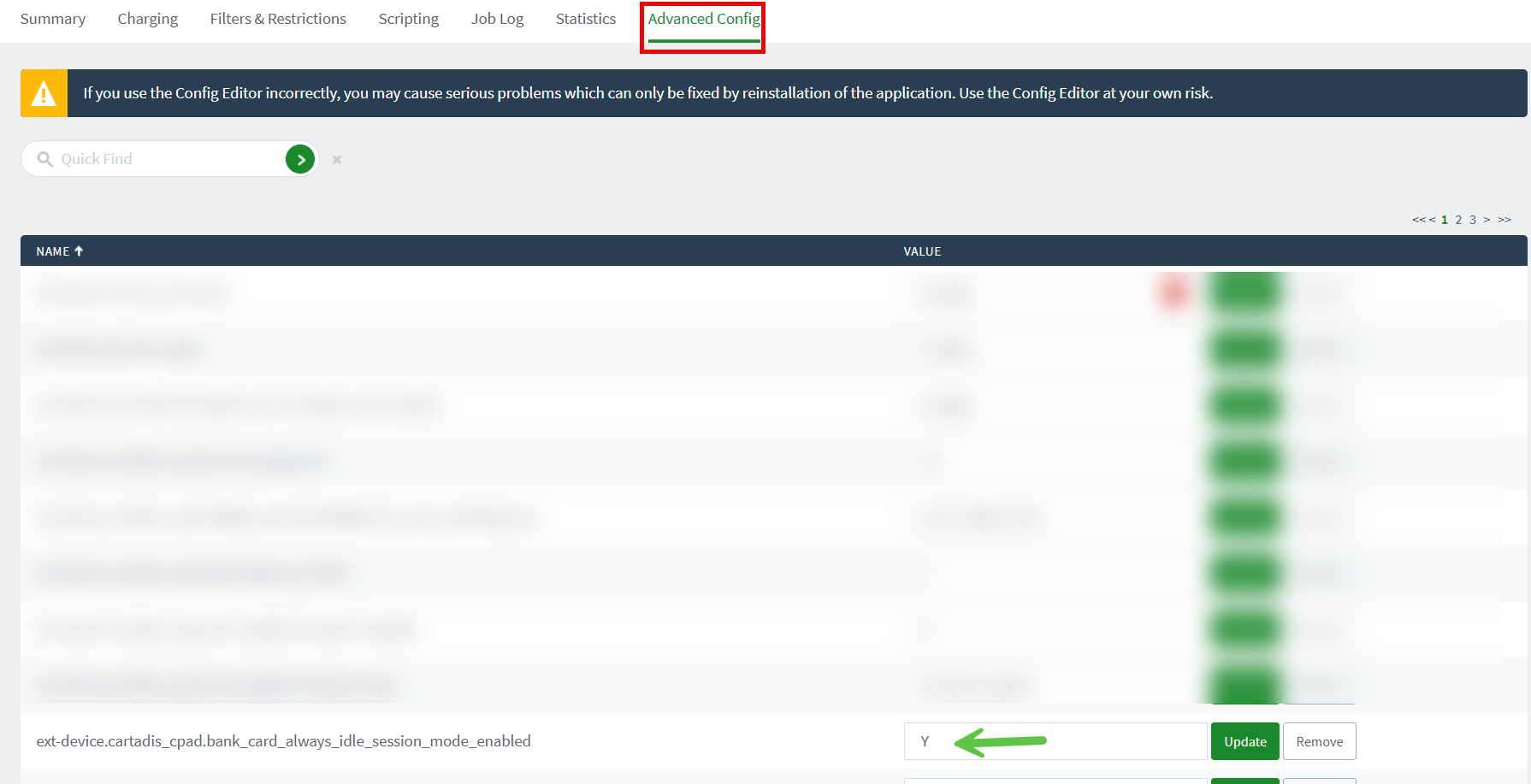
IMPORTANT: Confirm that "ext-device.cartadis_cpad.credit-card-preauth-enabled" is set to N (NO=disabled)
REBOOT CPAD TO PULL NEW SETTINGS
Testing and Verification
Print a test job.
Log into cPAD with your library card or the guest name that you sent the test job with.
Click PRINT or PRINT ALL to print all jobs.
The Nayax reader should immediately display the exact amount needed.
Tap or insert a card—the transaction should complete instantly, and the job releases.
Additional Tips and Troubleshooting
If your Nayax signal is low (RSSI < 12), move the antenna outside the coin box or use a Nayax Antenna Booster.
Adjust session or inactivity timeouts in System Parameters if needed (recommended: max 5 min inactivity, 15 min session).
-
Always confirm your firmware versions:
TBS-9900: Main Menu → Firmware version
Nayax: Check in portal
If issues arise, note error messages, firmware versions, and menu screens to assist with troubleshooting.
That's it—you're all set to enjoy the fast, seamless payment experience of Always Idle Mode! Be sure to test thoroughly before rolling out to everyone, and reach out with any questions or issues.