
How to Change the TBS Portal Session Timeout
If you want to adjust how long users stay logged in to the TBS Portal before being automatically signed out, you’ll be happy to know that session timeout settings are now easy to configure directly within the portal’s application settings. This means you no longer need to tweak complex web server or application pool settings — you have full control at your fingertips!
What Is Session Timeout?
Session timeout refers to the period of inactivity after which a user is automatically logged out of the portal for security reasons. This is especially important for protecting sensitive data and ensuring sessions don’t remain open indefinitely. The default timeout for the TBS Portal is set to 240 minutes (4 hours), but you can change this to fit your organization’s security policies or user needs.
Prerequisites
Before you get started, make sure you have the following:
Administrator access to the server where TBS Portal is installed.
Permission to edit files in the TBS Portal installation directory (usually C:\inetpub\wwwroot\tbsportal\).
A text editor such as Notepad or Visual Studio Code.
Backup capability so you can restore the original configuration if needed.
Where to Find the Timeout Setting
The session timeout value is stored in the portal’s Web.Config file. This file controls many important settings for the TBS Portal, including how long sessions last.
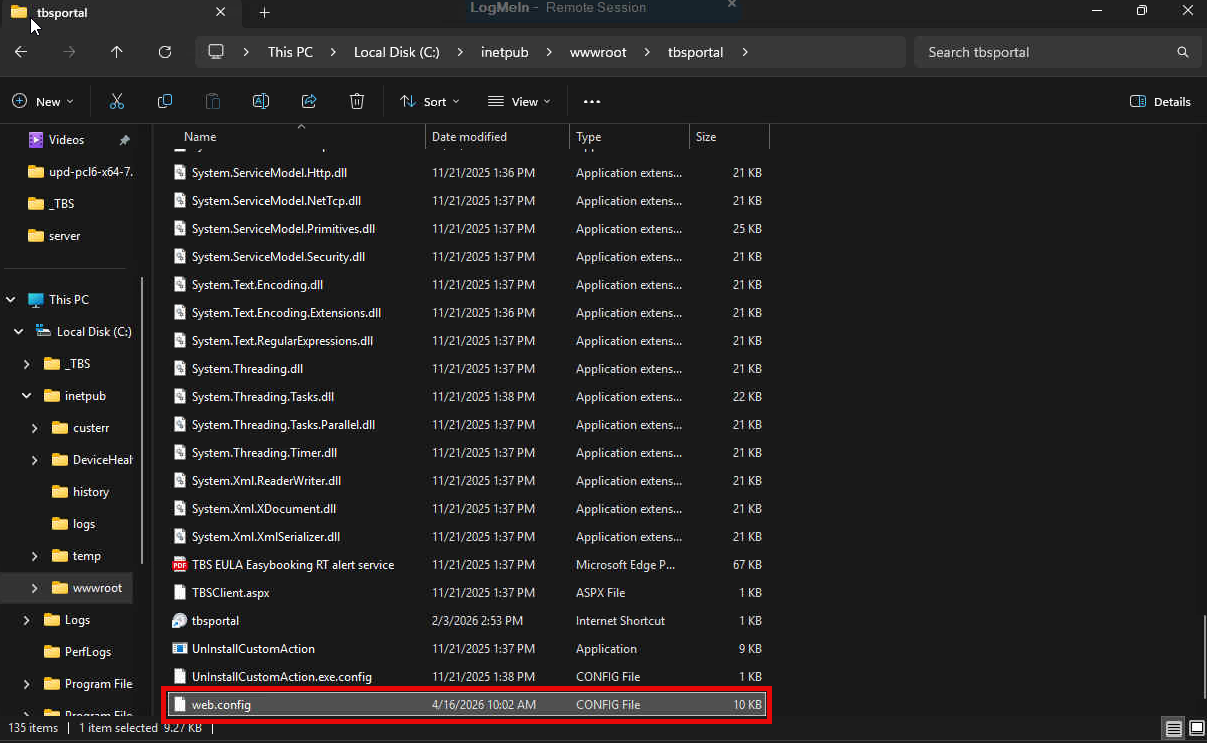
Location: C:\inetpub\wwwroot\tbsportal\Web.Config
How to Change the Session Timeout
Step 1: Back Up the Web.Config File
Navigate to C:\inetpub\wwwroot\tbsportal\ on your server.
Find the Web.Config file.
Make a copy of this file and store it somewhere safe. This way, if anything goes wrong, you can restore your portal’s configuration quickly.
Step 2: Open the Web.Config File
-
Right-click Web.Config and choose Edit (or open it with your preferred text editor).
Step 3: Locate the Session Timeout Setting
-
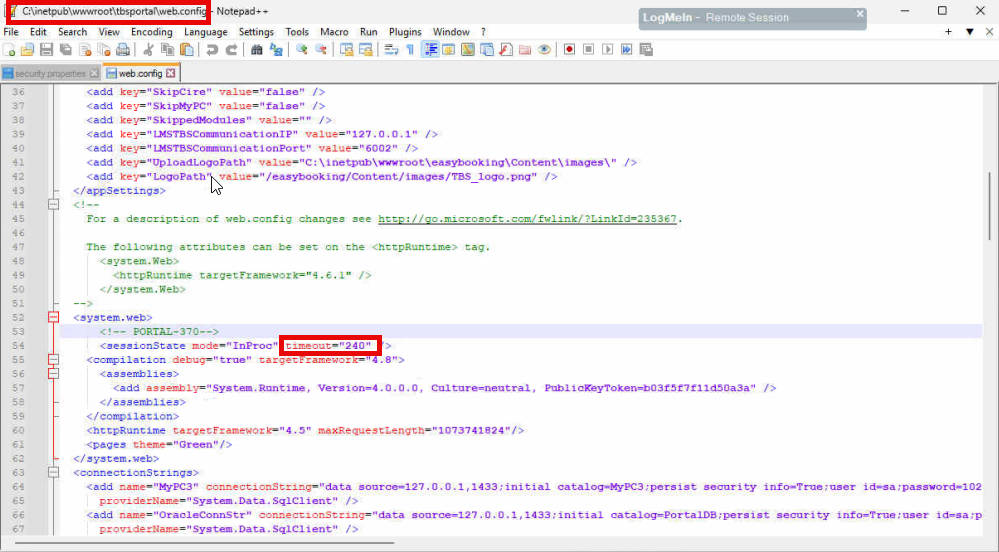
Search for the following section in the file:
<system.web>
<!-- PORTAL-370-->
<sessionState mode="InProc" timeout="240" />
-
The key part is: timeout="240". This value is in minutes.
Step 4: Update the Timeout Value
-
Change the number in timeout="240" to your desired session length in minutes.
For example, for a 1-hour session timeout, use timeout="60".
For 30 minutes, use timeout="30".
For 8 hours, use timeout="480".
Tip: Avoid setting the timeout too high, as this can increase security risks if users leave their sessions unattended.
Step 5: Save and Close the File
Save your changes in the text editor.
Close the Web.Config file.
Step 6: Restart the TBS Portal Application Pool
-
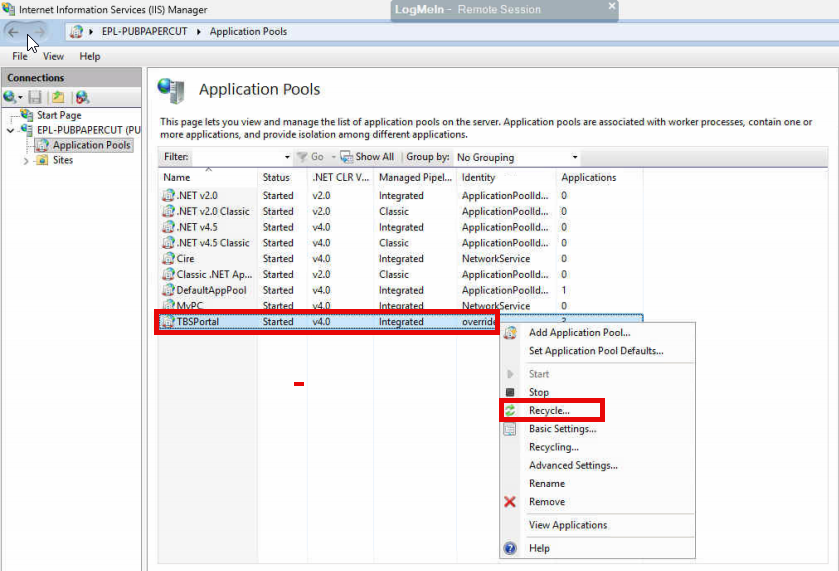
Most changes to Web.Config will automatically cause the portal to reload, but to be sure, it’s a good idea to restart the application pool in IIS:
Open Internet Information Services (IIS) Manager.
Find the Application Pool for TBS Portal (typically named tbsportal).
Right-click and select Recycle or Restart.
Verifying Your Changes
Once you’ve updated the timeout, it’s a good idea to test that the new session length is in effect:
Log in to the TBS Portal as a user.
Remain inactive for the amount of time you set in the timeout.
Try performing an action after the session should expire. You should be prompted to log in again.
If users are not logged out after the expected time, double-check your Web.Config edits and ensure the application pool was restarted.
Best Practices for Setting Session Timeout
Balance security and convenience: Shorter timeouts (15–30 minutes) are more secure, especially in shared or public environments. Longer timeouts (2–4 hours) may be appropriate for trusted, private networks.
Communicate changes: Let your users know if you change the session timeout so they’re not surprised by shorter or longer login durations.
Test in a staging environment: Before applying large changes in production, test timeout settings in a development or test environment to avoid unexpected disruptions.
Common Questions and Troubleshooting
-
Q: I changed the timeout, but users are still being logged out sooner (or not at all). What’s wrong?
Check for other sessionState entries in the Web.Config that might override your setting.
Ensure no proxy, load balancer, or firewall is terminating sessions early.
Make sure browser settings aren’t affecting session cookies.
Confirm the application pool was restarted after the change.
-
Q: Can I configure session timeout per user or group?
The session timeout applies globally to all users. Per-user or per-group session timeouts are not currently supported.
-
Q: What if I set the timeout value too low or too high?
If too low, users may be logged out too quickly and lose work. If too high, security risks increase. We recommend 30–240 minutes for most use cases.
-
Q: Is there a maximum or minimum timeout value?
The minimum recommended value is 1 minute. Technically, you can set very high values, but extremely long session timeouts are discouraged for security reasons. Some browsers or infrastructure may impose their own limits.
Edge Cases and Additional Considerations
Load-balanced environments: If you’re using a web farm or load balancer, make sure sessionState is set up correctly (e.g., mode="InProc" is only suitable for single-server setups).
Custom session providers: If your portal uses a custom session state provider (e.g., SQL Server, State Server), additional configuration may be required.
Application restarts: Editing Web.Config will restart your application, temporarily logging out users and clearing sessions. Schedule changes during low-usage periods if possible.
Browser session vs. server session: The timeout controls the server session, but user browsers can also clear session cookies if closed or if privacy settings are strict.
Need Help?
If you run into any trouble or have questions about session timeout settings, don’t hesitate to contact our support team.