How to Setup and Configure Fees/Fines Payment using PolarisWeb
To help you get started with setting up your PAPI server integration with the TBS Portal Easybooking system, we’ve put together this guide outlining the information we need from you and the setup steps required on the customer's server. By following the steps below, you’ll make the process smooth and efficient.
What Information Do We Need from You
To integrate the Fees/Fines Payment Module within the TBS Portal Easy booking service, we require some specific details about your PAPI server. Please gather the following information and provide it to our support team:
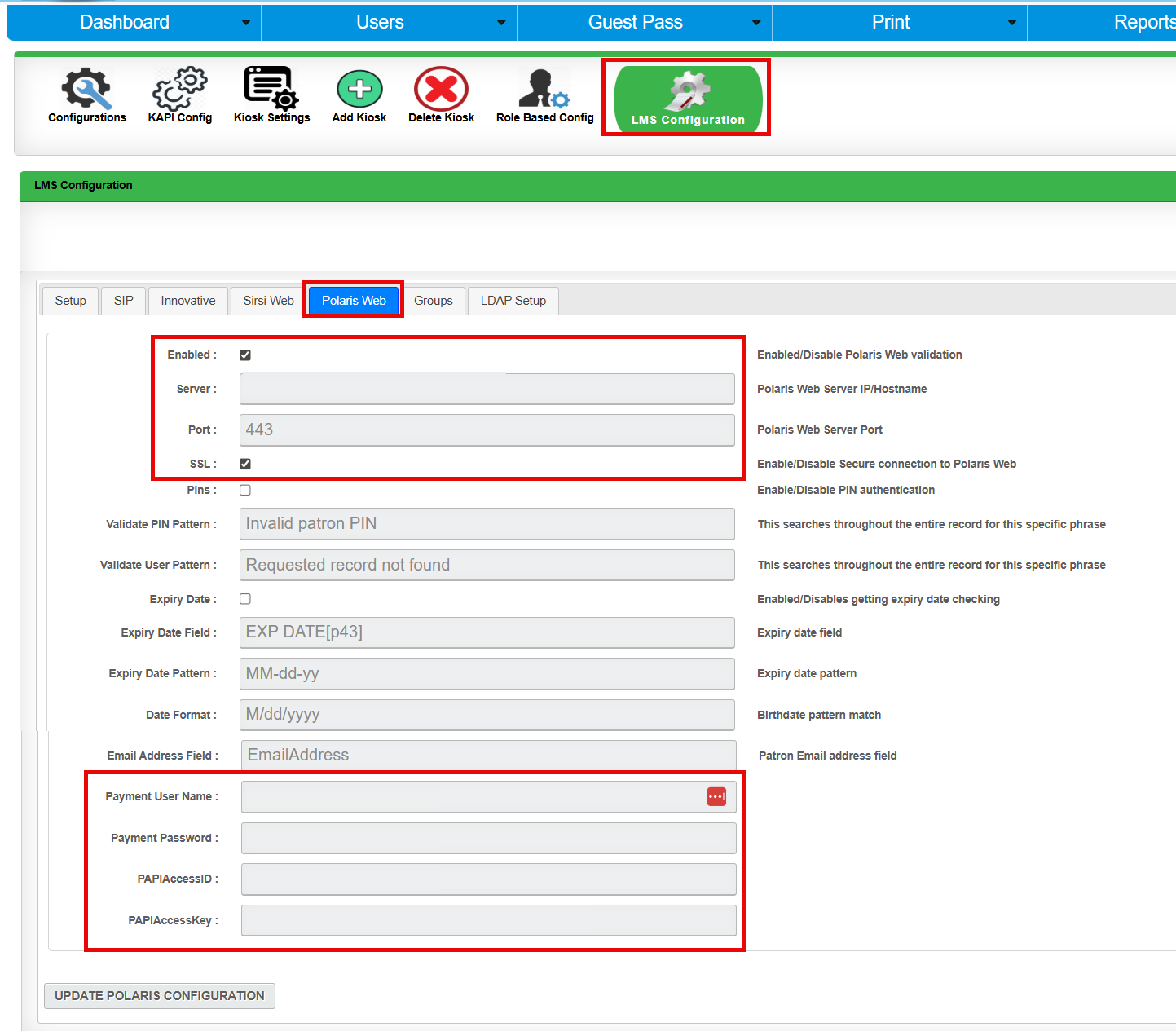
PAPI Server and Port: Please provide your server IP/Hostname and confirm it is accessible on the provided port.
Domain Name: The full domain name for the Payment Username.
Payment Username: The username used to authenticate payment transactions via the PAPI server.
Payment Password: The password associated with the payment username above. Please ensure this is correct and up-to-date.
PAPI Access ID: A unique access identifier provided by the PAPI system administrator.
PAPI Access Key: The secret key that pairs with the Access ID for secure API communication.
Organization ID: Your unique organization identifier within the PAPI system. This ensures transactions are linked to the correct account.
If you’re unsure where to find any of these details, your Polaris ILS system administrator should be able to help.
How to Provide This Information
Double-check each detail for accuracy to avoid service interruptions.
Send the required information to our support team through our ticketing system, or project ticket.
If you have any security concerns, let us know, and we’ll recommend the best way to submit sensitive credentials.
Server Requirements for TBS Portal Fees/Fines Payment Module
Once you’ve gathered and sent the required details, please make sure your server is ready for the integration. The TBS Portal Easybooking system must already be operational on your server before we proceed with the connection. Here’s a quick checklist to ensure everything is set up:
TBS Portal Easybooking is installed and functioning: Confirm that the Easybooking application is up and running on your server.
Network Access: Ensure the PAPI server is reachable from external systems over port 443. If you have a firewall, verify that it allows traffic on this port.
User Permissions: Confirm that the payment username and access credentials you provide have sufficient permissions to process transactions and access necessary APIs.
Next Steps
Review your PAPI server setup and gather the requested information.
Verify that TBS Portal Easybooking is working on customer server.
Configure Polaris Web tab in the TBS Portal under System > LMS Configuration tab.
Other settings not in the TBS Portal LMS Configuration
-
Organization ID and Domain Name. These are placed into the DB directly.
For more DB Information, check out: Polaris Web Upgraded to 7.7 and no longer is validating