
How To Resolve issues with Scan-To Google-Drive with ScanEZ
If you're experiencing issues with ScanEZ Software and Scan-To Google-Drive, don't worry—there are a few steps you can follow to resolve the problem. This troubleshooting guide will walk you through each step, from updating your software to trying advanced solutions. Follow the steps in order, and you should be up and running again soon!
Step 1: Upgrade ScanEZ Software
The first and easiest fix is making sure you're using the latest version of ScanEZ Software. Software updates often include important bug fixes and performance improvements.
Download and install the latest version. Follow the on-screen instructions to complete the upgrade. You will need to close ScanEZ during the installation process.
Once you’ve upgraded, open ScanEZ and see if your issue is resolved. If not, move on to the next step.
Step 2: Remove Google Drive-Related Files
If updating ScanEZ didn’t resolve the problem, the next step is to remove any Google Drive-related files that might be causing conflicts.
Close ScanEZ Software. Make sure the program isn’t running before you begin.
-
Open File Explorer. Navigate to the following folder on your computer:
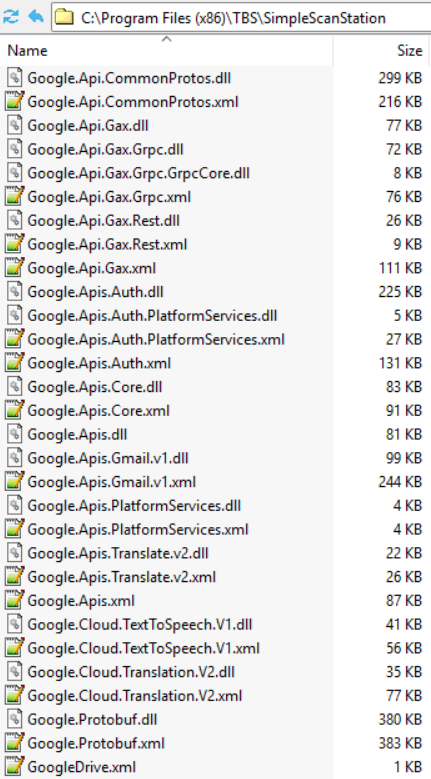
"C:\Program Files (x86)\TBS\SimpleScan" and "C:\ProgramData\SimpleScanStation"
Look for files related to Google Drive.
Delete the Google Drive-related files. Right-click and choose Delete. If you’re not sure which files are related, you can search within the folder for google.
Empty your Recycle Bin. This ensures the files are fully removed from your system.
Reinstall the latest version of ScanEZ. Download a fresh installer from the official website and follow the prompts. A fresh install can help reset settings or replace missing files.

After reinstalling, try opening ScanEZ again. If you’re still having trouble, there’s one more step to try.
Step 3: Disable Native Browser
Sometimes, issues can be caused by the way ScanEZ interacts with your system’s web browser. Disabling the Native Browser option within ScanEZ can help. This could be because Microsoft Edge is not installed.
Open ScanEZ Configuration
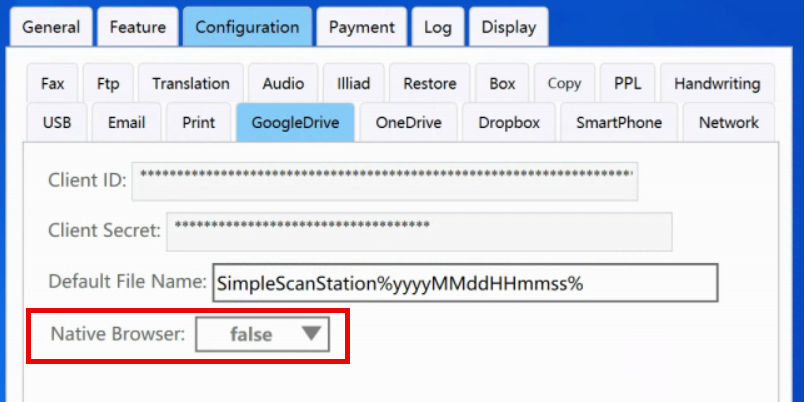
Go to Configurations > GoogleDrive tab
Look for a setting labeled “Native Browser” and set to FALSE.
Save your changes by hitting the SAVE button at the bottom-right corner.
Still Having Trouble?
If none of these steps solve the problem, you may want to contact TBS Support for further assistance. Be sure to let them know which troubleshooting steps you've already tried—they’ll appreciate the details and be able to help you faster!
Thank you for working through these steps. We hope your ScanEZ Software is running smoothly again!