
How To - Add, Edit, or Disable hardware for MagnaPOS-L
If you need to add, edit, or disable hardware connected to a POS device, it must be done directly on the local PC, as this is not an Enterprise or Location Manager setting.
Accessing POSConfig-L
To begin, access the POS-L configuration on the local computer. Follow these steps to manage the connected hardware:
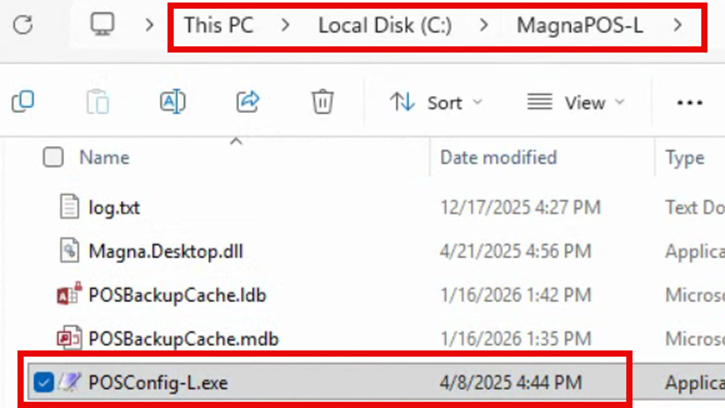
Navigate to the POS-L installation path on the PC.
Launch the configuration tool by opening POSConfig-L.exe. This can typically be found at
C:\MagnaPOS-L\POSConfig-L.exeorC:\Program Files (x86)\MagnaPOS-L\POSConfig-L.exe.
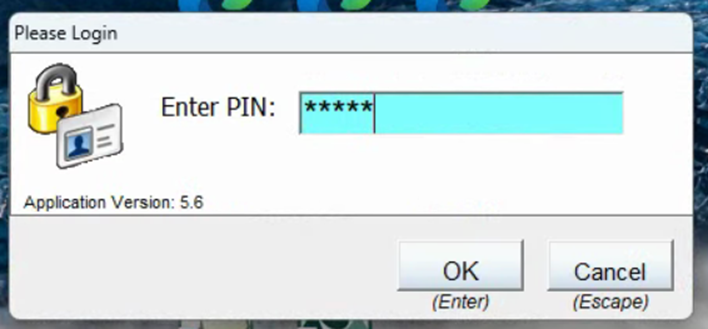
You'll be prompted to enter your admin PIN or AD credentials. After entering the correct information, click OK to proceed.
Managing Hardware Settings
Once you've logged into POSConfig-L, follow these steps to manage your hardware:
On the left panel, select Hardware to view printer and drawer settings.
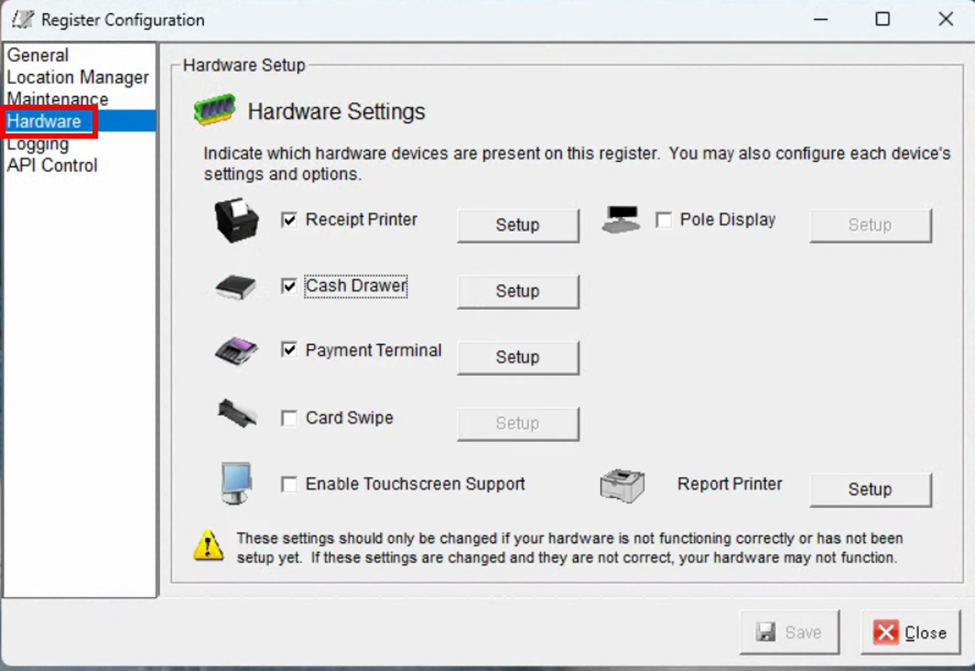
To disable the drawer, simply uncheck the corresponding box and click SAVE.
If you need to edit the printer queue or change the drawer type, click SETUP next to the Receipt Printer option.
Note: The cash drawer is connected to the receipt printer. If you uncheck the receipt printer checkbox, the drawer will also disconnect.
If you have any questions or need further assistance, please don't hesitate to reach out to our support team. We're here to help ensure your POS systems are running smoothly.