
HOW TO - Test and Configure Scan to Copy/Print on ScanEZ Stations
With the Avision scanners, by default, the settings are programmed into the scanner itself. This means that if you ever need to replace a scanner, it is likely that any custom settings in the driver are no longer set. The following steps will resolve scans not fitting on the papercut when using 'edge-to-edge' documents on the scanner. TBS Defaults should be as follows:
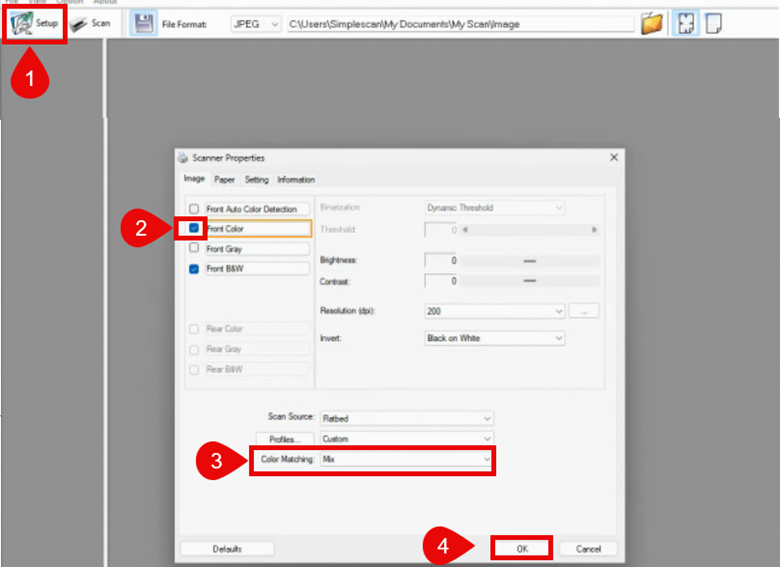
COLOR MATCHING MODE: (resolves the scan to look like it has a gray background, or a darker color image)
Open up Avision Capture Tool and select the scanner you are working with. (This will need to be done to all scanners installed on the unit)
- Click on Setup
- Click on “front color” and that will unlock the Color Matching Option
- Change Color Matching to “Mix”.
- Click “OK”
SCANEZ CONFIGURATION: (resolves issues if the document looks to be cut off)
Tap the top-left corner of the screen to prompt for admin password to access the ScanEZ Configuration.
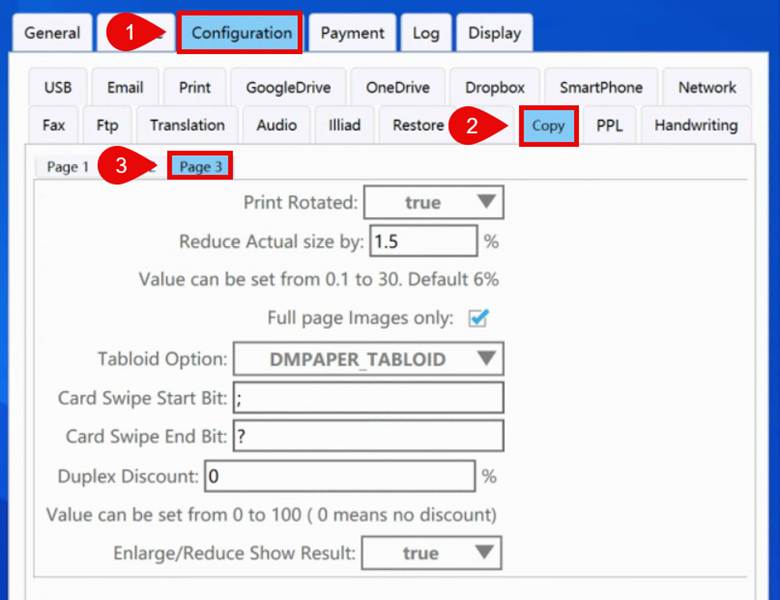
- Go to Configuration
- Go to COPY (and/or PRINT)
- Go to Page 3
Print Rotated: TRUE (DEFAULT)
This allows the software to auto rotate the document to fit to the page based on the dimensions of the document. For Exmaple, if you are trying to print a landscape as portrait, it will cut off the image. With this feature enabled, it will auto rotate and print landscape automatically.
Reduce Actual Size by: 6% (DEFAULT)
This is in relation to edge-to-edge printing. Due to 99% of printers not printing true ‘edge-to-edge’, you will need to reduce the size of the scan to fit into the printable boarders that the printer allows. This is a default, but all depends on the printer and the driver. (Value can be.01-30%)
NOTE: This WILL vary, but 6% seems to be a good default from in-house testing with Konica Minolta and HP devices.
Full page Images only: CHECKED (DEFAULT)
This enables the above ‘Reduce Actual Size’ option to only scans that are larger than the paper chosen. That means if the scan is smaller than the paper chose (ex: an ID), then the scan will not reduce size.
Tabloid Option: DMPAPER_TABLOID (DEFAULT)
This option is in relation to the printer/copier driver’s default size for 11x17 specifically. 90% of the printers/copiers are configured for Tabloid (17x11), but there are some printers/copiers that see 11x17 as just that. (this option is DMPAPER_11x17)
NOTE: This WILL vary based on the printer/copier driver. If the document comes out sideways, this is likely the issue as the driver is sending it reversed.
Enlarge/Reduce Show Result: TRUE (DEFAULT) (Only available under COPY)
This option enables the SCAN screen to display your edited scan after you have enlarged or reduced the image. The display on the screen will now show what the print out will look like, instead of the scanned image itself. This would be the same as the /print preview’ under the EDIT options.
SCANEZ PAPER SIZE DEMINSIONS :
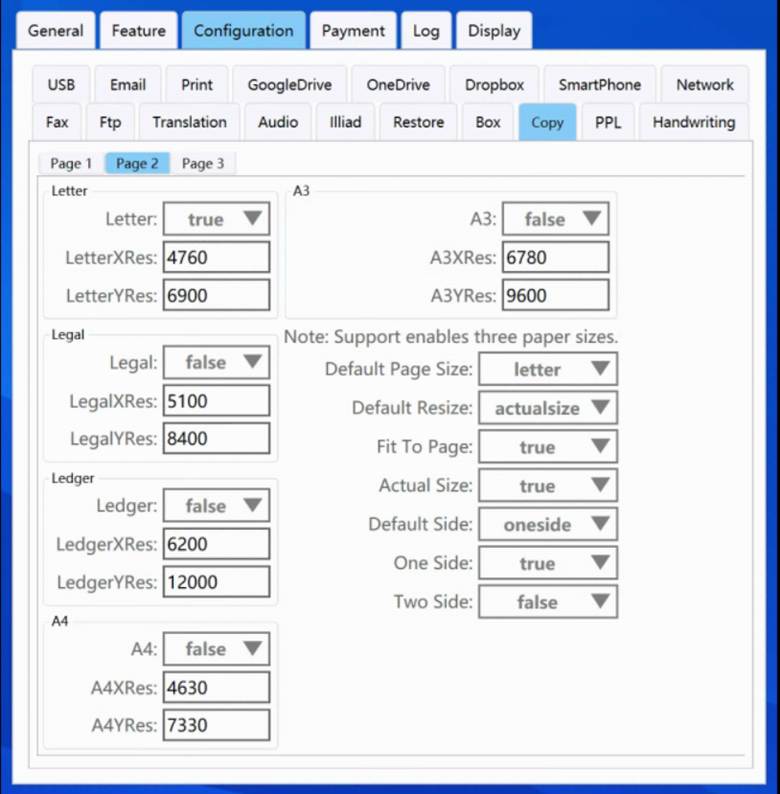
On Page 2 of the ScanEZ Configuration > Copy/Print Tab, is where you can enable, disable or edit the pixel size of the paper that ScanEZ will use to determine all settings above. All printing (COPY and PRINT) are scanned at 600DPI, so the default pixels for the XRes and YRes are configured based on this DPI.
NOTE: These settings are only to be changed by a Tier 2/3 Support tech as these settings should be last resort of printing issues fitting on the paper.
TEST DOCUMENTS:
When troubleshooting with a customer and replicating issues in-house, it is best to use the same documents. Here are documents you can share with the customer to print out and use as examples as you work with them remotely.