
Setting up SMTP Information for Auto Reports in MYPC
By default, the SMTP information is not setup in MYPC for you to receive Automated Reports through email. You will need to provide your own SMTP information for this to work.
Before you begin, we need to make sure that CIRE is setup with the correct settings for this to work. Please see below as to what to check in CIRE.
1. Login to MYPC Website
2. Select "CIRE" at Top Left
3. Choose "System" tab
4. Choose "Service Settings"
5. Make sure the following Service Settings are checked
"Enable Automated Reports"
"Enable Mail Services"
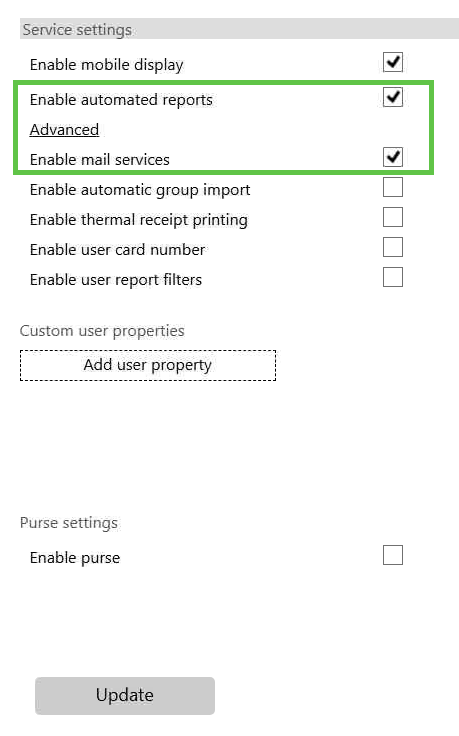
6. Choose "Update"
7. You will need to restart the following services after this is done, but make sure you do this before or after hours, since it will kick patrons off if done during opening times.
"ITS Triple A Service" (This will restart the MYPC3 Service too)
"ITS Cire Service"
Once you have setup CIRE, please see the steps below to configure SMTP in MYPC for Automated Reports.
1. Browse to "C:\Program Files (x86)\Cire Server\Merdin"
2. Launch the "MerdinWizard.exe" as an administrator
3. Click "Add"
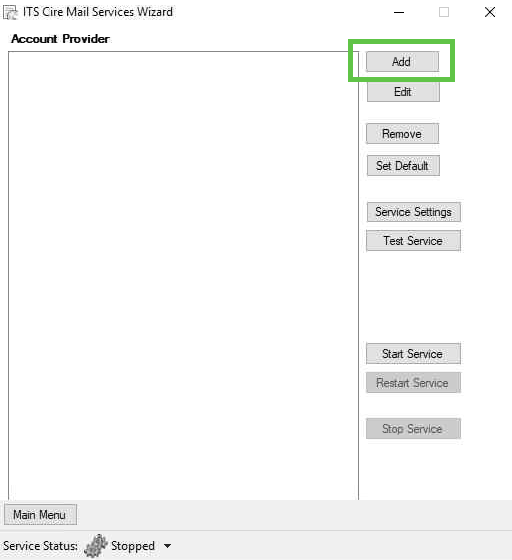
4. Type in a "Provider Name", which can be whatever you want. This is just the saved name, so we normally name it the SMTP Provider name.
5. Click "Send" after entering the Provider Name
6. Check "Enable Send" and enter the SMTP Information
Email Address
SMTP Server
SMTP Server Port
Email Name
Authentication Type
UN & PW (If using)
7. Click "Finished" once completed
8. Open Services
9. Make sure "ITS Cire Mail Services" service is running and set to Automatic Start.
10. Go back to the "MerdinWizard.exe" and choose Test Service. You should see the "Service Status" showing started, when you are at this screen.
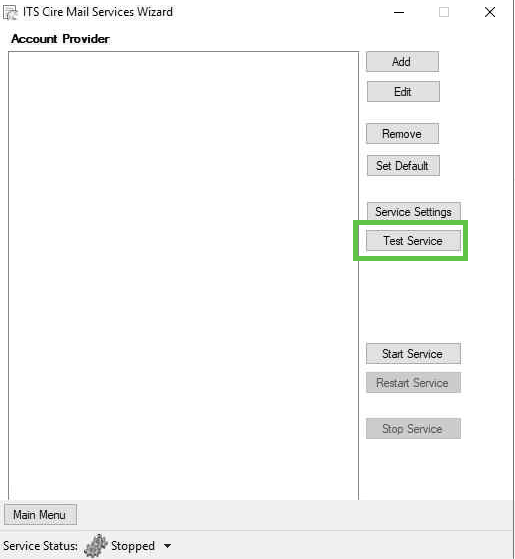
11. Enter an email to send a test to and confirm that it's working. Should state it was successful on the screen and you will get a test email.