
Important Updates to PaperCut Version 25.X Installations and Upgrades
PaperCut 25 changes that are REQUIRED.
-
Installing or upgrading the JDBC Driver with Version 25.0 and later
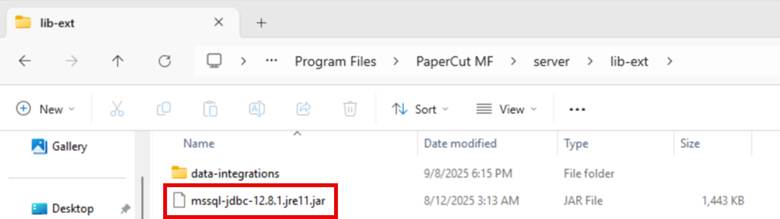
Copy the mssql-jdbc-12.x.x.jre11.jar file: from [app server install dir]/server/repository/database-drivers/sqlserver (or from the jars folder in the MS JDBC Driver you downloaded earlier) to [app server install dir]/server/lib-ext/
#> copy 'C:\Program Files\PaperCut MF\server\repository\database-drivers\sqlserver\mssql-jdbc-12.8.1.jre11.jar' 'C:\Program Files\PaperCut MF\server\lib-ext'
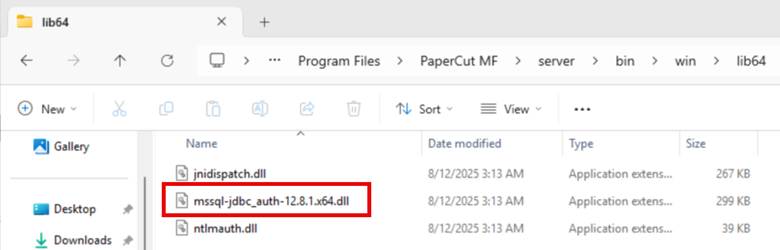
[Windows only] Copy the mssql-jdbc_auth-12.x.x.x64.dll file: from [app server install dir]/server/repository/database-drivers/sqlserver (or from the auth/x64 folder in the MS JDBC Driver you downloaded earlier) to [app server install dir]/server/bin/win/lib64/
#> copy 'C:\Program Files\PaperCut MF\server\repository\database-drivers\sqlserver\mssql-jdbc_auth-12.8.1.x64.dll' 'C:\Program Files\PaperCut MF\server\bin\win\lib64\'
Updating JDBC String in Server.properties file.
Navigate to [app server install dir]/server/ Open server.properties in a text editor. (You will need to open the text editor as an administrator.) Update the connection string listed after database.url= to include: ;encrypt=false;trustServerCertificate=true
example: jdbc:sqlserver://localhost:1433;databaseName=papercut;encrypt=false;trustServerCertificate=true

$path = "C:\Program Files\PaperCut MF\server\server.properties"
# Read file
$lines = Get-Content -Path $path
# Pattern to match the database line exactly
$pattern = '^database\.url='
# Iterate through lines and modify the correct one
$updated = $lines | ForEach-Object {
if ($_ -match $pattern) {
# Only append if not already added
if ($_ -notmatch 'encrypt=false;trustServerCertificate=true') {
$_ + ";encrypt=false;trustServerCertificate=true"
}
else {
$_ # leave unchanged
}
}
else {
$_
}
}
# Write back to the file
$updated | Set-Content -Path $path -Encoding UTF8
Write-Host "Update complete."
Restart Services and Log into the Papercut Portal.
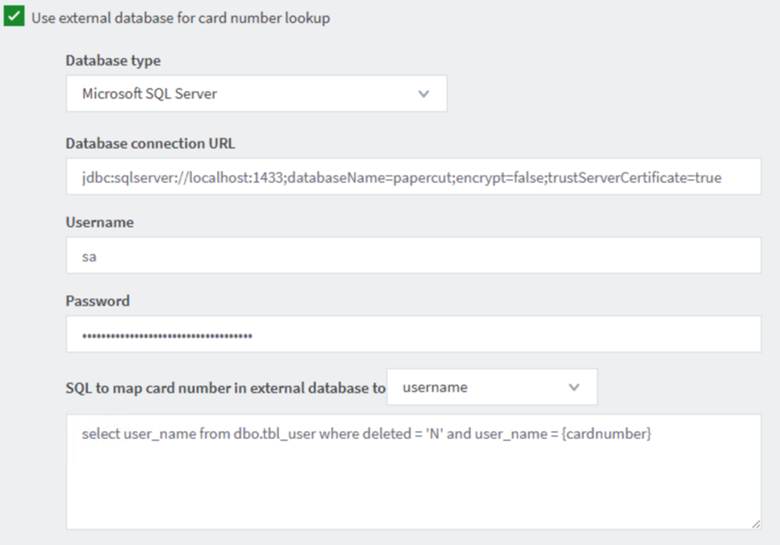
In the portal, navigate to OPTIONS > Advanced> External Card Lookup. Under the Database Connection URL, you will need to do the same as above and update the connection string to include: ;encrypt=false;trustServerCertificate=true
example: jdbc:sqlserver://localhost:1433;databaseName=papercut;encrypt=false;trustServerCertificate=true
5. UPDATE PAPERCUT PRINTER SCRIPTS FOR MYPC PRINTERS - NOTE: You will not get a pop-up if you skip this step!
You will also need to update any Printer Script that is for Public PC printing using MyPC. POPUP_script_MyPC.txt in the installer server X.X\scripts folder.
Here is the latest script. NOTE: You will not get a pop-up if you skip this step!
More information is here on the above steps:
Other information:
https://www.papercut.com/kb/Main/important-points-to-know-about-papercut-ng-mf-version-25/
If you're upgrading from a version older than 24.0.0
For example, if you're upgrading from version 23.1.2 to 25.0.1, we highly recommend reviewing the significant changes made in version 24, as well as the essential changes made in version 25.