How to configure charging the end user for Nayax fees
Nayax documentation:
How to add Two Tier Pricing to a Machine | Operations
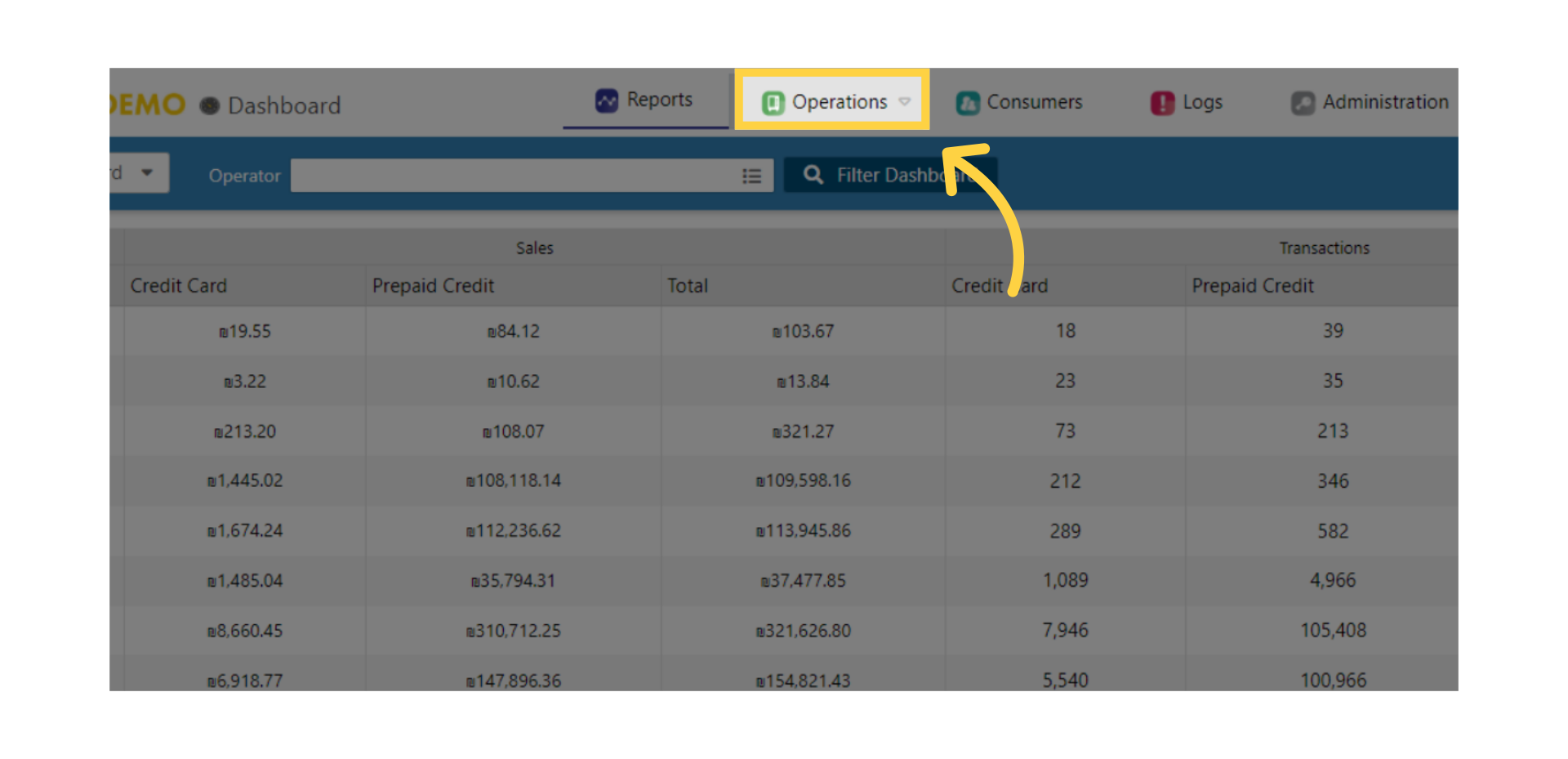
On the Dashboard of your Nayax Core management suite, click on the operations tab.
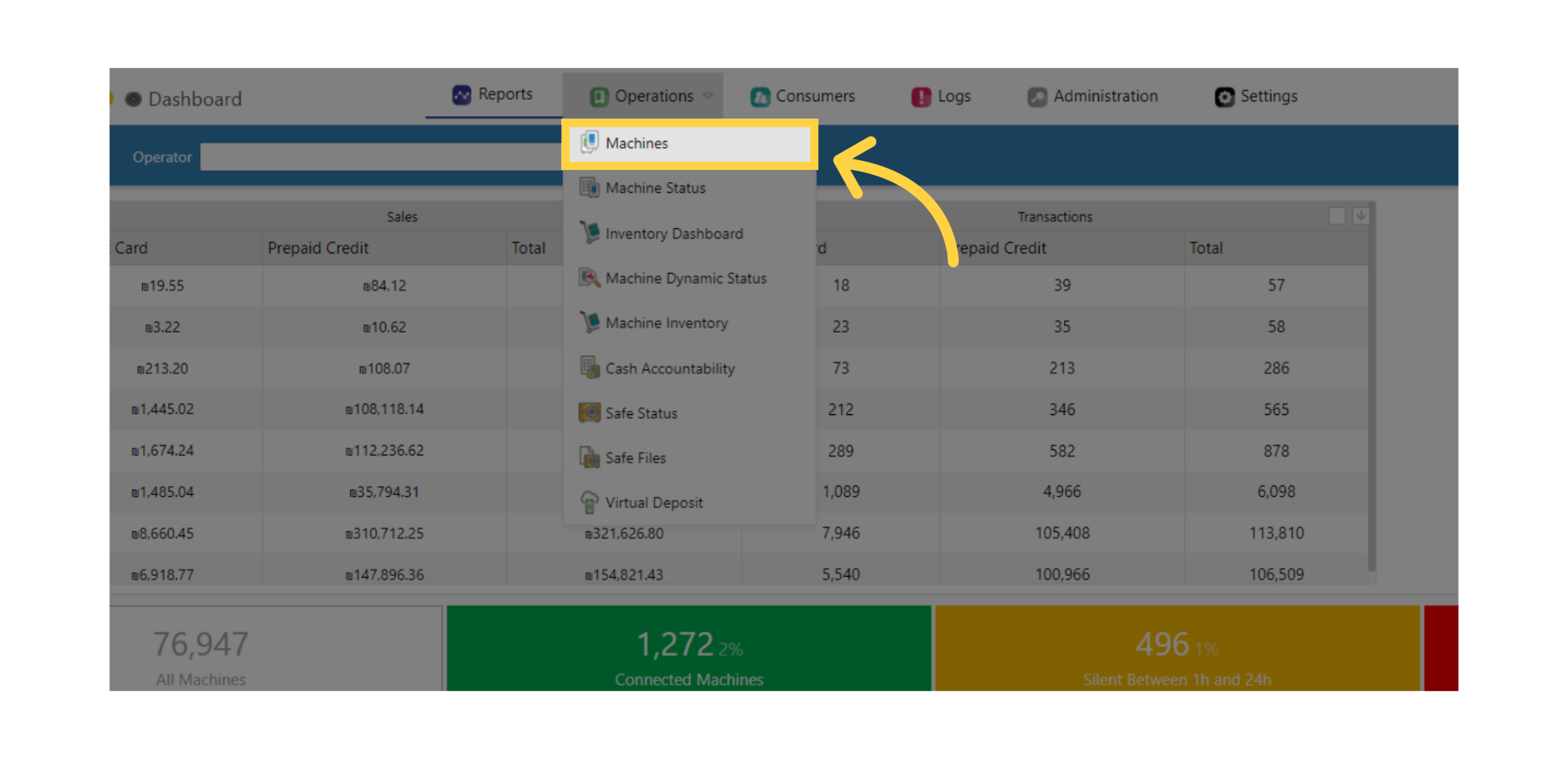
Click on machines from the drop down menu.
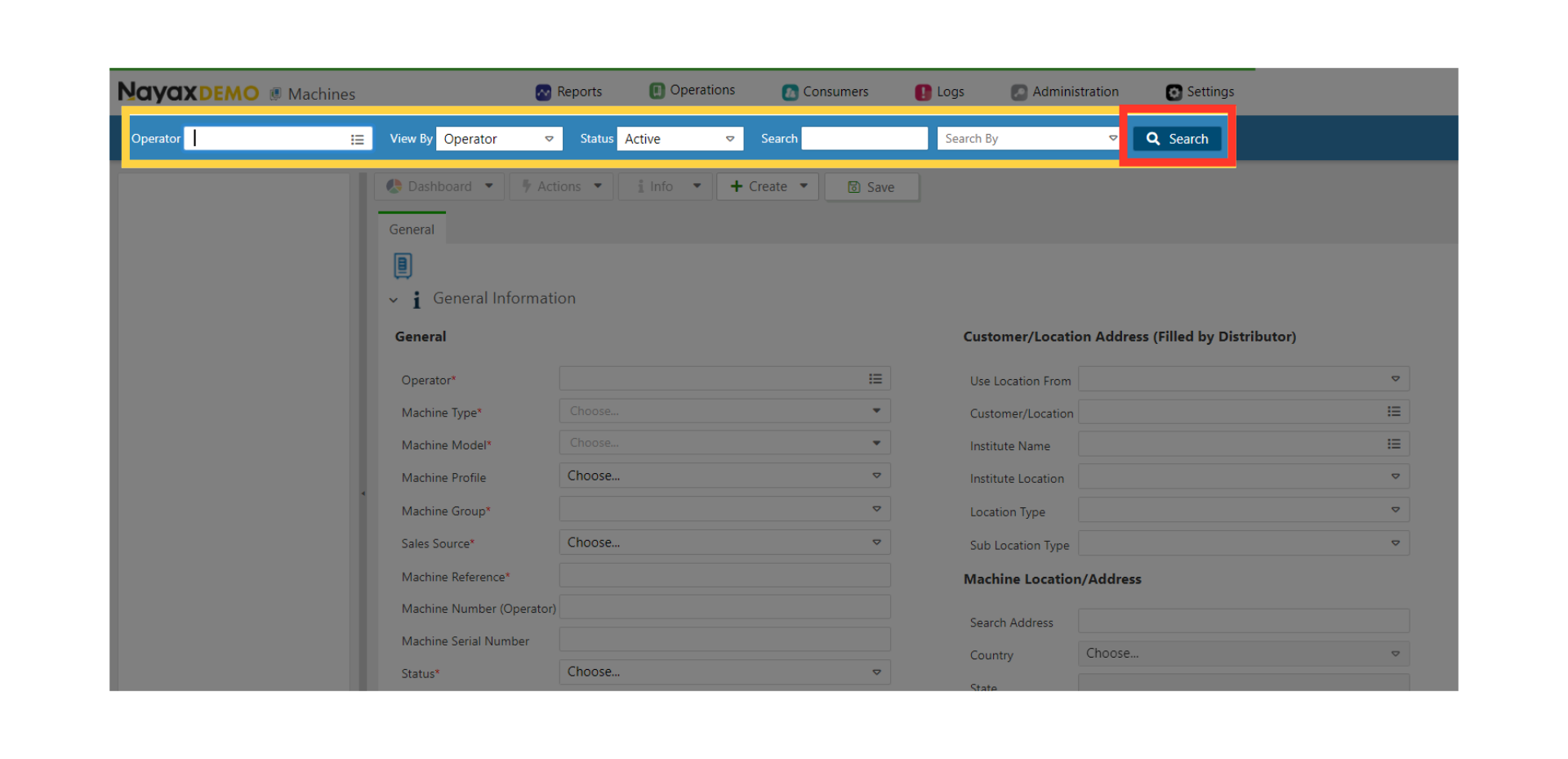
Type in your operator name and any other fields to locate your machine and press search as highlighted in RED on the visual.
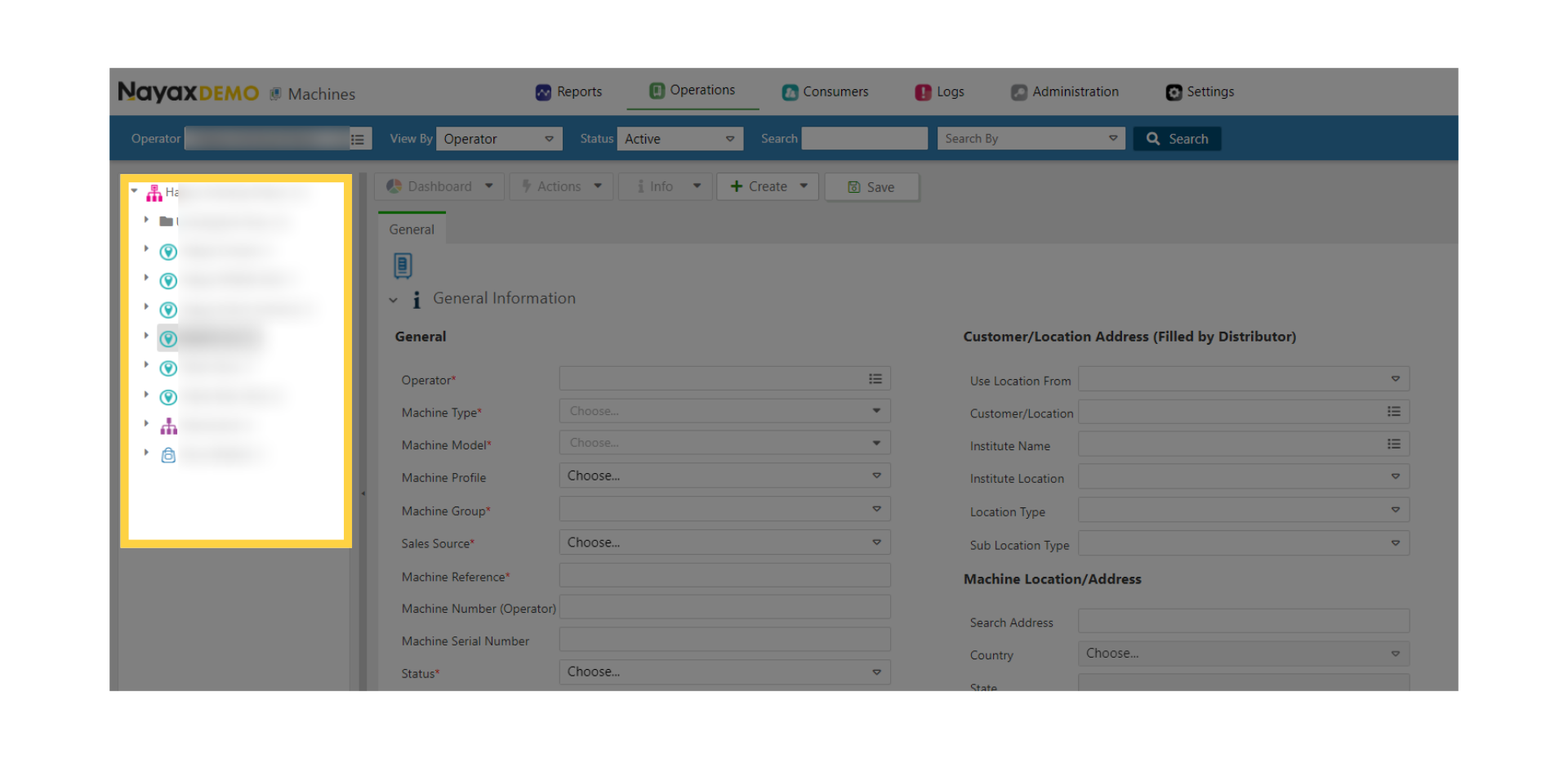
Locate and click on the machine from the hierarchy.
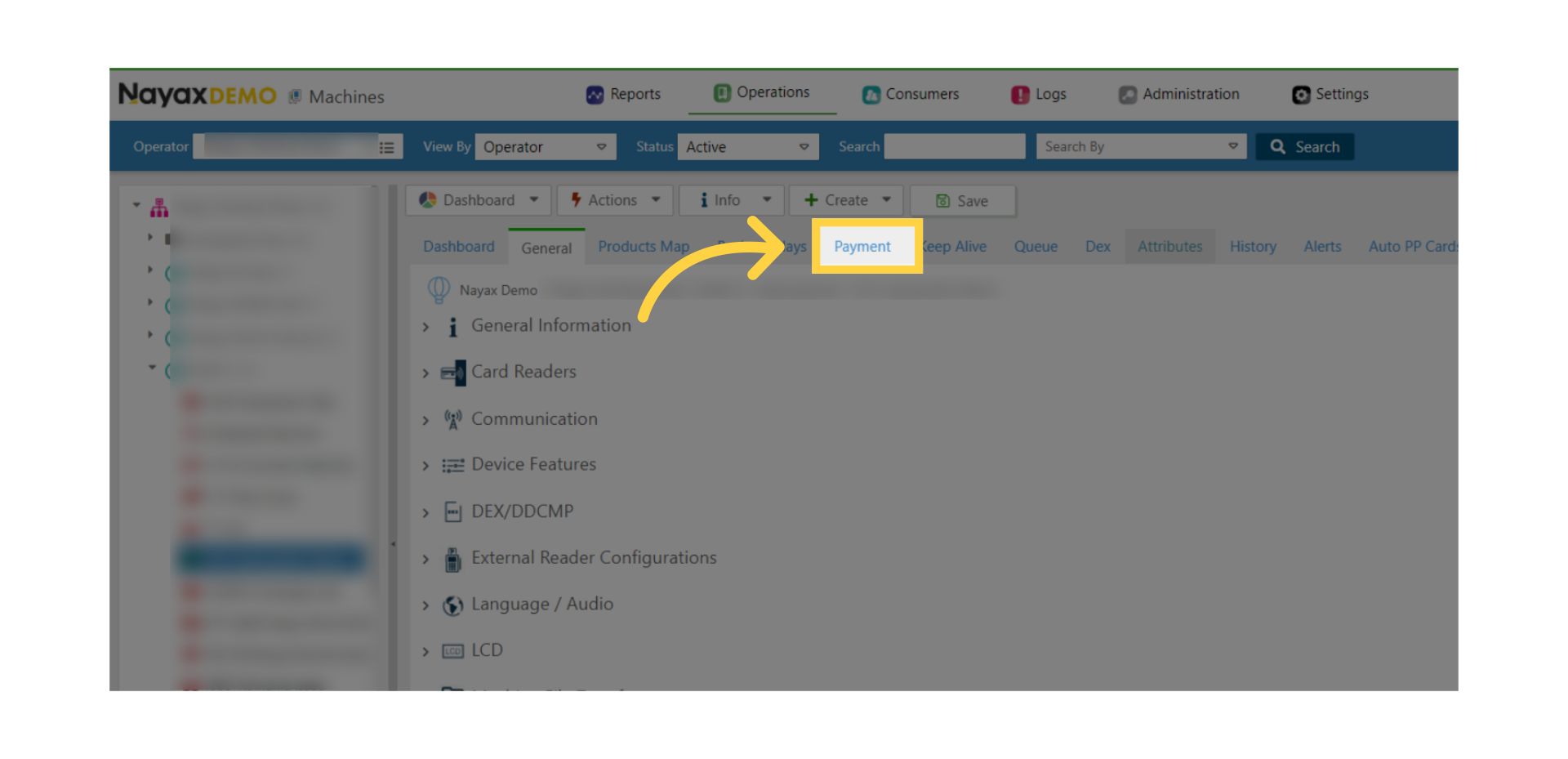
From the main screen click on the payment tab.
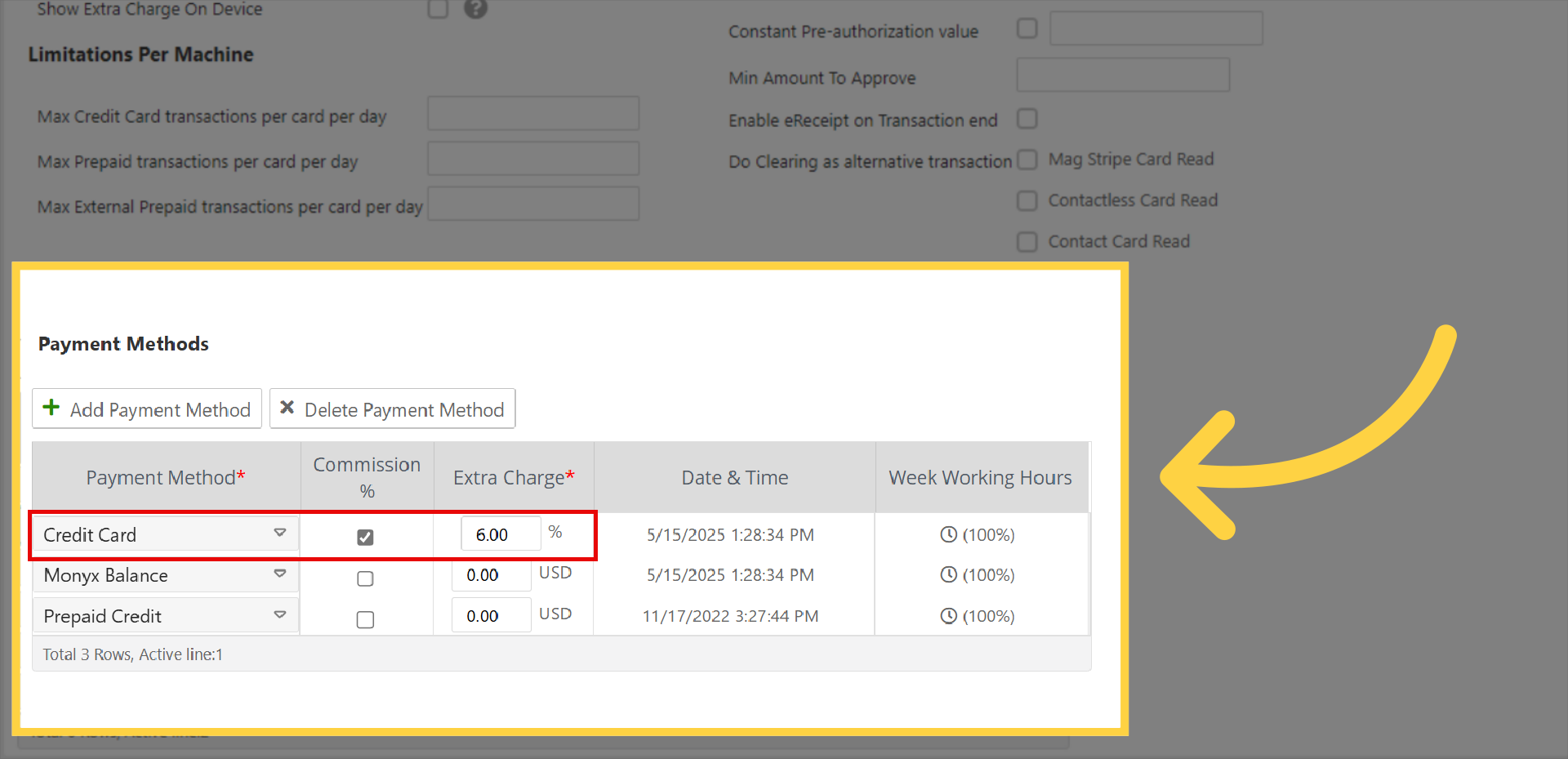
Scroll down to the Payment Table and Configure the required value under the Extra Charge column as highlighted in RED on the visual. This example below will charge the 6% fee to the customer. (NOTE: THIS CANNOT BE A DECIMAL VALUE. YOU MUST ROUND UP.
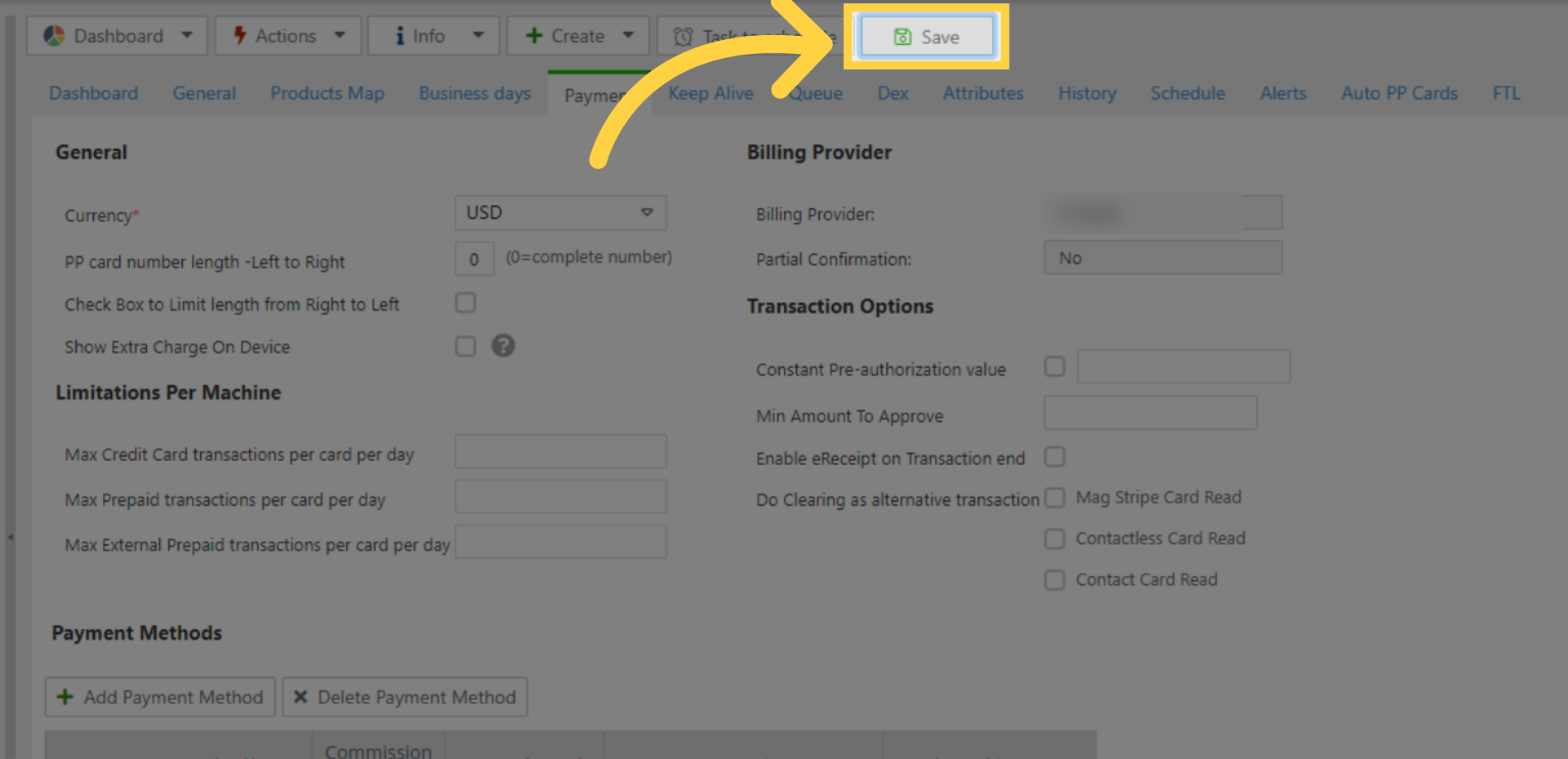
Save the changes made to the machine's pricing
Now click on General Tab.
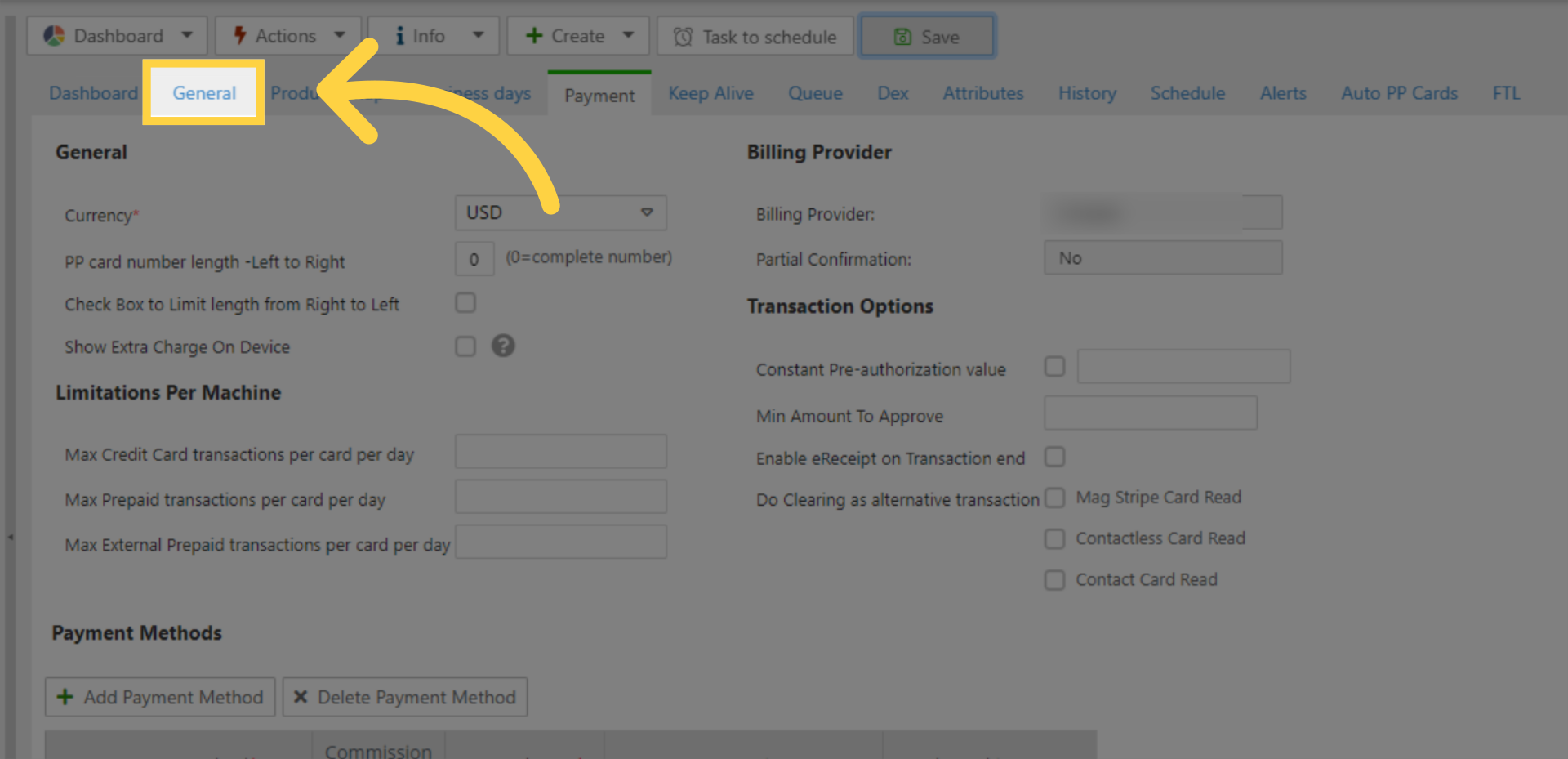
On the main General section, scroll down to the Payment tab as highlighted in RED on the visual.
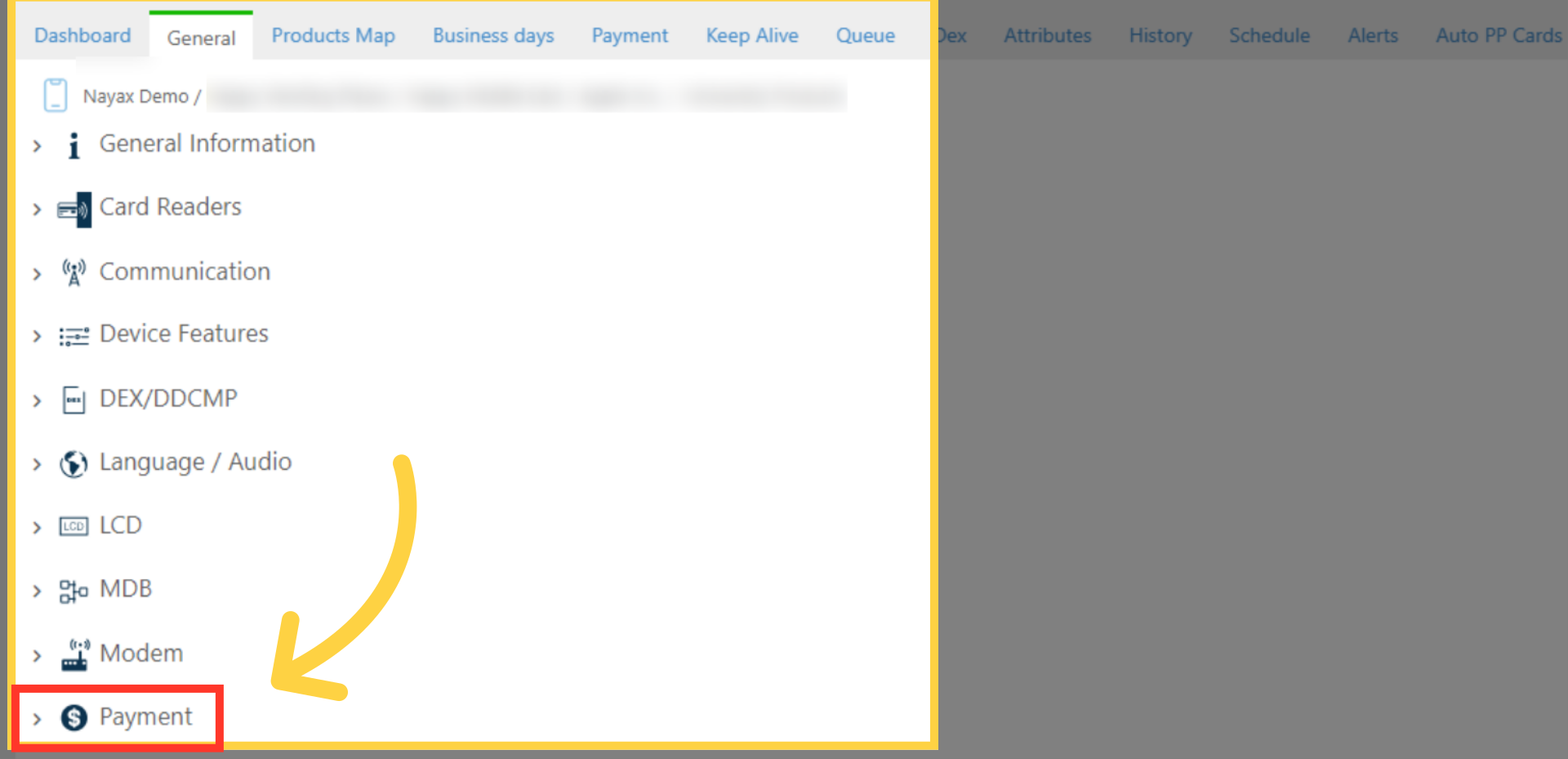
Click the checkbox for the EMV Price Table and set this to a percentage. In the example here, we are charging the end user 106% of their print job.
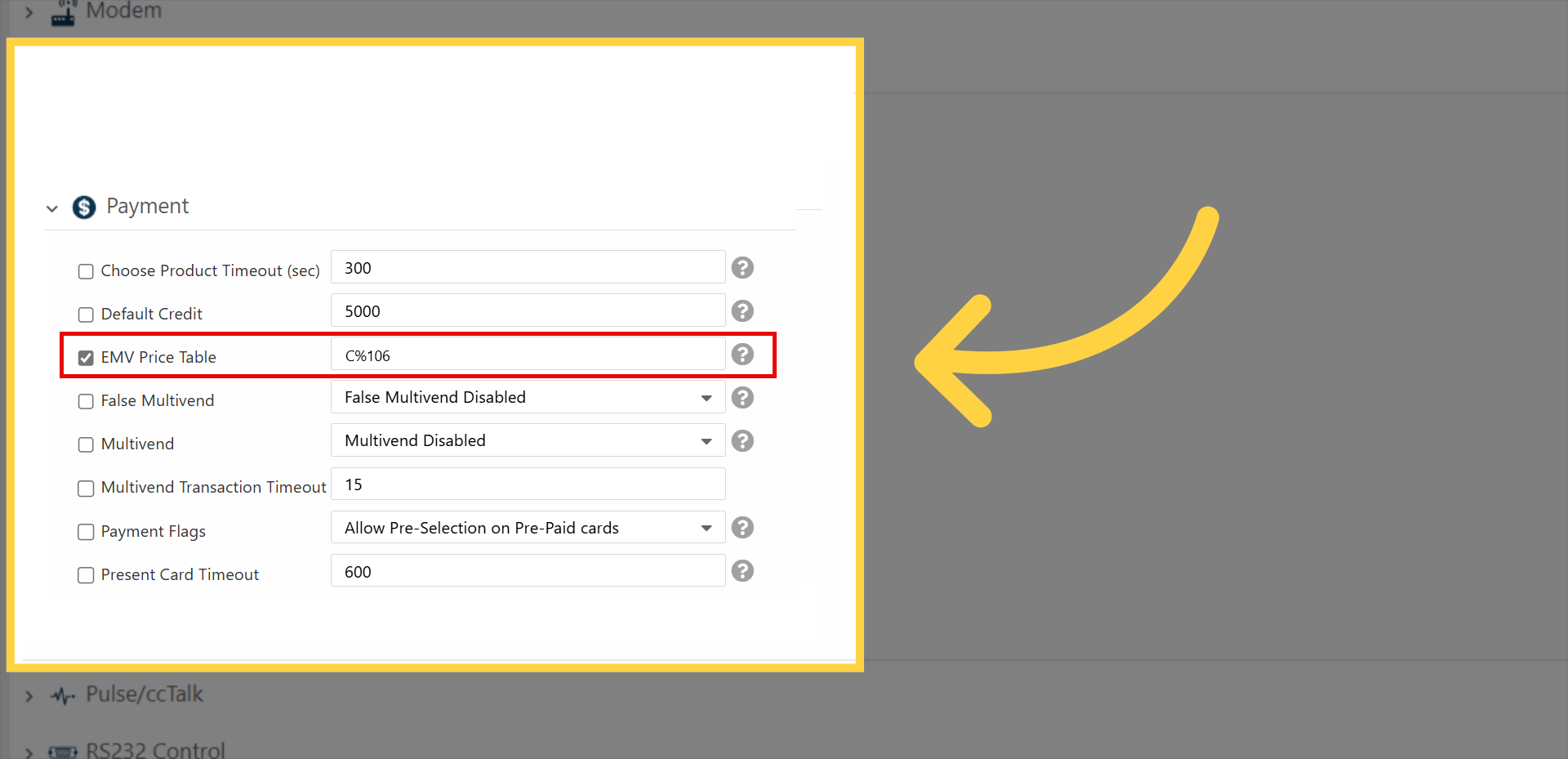
NOTE: if the option above is not displayed under the Payment Section, you need to enable this under the Attributes Tab. Once you select the Attribute ID 591, hit SAVE. The Payment Section will no display the option above.
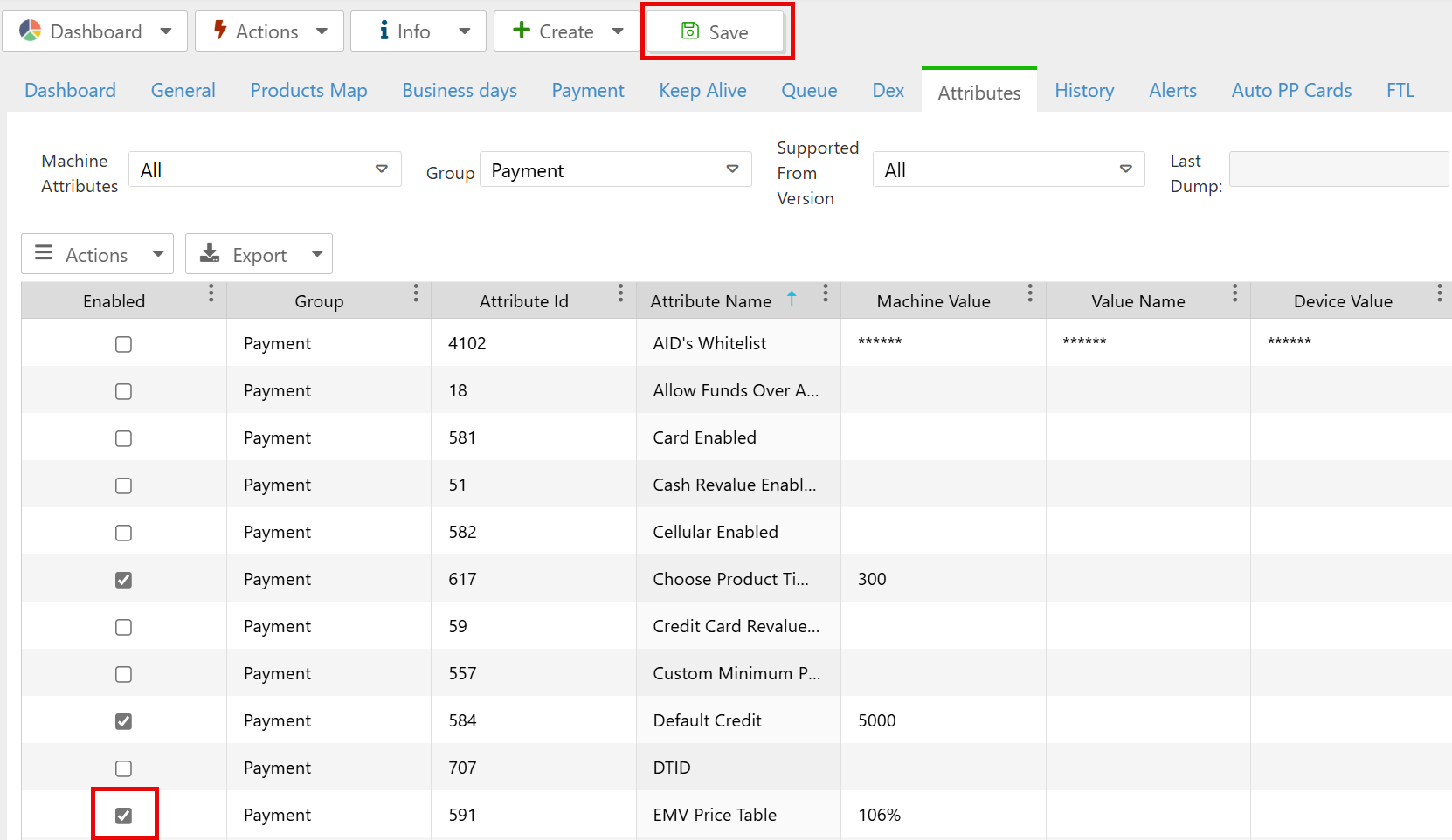
Then scroll to the Actions button and click Update Queue as highlighted in RED on the visual and then the click on the save button to save your changes as highlighted in BLUE on the visual.
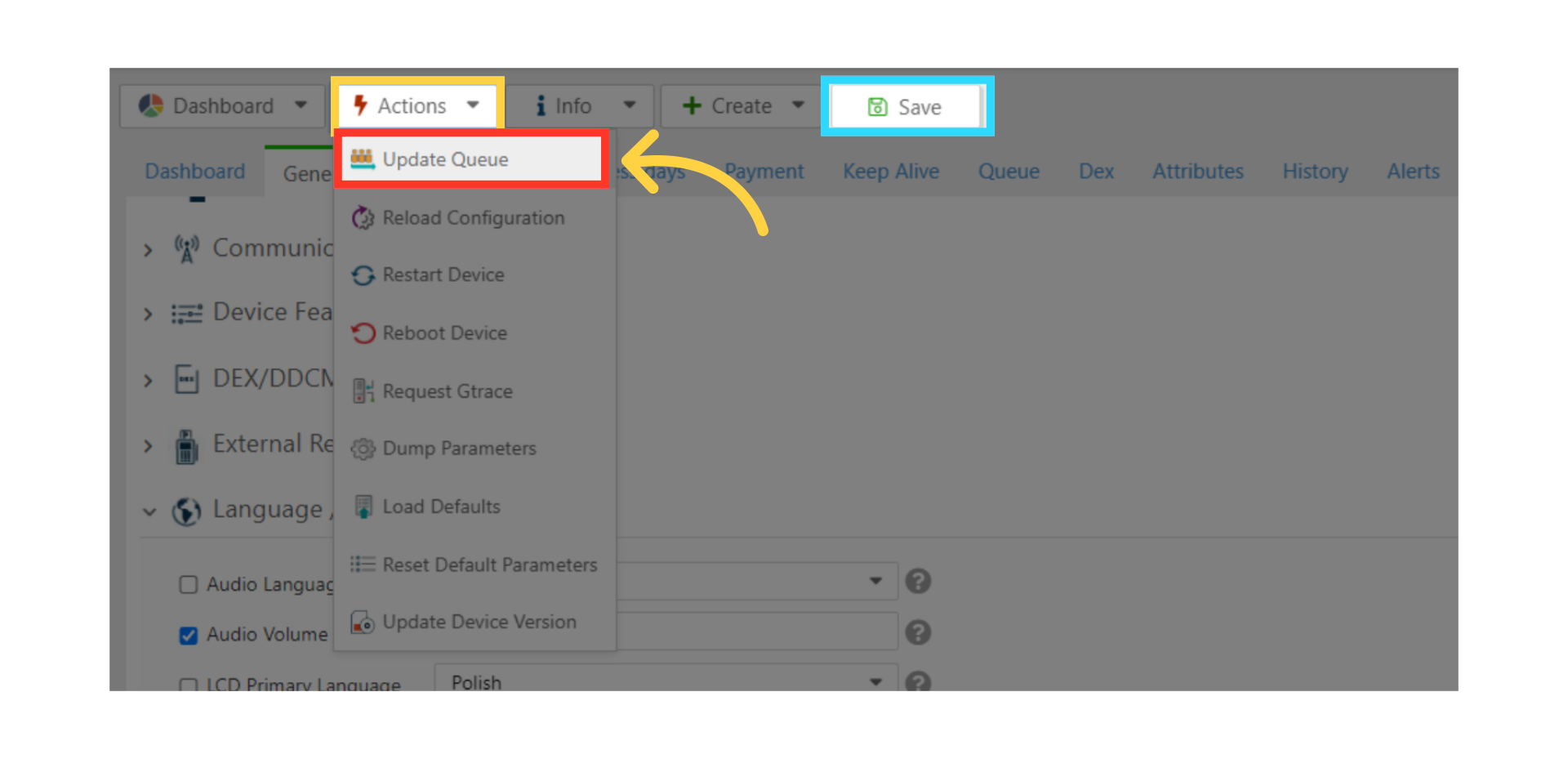
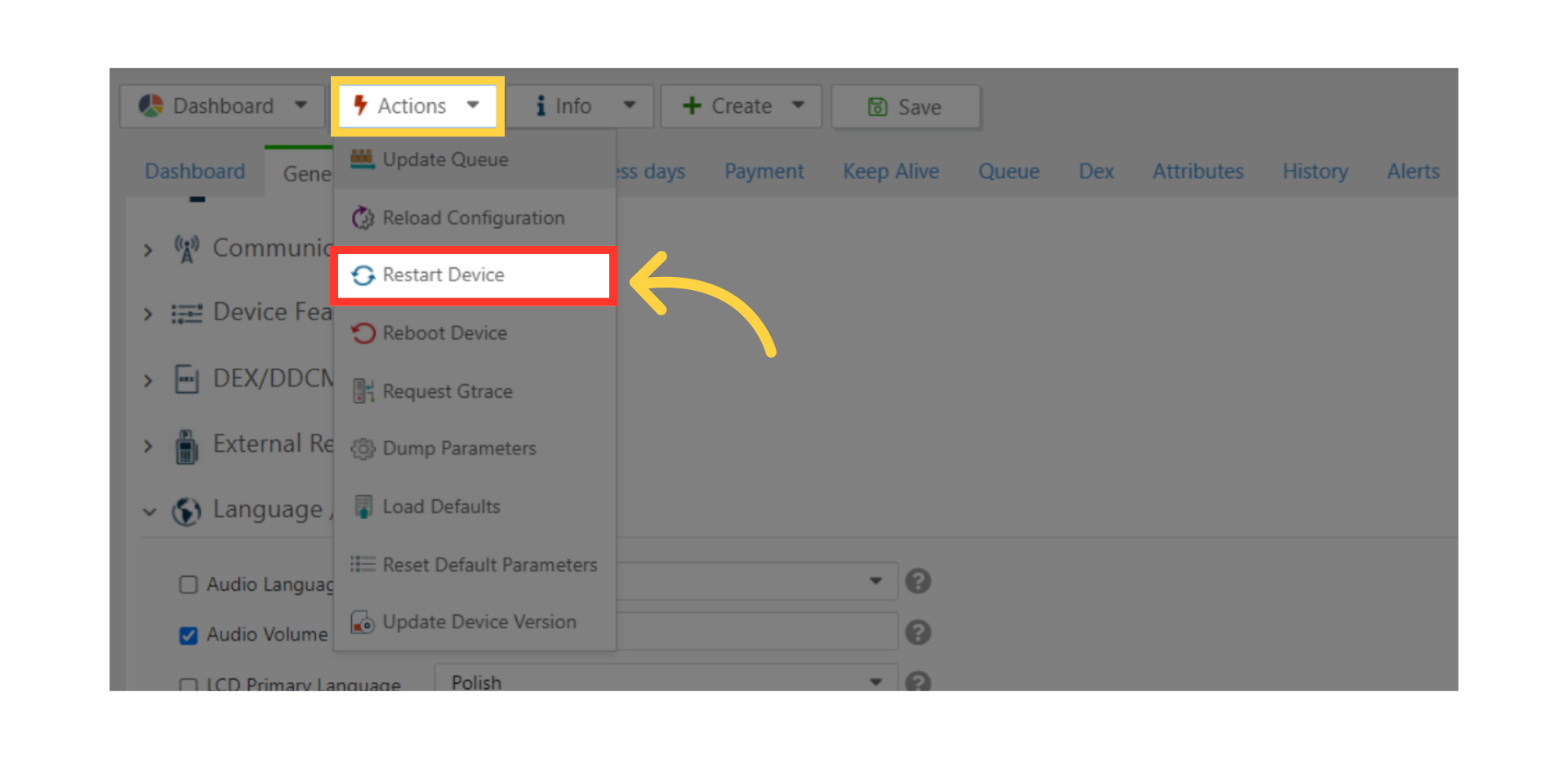
Optionally you can also choose to click the Actions button and click Restart device as highlighted in RED on the visual.