
How to setup TBSKiosk/Cpad Stand for Printing only
PRINT ONLY Kiosk or cPad Stand – Standard or Always Idle Modes
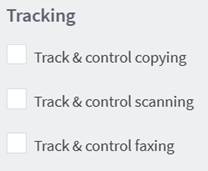
COPY/SCAN/FAX
Control off-the-glass Copying, Scanning or Faxing? - NO
These features must be unchecked when enabling Idle Mode payment.
PRINTING
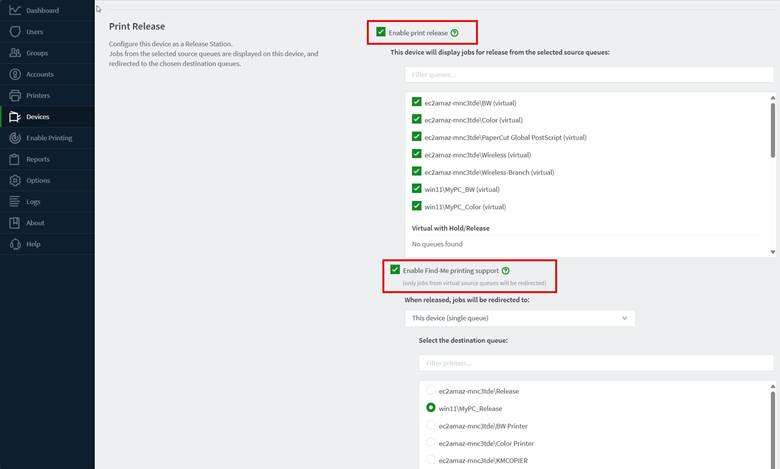
Control printing? - YES
This is configured under the DEVICES > select device > SUMMARY > PRINT RELEASE section. Once enabled, you must choose your SOURCE Queues (also known as HOLD queues or Virtual Queues in PaperCut). After selecting your Source queues, you will then need to enable Find-Me Printing Support and choose your release queues.
PAYMENT
Enable ‘Always Idle’ Mode for payment? – YES
When using a kiosk/cpad for Print Only and ‘Always Idle’ Mode, you will be prompted to make the payment when ready. This ensures the device knows the exact amount and asks for payment before releasing print jobs. You cannot insert cash or use a credit card before being prompted to make a payment.
To enable this on the cPad, go to DEVICES > Select device > ADVANCED CONFIG > PG1. Find ‘ext-device.cartadis_cpad.bank_card_always_idle_session_mode_enabled’ and set to Y.

NOTE: You can hit UPDATE after each setting OR UPDATE ALL at the bottom of each page.
IMPORTANT: If the kiosk was ever configured for Copying, you need to confirm that 'ext-device.cartadis_cpad.credit-card-preauth-enabled' is set to 'N'.

To enable this on the Nayax Device, go to the Nayax Portal and configure the settings below:
GENERAL > CARD READERS - Configure ‘Transaction Start Method’ to ‘Product’.

GENERAL > CARD READERS - Configure ‘Card Reader MDB Level’ to be ‘3’.

GENERAL > MDB tab - Configure ‘MDB Flags’ to be ’02 PreSelection Enabled’.

GENERAL > MDB tab - Configure ‘MDB Level 3 Optional Features’ to be ‘Enable “Always Idle” State’.

GENERAL > PAYMENT - Configure ‘Choose Product Timeout (sec)’ to ‘60’

GENERAL > PAYMENT - Configure ‘Present Card Timeout’ to be ‘60’.

Note: The default credit can be higher when using the ‘Always Idle’ Mode since there is no hold. This is still the maximum amount they can print within a session. GENERAL > Payment > ‘Default Credit’ Setting.

NOTE: There are templates configured in Nayax for TBS hardware setup.
To enable this on the 9900, go to the board on the inside of the coin tower and configure these settings:
Black Button to enter the MENU > COPIER PARAMATERS > Hit Green Button to enter the menu. Hit Configure Copier Type to be ‘NONE’.
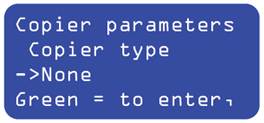
Hit Green Button to save.
Hit Blue Button to return to MENU > SYSTEM PARAMETERS > Hit Green Button to enter the menu. > Go to ‘Cashless Mode’ and set it to CREDIT if it is not already (default). Hit Black Button > Vend Request Mode Set this to ON.
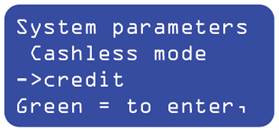
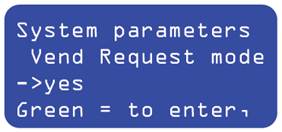
Hit Green button to save.
Your Main Screen should now show HELLO!

Credit Card Payment Types Accepted? – Insert, Tap or Swipe
All options are accepted. NOTE: Swipe is only accepted when the Credit Card does NOT have TAP/CHIP capabilities.
Payment with Cash? – Yes, Kiosks Only.
Kiosks can support standard coin/bill operators or be upgraded to High-Capacity coin-op/bill recyclers. A High-Capacity Coin-op/Bill Recycler can hold up to $90 in coins and up to $30 in $1s for change for the customer.
Payment with Credit Card? – Yes.
Nayax is supported for payment on all configurations of Kiosks, TBS9900s, and cPad Stands.
Use Cash, Credit, and Papercut Accounts together. – NOT ALWAYS
When using Papercut Accounts, this is the only payment type you can use as payment with Credit Card or Cash. To be more specific:
Can I use Cash and Credit Card at the same time? – NO
Can I use cash and Papercut Account at the same time? – YES
Can I use Credit Card and PaperCut Account at the same time? – YES
Add Funds to my PaperCut Account using Cash? – NO
Due to the ‘Always Idle’ Payment Mode, you cannot enable the ability to add funds to your Papercut Account.
This value under DEVICES > Select device > ADVANCED CONFIG > PG2 and find ‘ext-device.cartadis_cpad.recharge-account-enabled’. must be set to N.

Add Funds to my PaperCut Account using Credit Card? – NO
Due to the ‘Always Idle’ Payment Mode, you cannot enable the ability to add funds to your Papercut Account.
This value under DEVICES > Select device > ADVANCED CONFIG > PG2 and find ‘ext-device.cartadis_cpad.recharge-account-enabled’ must be set to N.

COMMON QUESTIONS:
How many prints can I print when using cash? – UNLIMITED
When using cash, as long as you keep replenishing cash into the coin tower, the session will not end unless due to inactivity.
How many print jobs can I print when using a Credit Card? – BASED ON DEAULT CREDIT.
When using a credit card, this is limited to the default credit set. For example, if you set your default credit limit to $5.00, you can print jobs up to $5.00, then you will need to select another batch of print jobs and repeat the process. Because there is no HOLD in this scenario, you can set the default credit limit to something higher like $50.00.
When is it OK to enter Cash or use my Credit Card? – WHEN PROMPTED
When using a kiosk/cpad for Print Only and ‘Always Idle’ Mode, you will be prompted to pay when ready. This ensures the device knows the exact amount and asks for payment before releasing print jobs. You cannot insert cash or use a credit card before being prompted to pay