
How To Configure Avision Scanner Power Settings
Avision scanners are convenient tools for efficient document management, but they have a default setting that powers them down after a period of inactivity. This article provides guidance on adjusting these power settings to better suit your needs.
The Cause
Avision scanners are equipped with a default power-saving feature that automatically powers them off after a set period. While this feature is designed to conserve energy, it may not be suitable for every installation. Here’s how you can modify these settings to prevent your scanner from turning off unexpectedly.
The Solution
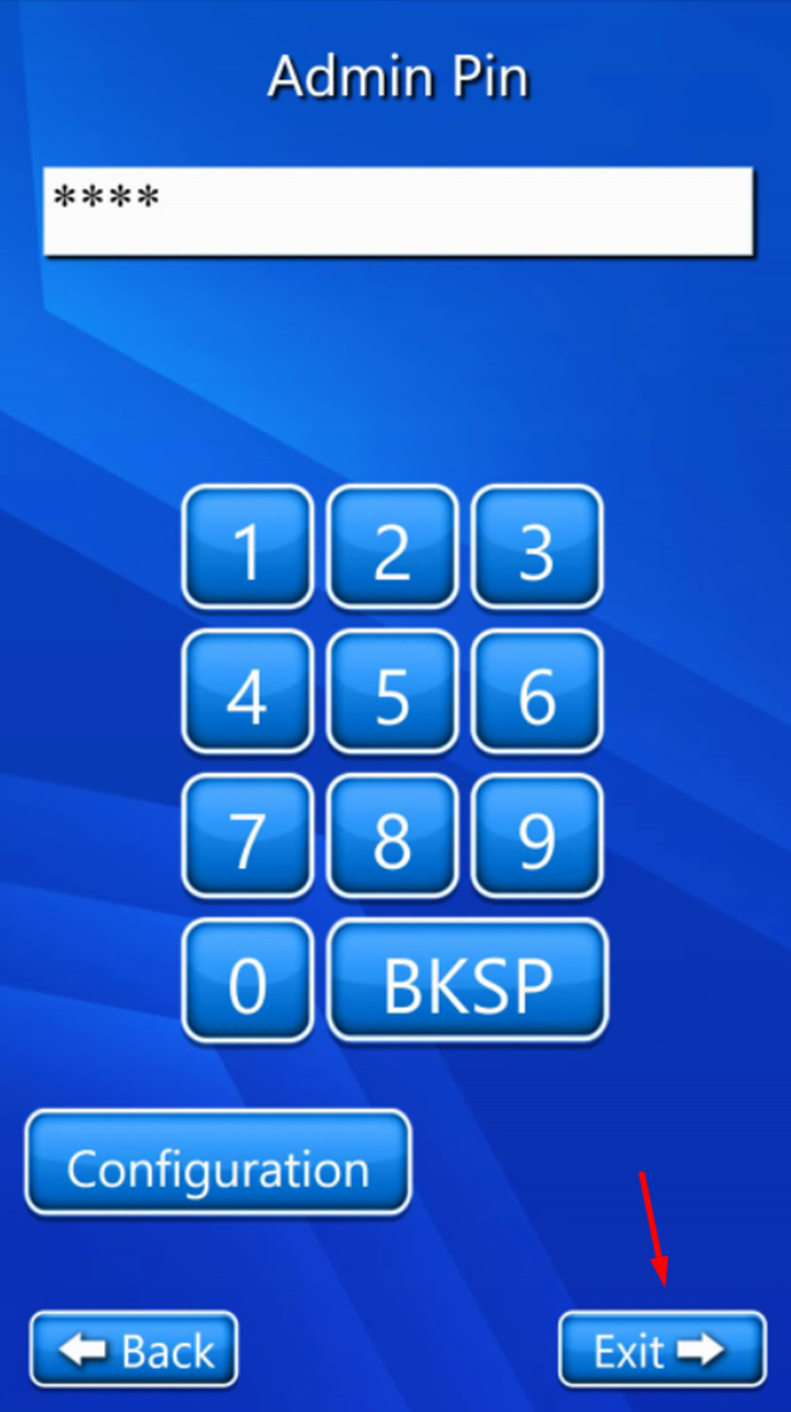
To begin, exit the ScanEz software. You can do this by clicking four times on the top left corner of the interface. When prompted, enter the password, then click on the exit button to close the software.
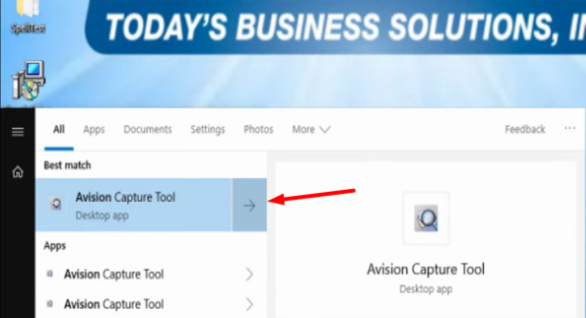
Next, open the Windows search bar, type "Avision," and select the "Avision Capture Tool".
If you're prompted to a specific screen, click "OK" to proceed unless the system provides further instructions.
Select the scanner experiencing the issue. Remember that "ADxxxx" refers to Document Feeder models while "FBxxxx" refers to Flat Bed scanners. Select the correct model, then click "OK."
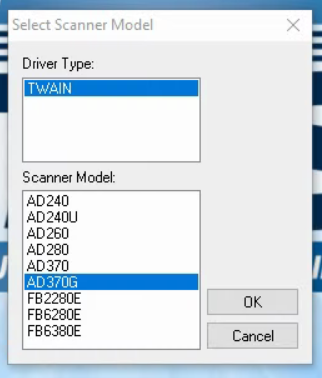
Ensure that the scanner is connected and powered on to avoid a "219 error code," which indicates that the scanner is not being recognized by your computer. After selecting the scanner model, click on the "Setup" button to access the settings.
In the settings tab, adjust the power settings. Set the "Enable Energy Saver" option to the maximum time. Uncheck the "Enable Power Off" option and disable "Sleep mode" if available.
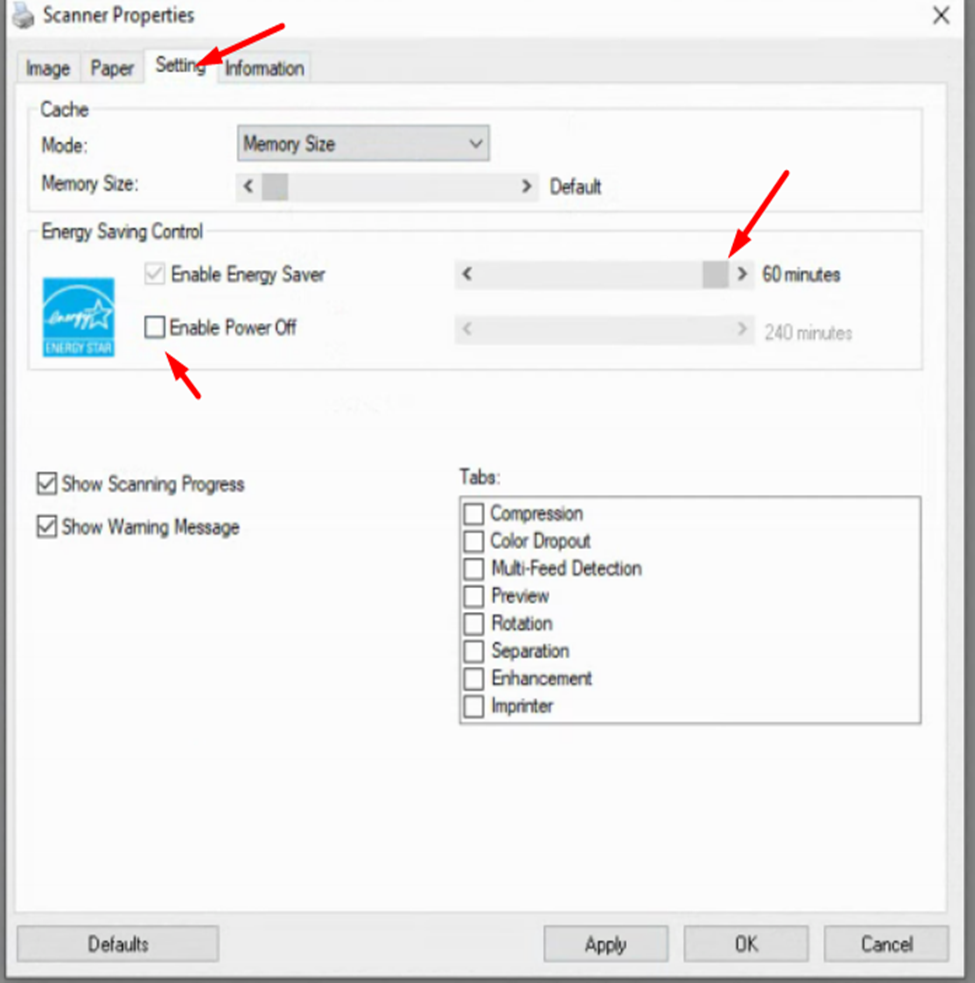
Once you've adjusted the settings, click on "Apply," then "OK" to save your changes. Close the Avision software and reopen ScanEZ to ensure the new settings take effect.
If your scanner continues to power off automatically after following these steps, please contact us for further assistance. We're here to help resolve any ongoing issues and get your scanner running smoothly.