
How to setup MyPC to validate against a text file
The Cause
For many reasons, TripleA can validate against a text file, but the most common setup for this in the public library world would be when a library isn't using PIN for library card validation, but want a more secure NTA/TA login and require a password. When you create internal Cire Users, these will not require a password.
The Solution
Setup TripleA to validate against a text file. More information can be found in the MyPC+6.X+Setup+and+Installation+Guide.pdf under the HELP tab of MyPC. Here is a quick/short answer on how to resolve this.
1. Create a text file with the users that you want to validate. Save the text file in the C:\_TBS folder and name it STAFF.txt
NOTE: use comma Delimited file
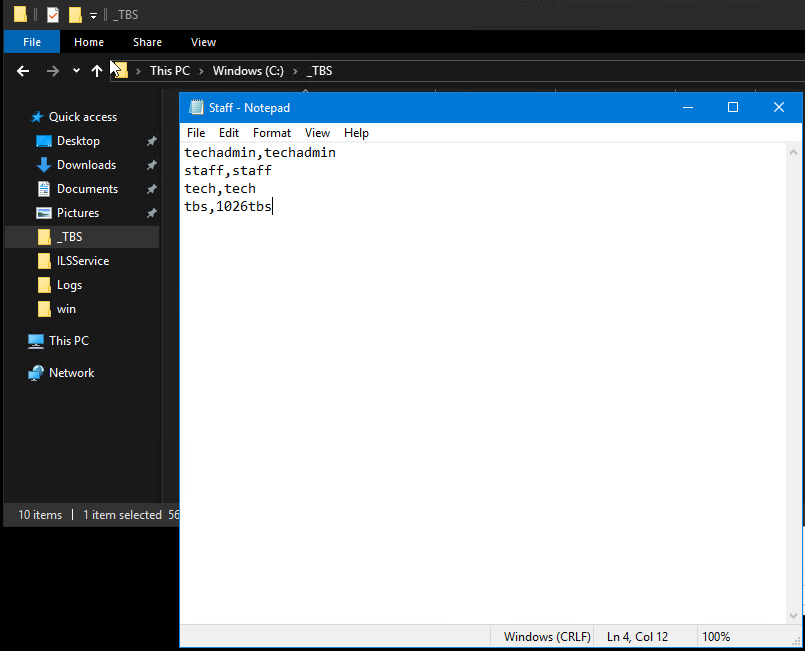
2. Browse to C:\Program Files (x86)\TripleA\ITS.TripleA.TripleAMapManager.exe (RUN AS ADMINISTRATOR)
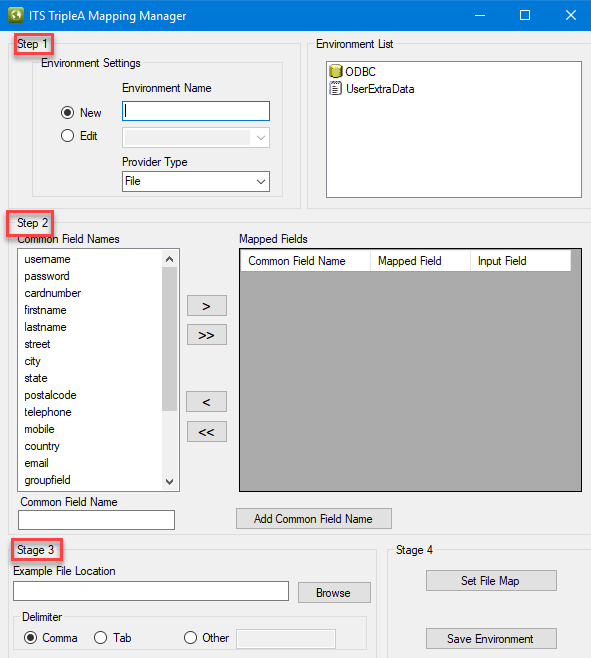
Step 1 Enter STAFF in the Environment Name field.
Step 2 Select the 'username' and 'password' from the Common Field Names.
Stage 3: Allows you to browse to the folder on your server where the file is located.
Stage 4: Select the Set File Map button and map your columns to the username and password fields. Select Col#1, and then the FieldName username. Repeat steps for Col#2 and FieldName password.
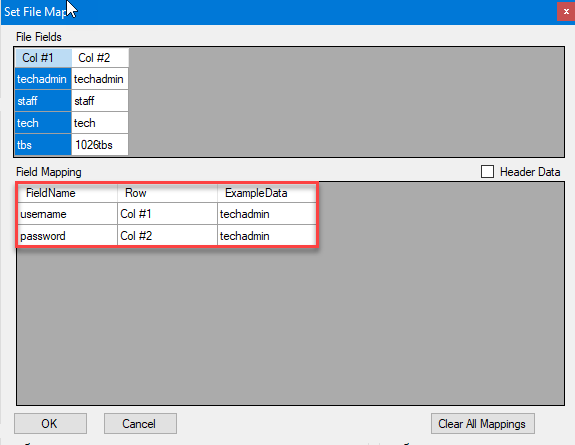
Click OK.
Click Save Enviornment.
Close the ITS.TripleA.TripleAMapManager.exe window.
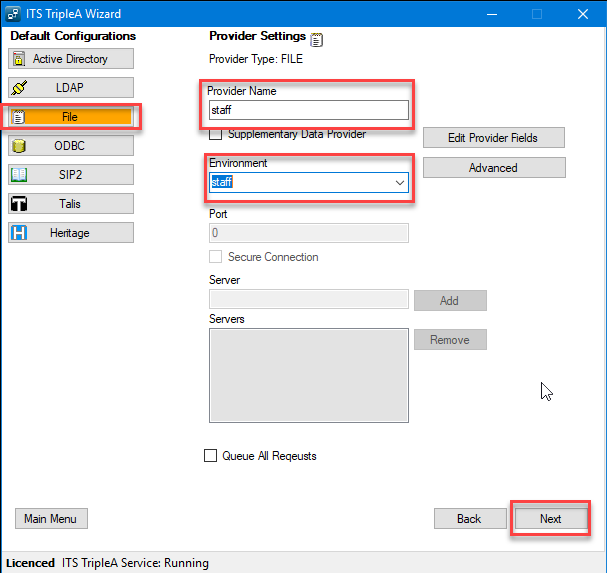
3. Launch C:\Program Files (x86)\TripleA\ITS.TripleA.TripleAWizard.exe (RUN AS ADMINISTRATOR) and ADD a new Providor.
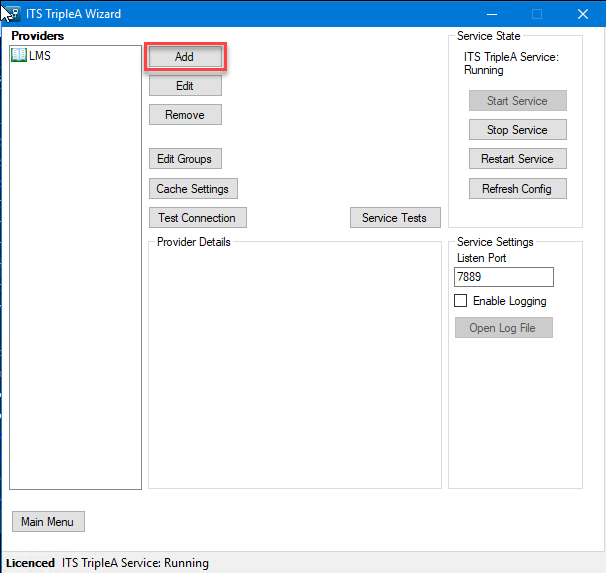
Step 1: Select File on the left.
Step 2: Provider Name: staff.
Step 3: Choose the new environment you created above (staff).
Step 4: Click NEXT.
On the FILE SETTINGS screen, Browse to the C:\_TBSstaff.txt file you created with new users. (NOTE: you can click the Check Mapping to make sure mapping is correct)
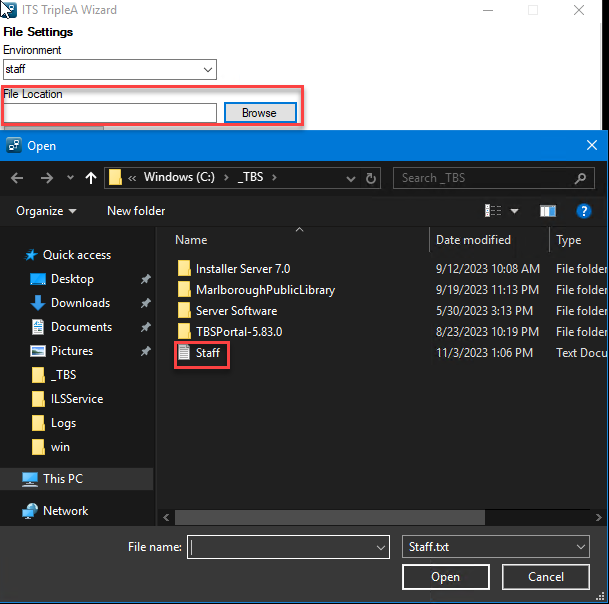
Click NEXT.
Test. NOTE: If you are doing this AFTER you have already created these users internally, you will need to delete the users in Cire before these accounts will work.