
Updating Papercut Server for PaperCut Vulnerability
First, Create a backup of the papercut database that is inside the SQL.
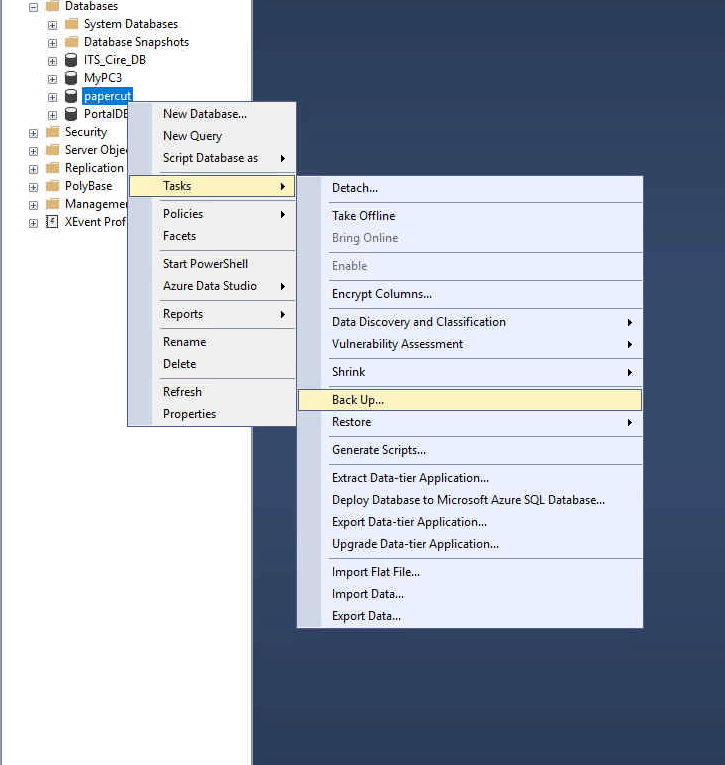
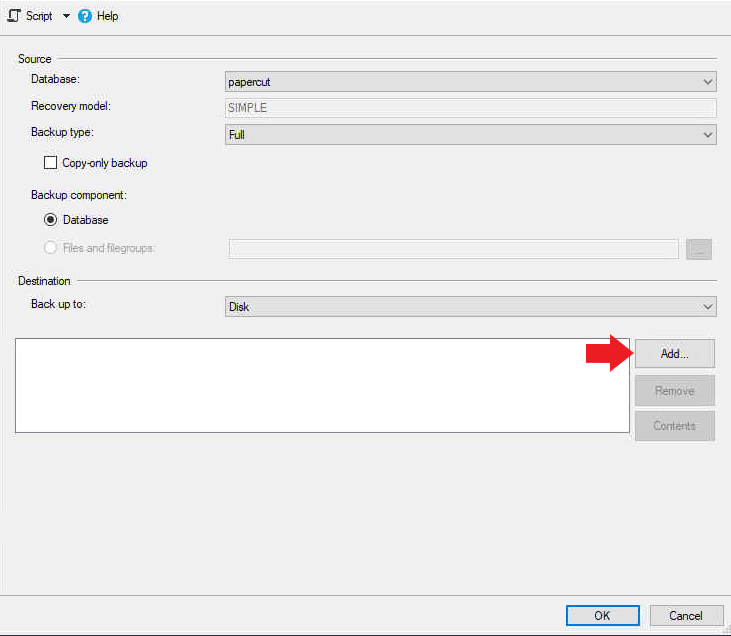
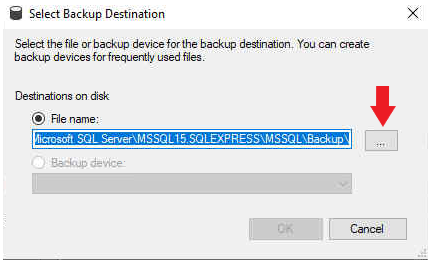
When naming the file name it papercut:
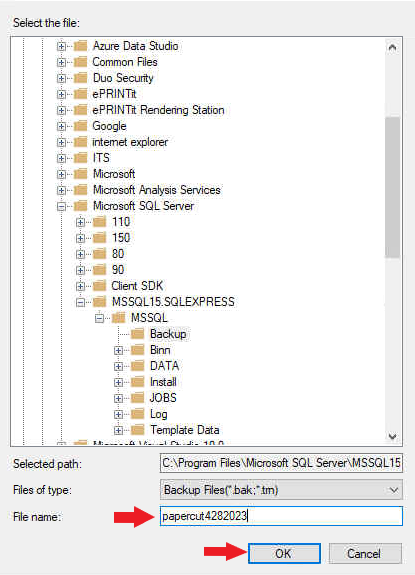
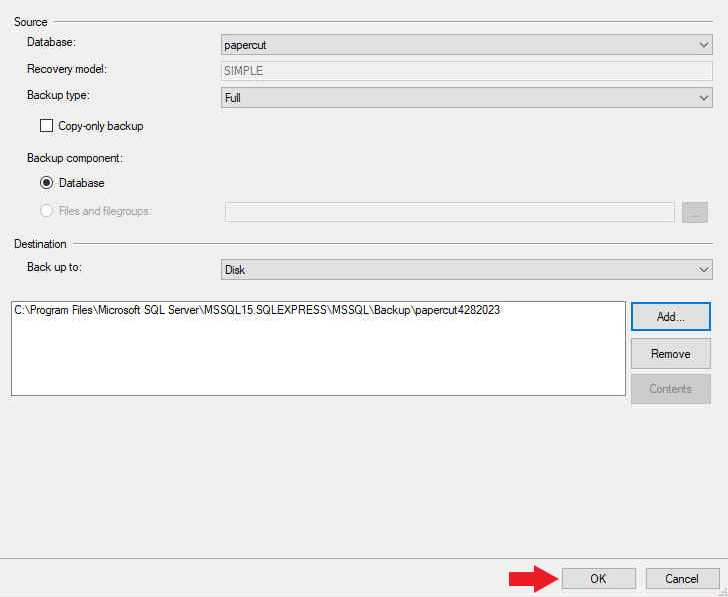
Once the Backup is completed, you can exit out of SQL.
Before downloading the Papercut installer, please verify which version you are running. You can find this out by logging into Papercut and clicking the ABOUT tab.
After verifying the version of Papercut that is being used please use the respected download link to get the installer see below: (IF YOU ARE USING ANY VERSION PRIOR TO 20 USE PAPERCUT VERSION 22)
Links to Download:
PaperCut Version 23.0.X (updated 07/17)
https://cdn.papercut.com/web/products/ng-mf/installers/mf/23.x/pcmf-setup-23.0.9.69402.exe
!!! NOTE: PaperCut NG/MF Security Bulletin (July 2023) says that vulnerabilities CVE-2023-3486, CVE-2023-39143, ZDI-CAN-21013 are fixed only in version 22.1.3 or later!
NOTE: IF YOU HAVE A SECONDARY SERVER FOR PAPERCUT PLEASE DOWNLOAD THE SAME INSTALLER ON THAT SERVER AS WELL.
Once you add the installer to the server, RUN THE INSTALLER AS ADMIN
When you are on the installer, you can click Next/Ok through the installer until you get to this screen below:
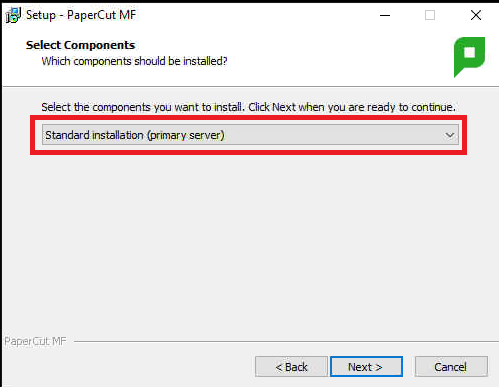
WHEN YOU ARE AT THIS SCREEN PLEASE CONFIRM THAT IF THIS IS INSTALLED ON THE MAIN SERVER IT SAYS PRIMARY. IF THIS IS ON A SECONDARY PAPERCUT SERVER PLEASE MAKE SURE IT SAYS SECONDARY.
Continue through the installer as usual and wait for it to be completed.
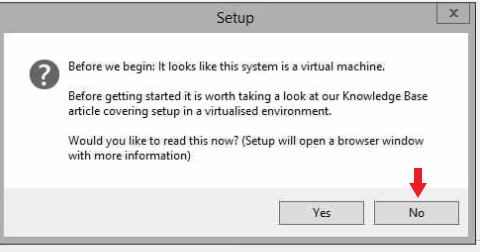
FOR SERVERS ON A VM, YOU WILL SEE A SECOND PROMPT OFFING AN OPTION OF YES OR NO. PLEASE CLICK NO. SEE BELOW FOR A SCREENSHOT:
Once the installation is completed, there are a few things you will want to double-check:
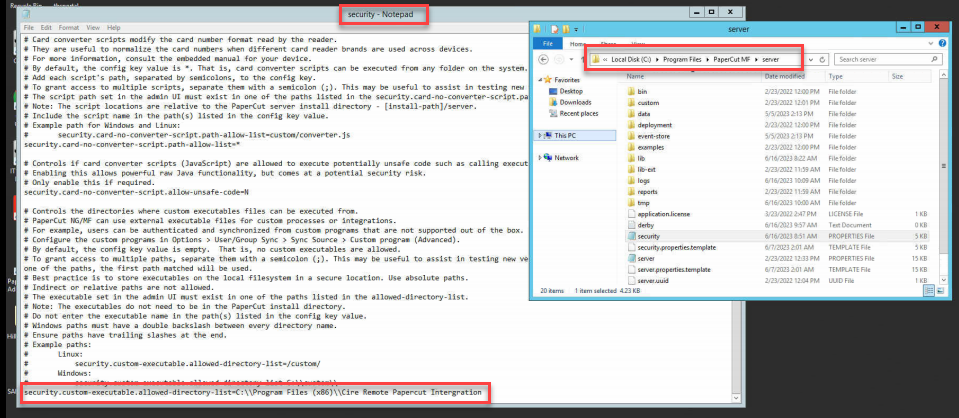
NOTE: When using custom sync source (for MyPC Installations), you need to edit a new file that has changed how this function works. This new security.properties file allow custom DLLs to run from specific directories labeled in this file.
File Location: C:\\Program Files\PaperCut MF\server
The line to edit: (all the way at the bottom of the file): (check below for Versions)
- Cire Remote PaperCut Integration Version 5.0.0.16
security.custom-executable.allowed-directory-list=C:\\Program Files (x86)\\Cire Remote Papercut Intergration
- Cire Remote Papercut Integration Version 5.0.0.19
security.custom-executable.allowed-directory-list=C:\\Program Files (x86)\\Cire Remote Papercut Integration
NOTE: IF Cire Remote Papercut Integration tool is NOT installed, click here to download: https://tbsit360office.sharepoint.com/:f:/s/TodaysBusinessSolutions/EltWIoO5hjtCo-8THkxTbaAB35vHWKmc4Ldn9JOTv4rJEA?e=kVly8M
*Restart the Papercut Application Service after these changes are made so that take in effect.
Also, if you have our software ePrintit you will want to make sure that the service is running (if you do not have ePrintit you can skip this step):

Please log into Papercut and head over to the Options tab and select Config Editor
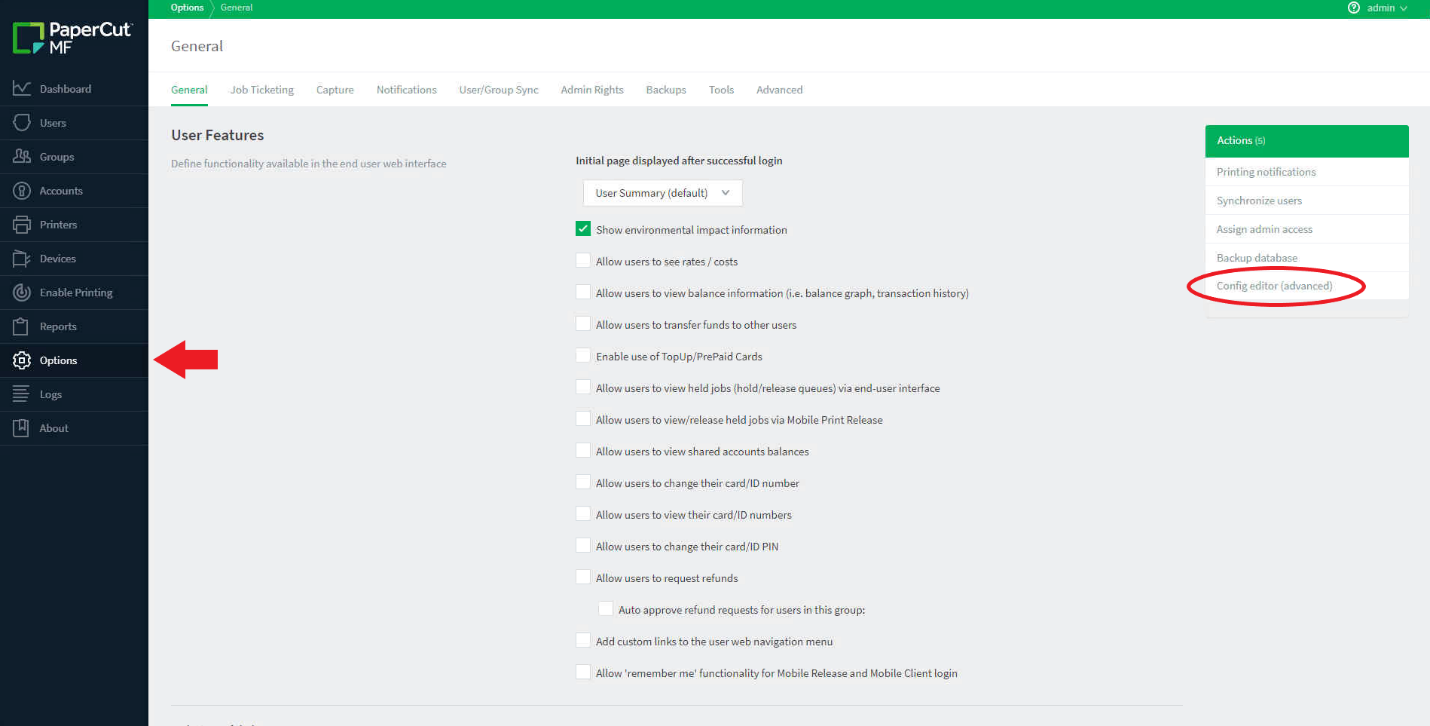
Inside the Config Editor, you want to look for print-and-device.script.enabled is set to Y

If print-and-device.script.enabled is not in the Config Editor, please see below:
PaperCut NG/MF version 22.1.1 introduced changes for how to enable and control print scripting, device scripting, and swipe card number conversions. The changes reduced the impact of vulnerabilities that might occur from executing potentially unsafe code.
These features are enabled and configured via security config keys in the security.properties file.
Enabling Print Scripting and Device Scripting
-
In any operating system, open the
[app-path]/server/security.propertiesfile.Windows
a. In the Start menu, right-click Notepad and select Run as administrator.
b. From the File menu select Open.
c. Browse to and open the
security.propertiesfile.macOS/Linux
We recommend using
sudoorsuto open the file in your favorite editor as root. Find the
security.print-and-device.script.enabled=Nconfig key and set it toY.Save the
security.propertiesfile.Restart the PaperCut Application Server.
Once you have completed these steps, please give printing a try. If there are any issues or questions, please give TBS a call at 630-537-1370 or email our support at helpdesk@tbsit360.com