
HOW TO: manually add quota to group of users
If you are provided funds/quotas to patrons for free printing this is done under the GROUPS tab in PaperCut. If there are any issues with the server, lost power, reboots during this nightly sync process, then you may have to manually add the quota to groups. Below will step you through this:
1. Log into Papercut Portal: HTTP://servername:9191/admin with your admin/technician credentials.
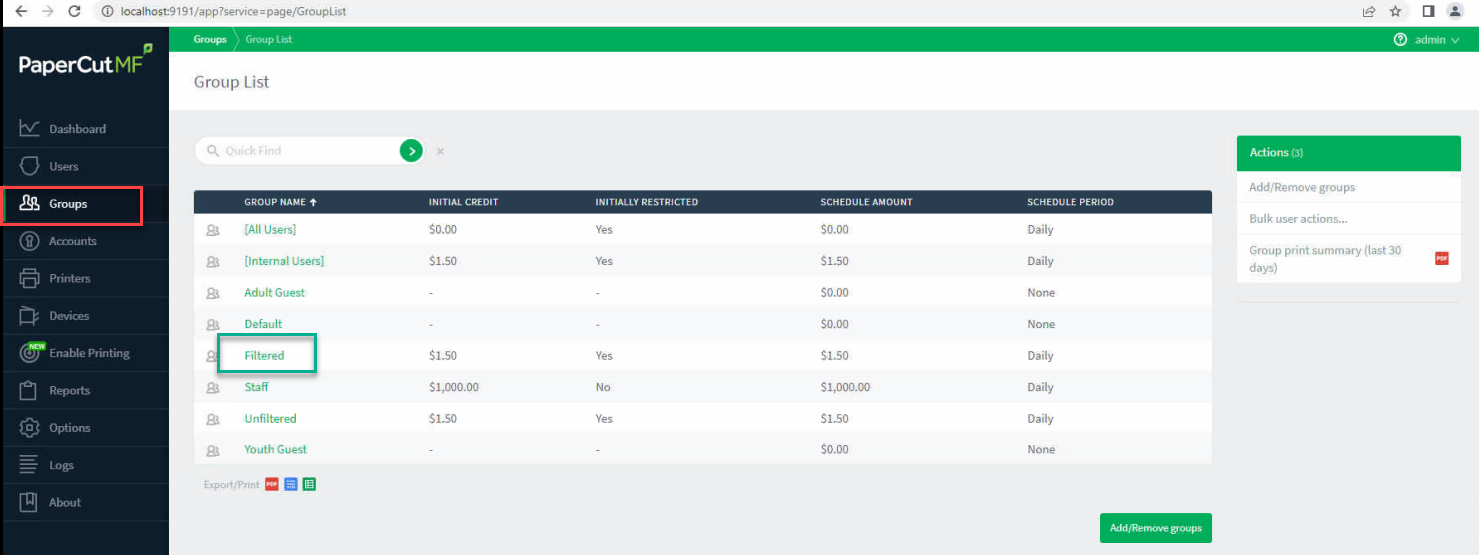
2. Once logged in, go to the GROUPS tab on the left pane. (RED In image)
3. Select the group in the Group List that you want to add funds to (GREEN in image). This may be multiple groups so repeat as needed:
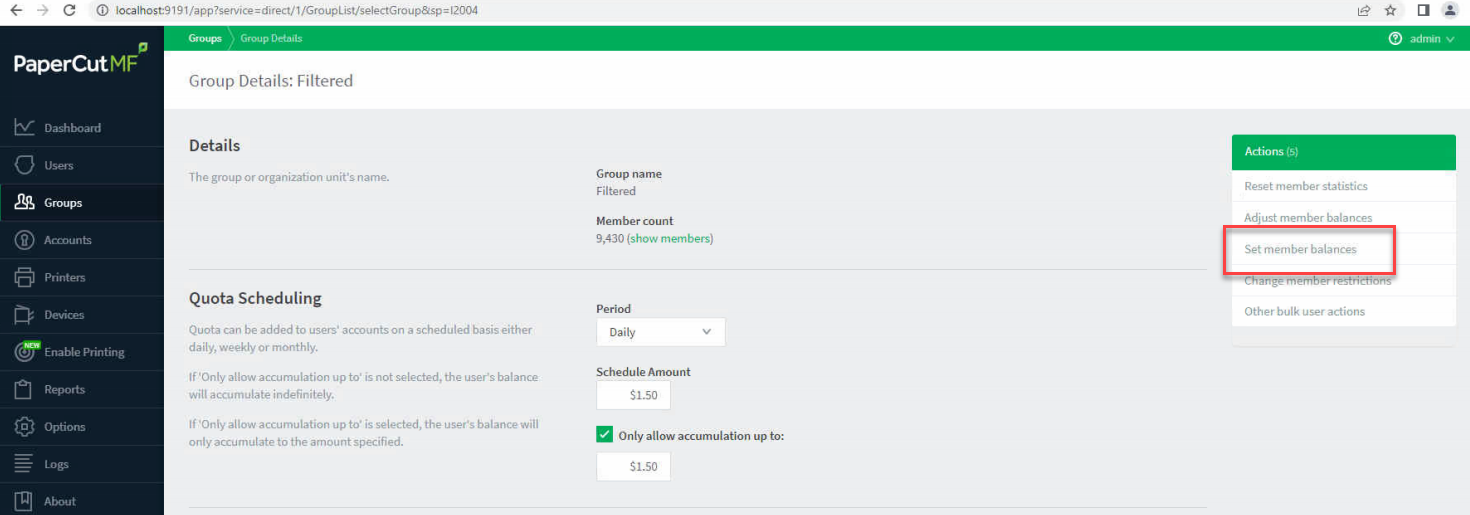
4. When selecting the group, you will be moved to the Group Details page. Here is how we configure the quotas, but in the top-right corner you will see an option "Set Member Balances"
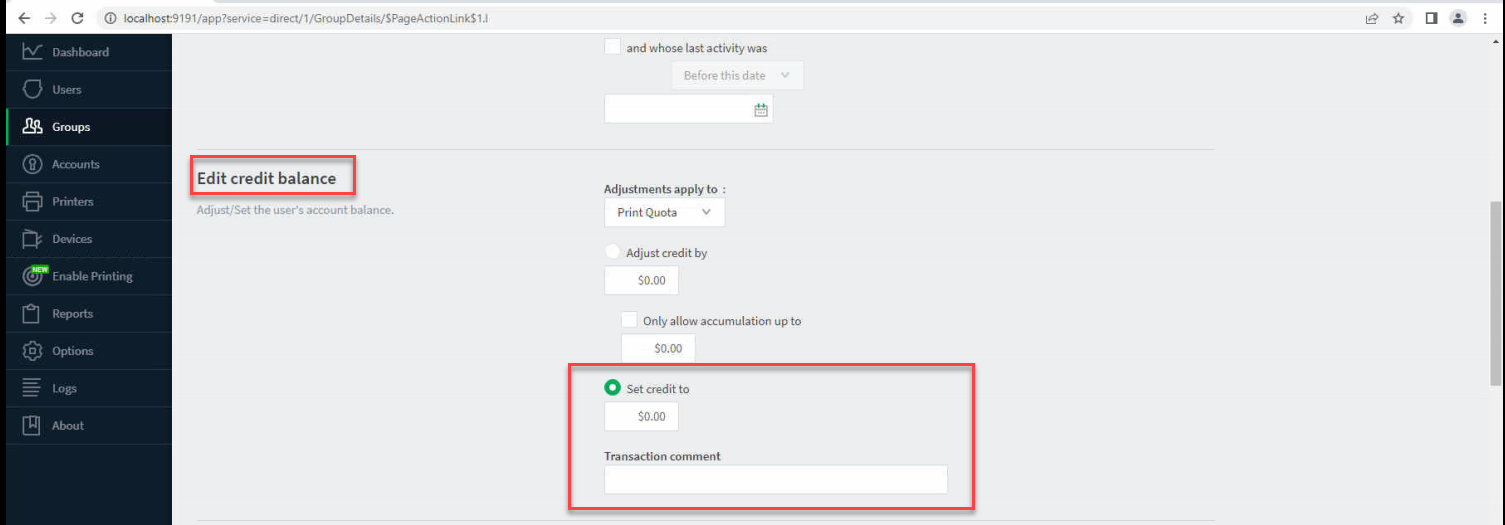
5. This will bring you to Bulk User Operations page and from here, you will notice the page is already populated with your group, but you will need to scroll down and set the credit amount. You can also enter in a comment for reporting reasons. NOTE: If you allow patons to hold cash balances, you want to make sure you make the adjustment to the PRINT QUOTA purse, not cash balance.
6. Scroll to the bottom of the page and click OK to save. This will prompt another windows to show the sync/adjustment process.
NOTE: depending on how many users you have, this could take anywhere from 5 minutes to a few hours. This is not recommended to do during the day as PaperCut locks records as it adds funds so you will have sporadic issues with users and balances through-out the working day if you did this.