
How to add inventory to a TBS 9900/Kiosk using Standard Payment Mode (3 methods)
Adding money to your kiosk or TBS9900 coin tower is easy once you know the steps! Whether you're using the standard coin slot, programming inventory manually, or working with high-capacity coin tubes, this guide will walk you through each method. Let’s get started!
Before You Begin
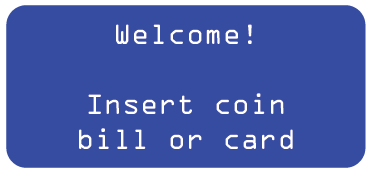
First, check the internal blue screen on your machine. It should display: “Welcome! Insert Coin, bill, or card”. If you don’t see this message:
You may already be in the menu—press the BLACK button repeatedly until you return to the welcome screen.
If you don’t have a credit card reader, the screen will say: “Welcome! Insert coin or bill”.
Make sure you are in Standard Payment Mode before proceeding.
Method 1: Insert Coins Through the Coin Slot
-
Insert Coins:
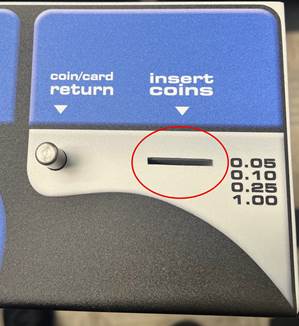
Place coins (any denomination) into the coin slot at the top of the coin tower. Take care not to hit the coin plunger while doing this—if you do, the machine will return all your change.
-
Monitor Your Total:
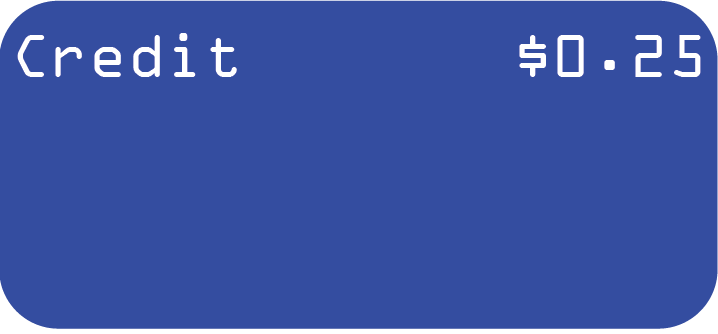
The internal blue screen will show the amount you’ve inserted. The maximum you can add at once is $19.00.
-
Save Your Inventory:
Once you’re done, press the black button on the main board next to the blue screen. This saves your tabulated funds as inventory. For best results, save every $10.00 or so to avoid accidental coin returns.

Method 2: Insert Coins and Program Inventory Manually
If you’re adding coins directly into the Coin-Op tubes, you’ll need to keep track of the amount and manually update the inventory.
-
Insert Coins Into Tubes:
Drop coins directly into the Coin-Op tubes via the slot openings. If you insert a coin into the wrong tube, remove the Coin-Op and tip it upside down to remove the coins.
-
Program Tube Values:
Press the Black button to enter the menu.
When you see “AUDIT” (the first option), press Green to enter.
Find the tube values. Press Green to edit a tube.
Use Red and Blue buttons to adjust the value, then press Green to save and move to the next tube.
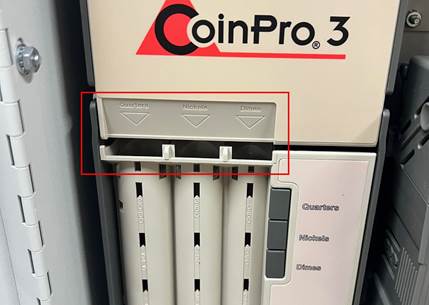
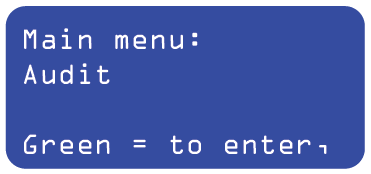
Repeat for each tube. To skip a tube without changing it, press Black.
Method 3: Insert Coins into Removable High-Capacity Tubes
-
Remove and Load the Tubes:
Take out each high-capacity coin tube.
Insert coins directly into the tubes.
Re-seat the tubes in the coin tower.
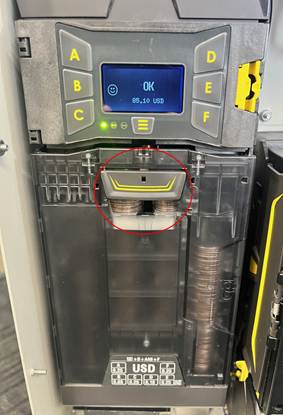
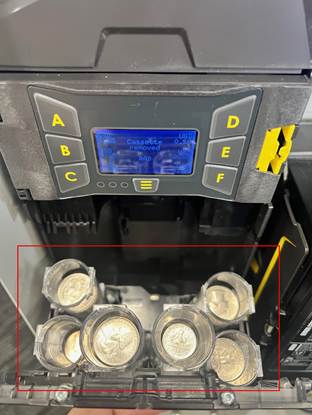
NOTE: Automatic Inventory Detection - These ‘smart’ devices will automatically detect and update coin counts based on tube weight.
Adding Bills to the Bill Recycler
-
Enter Load Mode:
On the back of the bill recycler, press and hold the MODE button for 2 seconds.
The display will flash and show the current mode. Look for ‘Ld’ (Load).
-
Insert Bills:
Press the Select button to start loading.
Insert $1 bills through the bill slot. The number on the display will increment for each bill.
-
Save and Exit:
Hold Select to save your changes.
Hold MODE to return to the main screen, which now shows your updated $1 bill inventory.
Coin Tube Capacity Reference
Each coin tower type has a different maximum coin capacity.
CoinCo Coin-Op (Standard Coin-op with 3 total tubes)
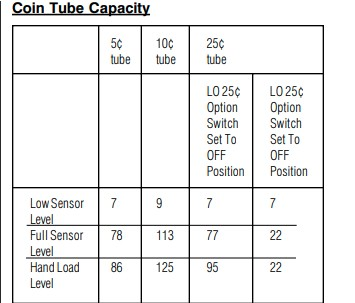
MEI/CPI Gryphon High-Capacity Coin-op (High Capacity with 6 total tubes)
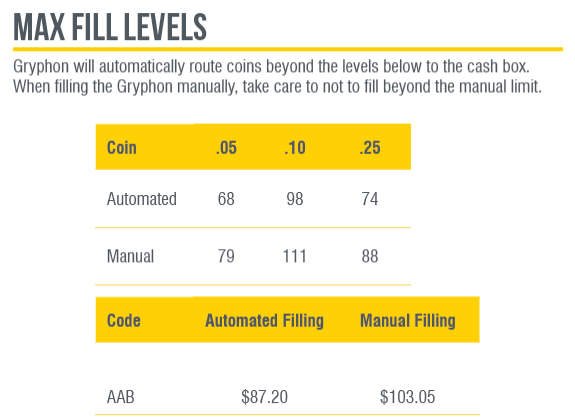
NOTE: These totals are PER TUBE
MEI/CPI CF7000 High-Capacity Coin-op (High Capacity with 5 total tubes)
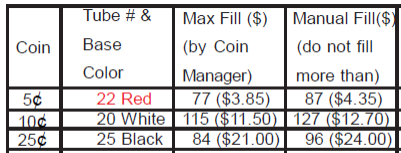
NOTE: These totals are PER TUBE
Tips for a Smooth Experience
Always double-check the on-screen prompts before starting.
Save frequently when adding large amounts to avoid data loss.
If you make a mistake, don’t worry! You can remove coins or adjust inventory as needed.
Contact support if you encounter any issues your manual doesn’t cover.
That’s it! Adding money to your kiosk or coin tower should now feel straightforward. If you have any questions, don’t hesitate to reach out—we’re here to help.