
How to Migrate MagnaPOS Location Manager
Pre-Requisites
Before uninstalling the Location Manager on the current PC/Server, you will need to back up the following files to restore local settings.
- C:\Program Files (x86)\MagnaPOS-L Location Manager\sysCO.mdb – stores all local settings. IE: local Admin accounts and AD configuration settings for who can access the Location Manager Software.
- SQL databases (See below “Detach/Attach DB” on how to do this if applicable)
- C:\Program Files\Microsoft SQL Server\MSSQLXX.SQLEXPRESS\MSSQL\DATA\MagnaPOS.mdf
- C:\Program Files\Microsoft SQL Server\MSSQLXX.SQLEXPRESS\MSSQL\DATA\MagnaPOS_log.ldf
All Software needed for this installation.
- WorkstationSetup_X.X.X.exe
- MagnaPOS-L Location Manager
- SQL with Management Tools (if installed on the same PC/Server as LM)
Uninstall/Re-Install Process
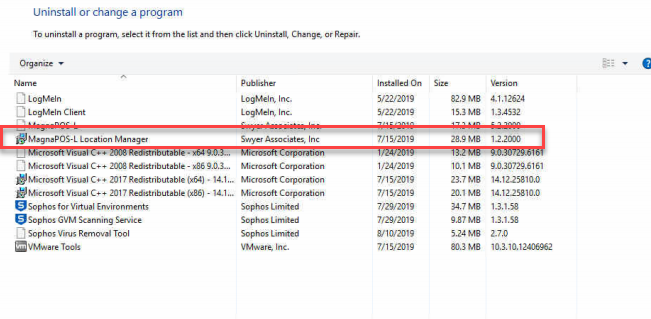
1. Uninstall MagnaPOS-L Location Manager from the Current PC/Server this is installed on.
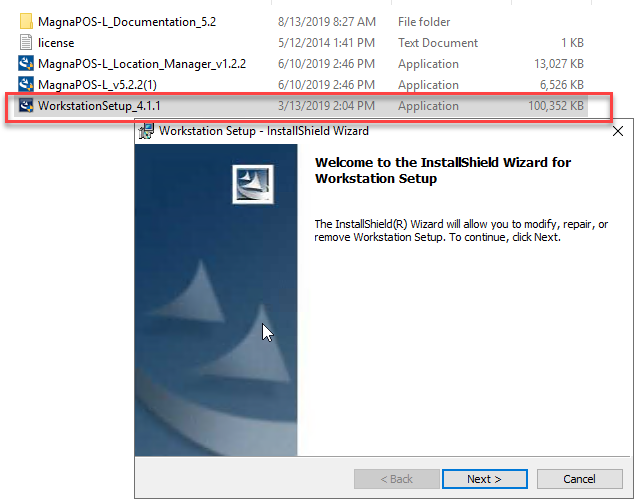
2. Install WorkstationSetup_X.X.X.exe
- This is the engine for the Location Manager that gets installed in the Windows Directory. There are no prompts for this since it is not configurable.
3. Install the MagnaPOS-L Location Manager software on the new PC/Server.
- Install MagnaPOS-L_Location_Manager_vX.X.X.exe
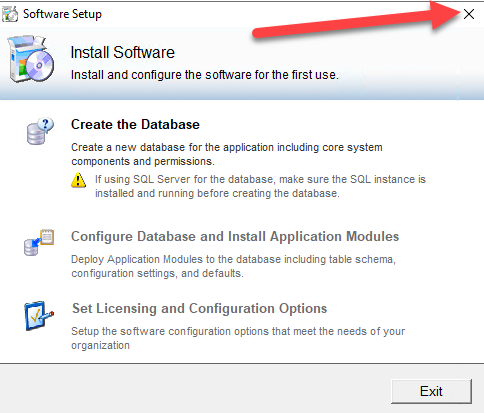
- After the installation, you will be prompted to “Create the Database”. This box can be closed since you already have the database from the old PC/Server.
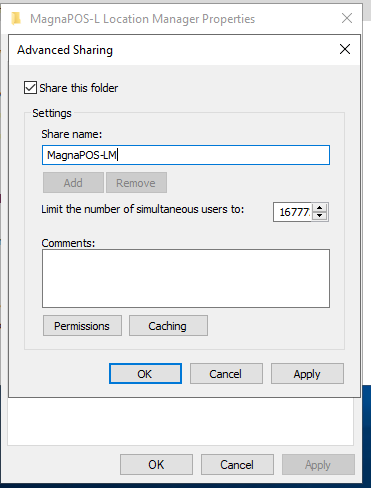
4. Once the software is installed, make sure to share the: “C:\Program Files (x86)\MagnaPOS-L Location Manager” directory. TBS recommends the share name: MagnaPOS-LM. Make sure to give everyone full permission to the Share and Security permission to this folder.
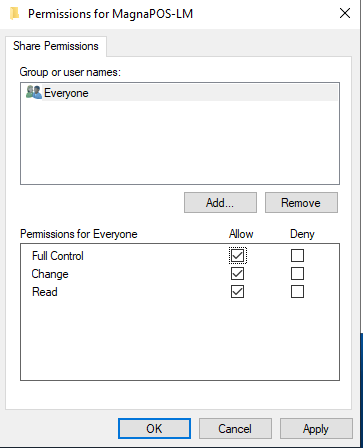
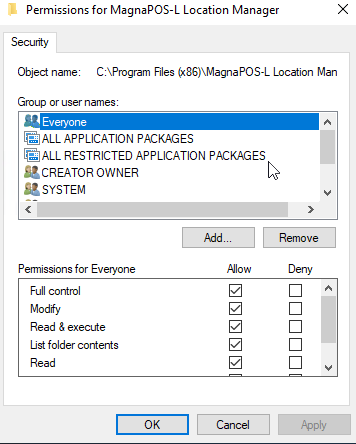
5. Once the software is installed and permissions are set, you must copy over the database and the local sysCO.mdb files into their directories.
- sysCO.mdb needs to be copied to the directory of the Location Manager software as you found it. DEFAULT: “C:\Program Files (x86)\MagnaPOS-L Location Manager”
- The ‘MagnaPOS’ database needs to be added to the SQL directory so you can be Attached to the new SQL Server using the Management Tools. DEFAULT: “C:\Program Files\Microsoft SQL Server\MSSQL14.SQLEXPRESS\MSSQL\DATA”
6. Once the sysCO.mdb is in the correct directory and you have the SQL database where you want it, the next step is to point the Location Manager to the existing database. To do this, run: “C:\Program Files (x86)\MagnaPOS-L Location Manager\DBSettings.exe”. *NOTE: make sure to 'RUN AS ADMINISTRATOR'
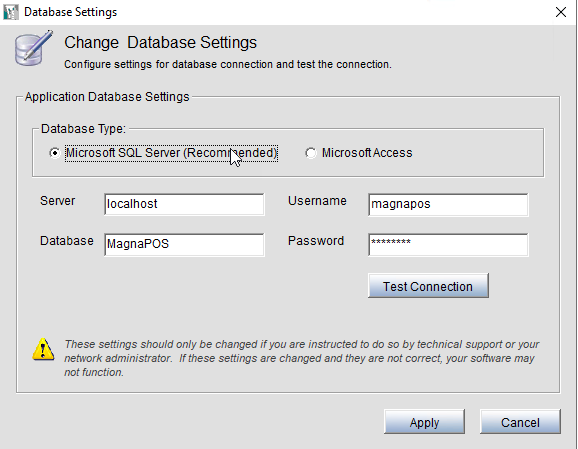
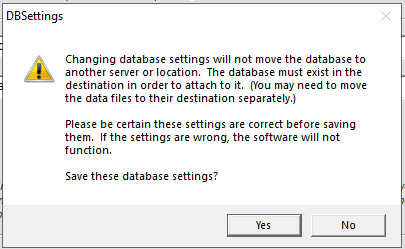
7. Confirm the MagnaPOS Services are running:

Migrating Database - Detach/Attach SQL DB
1. When moving the database along with the software to another PC/Server, follow the steps below to Detach and Attach the DB.
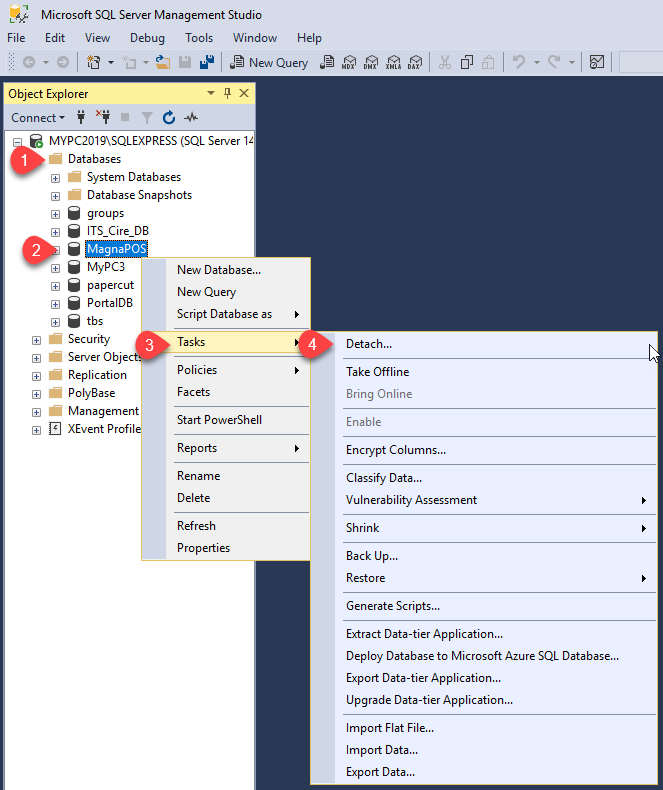
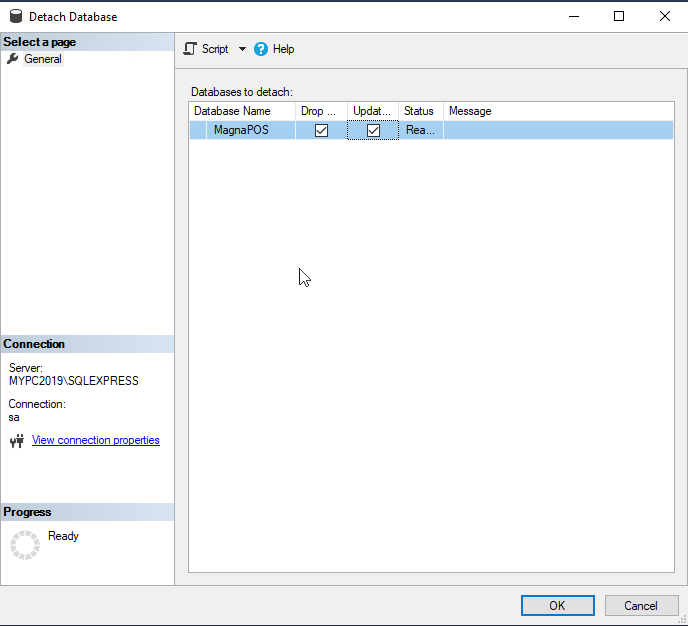
2. After you detach the DB, you need to grab the following and back them for the new PC/Server.
- C:\Program Files\Microsoft SQL Server\MSSQLXX.SQLEXPRESS\MSSQL\DATA\MagnaPOS.mdf
- C:\Program Files\Microsoft SQL Server\MSSQLXX.SQLEXPRESS\MSSQL\DATA\MagnaPOS_log.ldf
3. Once the new PC/Server is in place, put the DB files in the SQL /DATA directory.
- DEFAULT: C:\Program Files\Microsoft SQL Server\MSSQLXX.SQLEXPRESS\MSSQL\DATA\
4. Open SQL Management Tools and login. Once you are logged in, Attach the database.
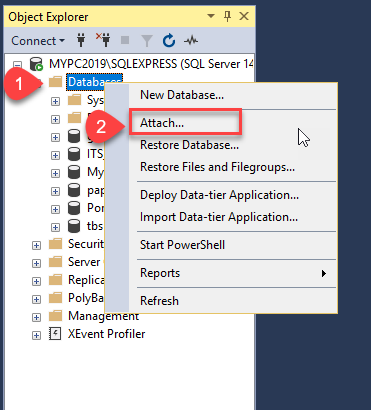
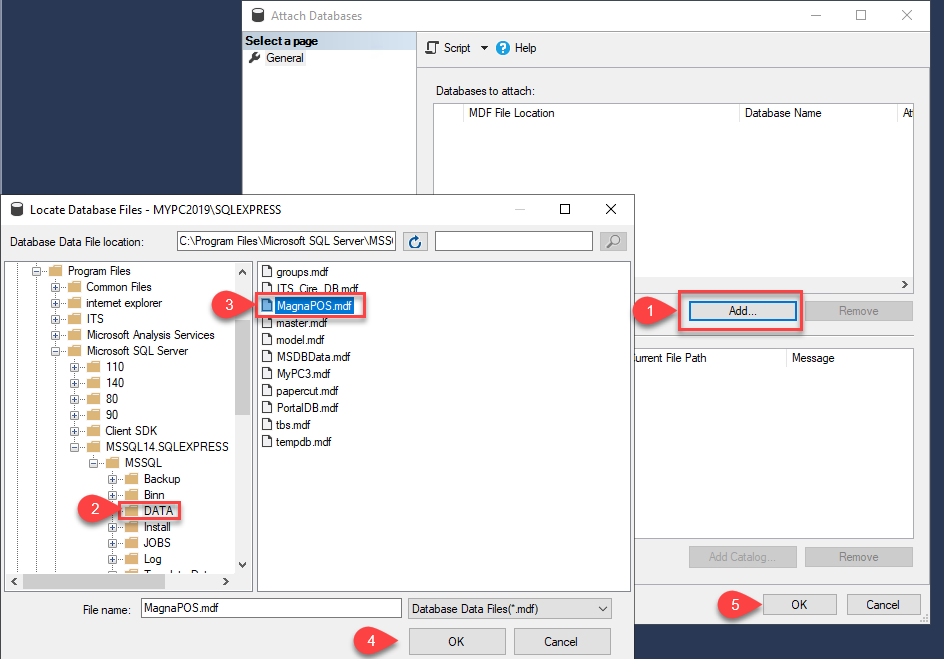
You should now see the ‘MagnaPOS’ database in the list. You can then proceed to configure Location Manager to point to the correct database.