
Creating Gmail App Specific Passwords
The Cause
G-Mail disables their secure 3rd Party Application integration.
When using G-Mail for ScanEZ Station the 'Scan to Email' function.
The Solution
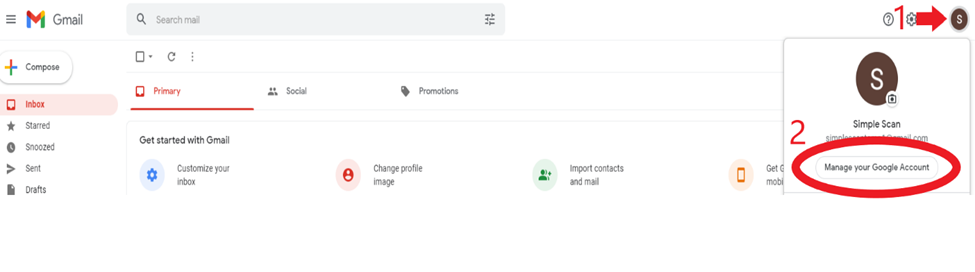
- Click on your Account profile on the top right and double click on “Manage your Google Account”
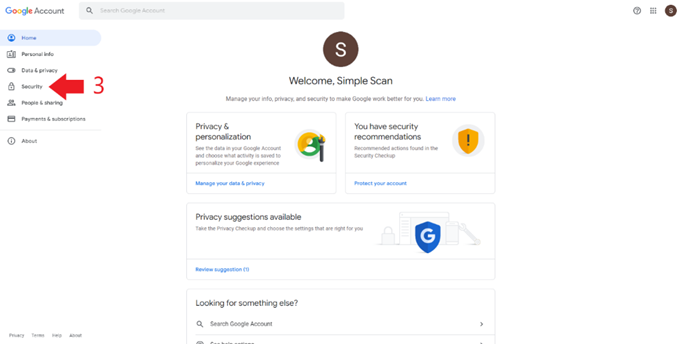
2.Next, At the Google Account page, select the Security Tab
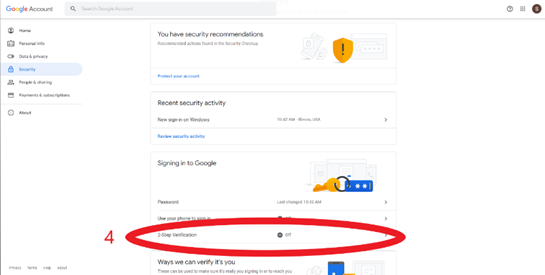
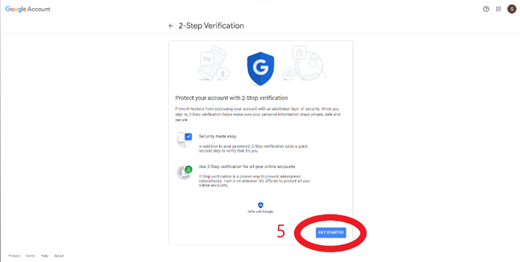
3.Under the Security Tab, select the section that says 2-Step Verification & click on “Get Started” to begin the 2-Step Verification process.
4.Enter your Gmail accounts password and click Next
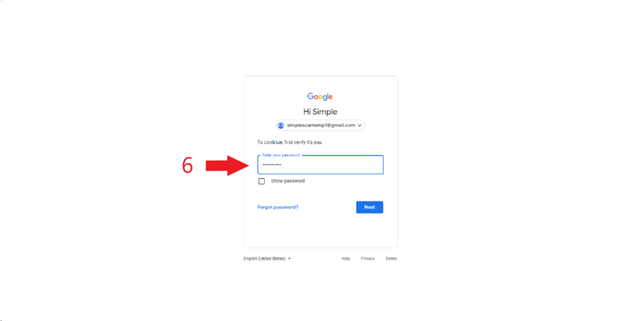
5.This will prompt you to enter a phone number
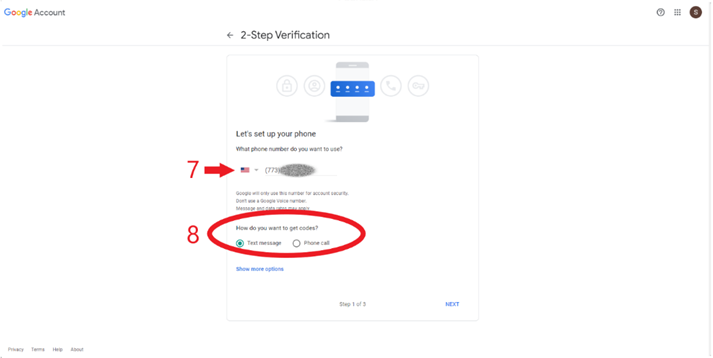
6.Select if you want a text message sent for a code or if you would like an automated phone call (Below is an example of how the text will look like)
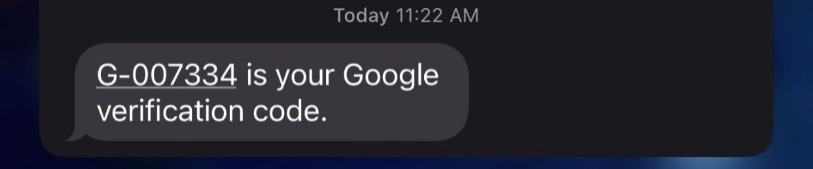
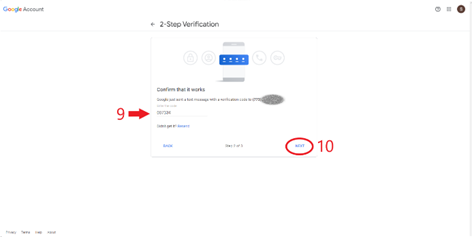
7.After receiving your code there will be a section to enter in that code ,Once the code is entered select Next
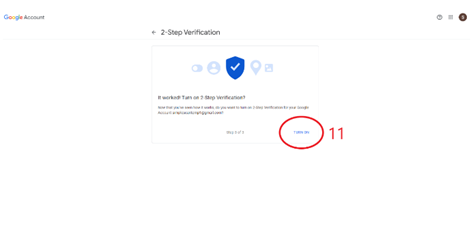
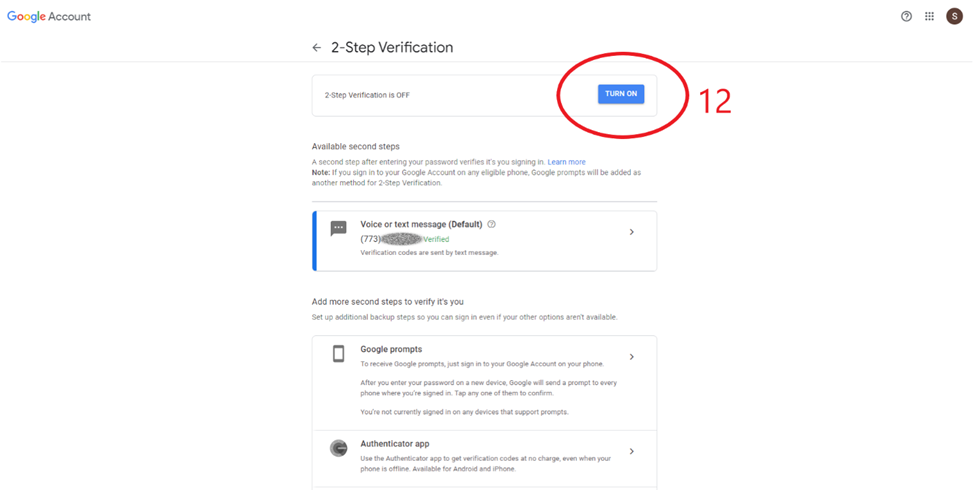
8.Click on TURN ON to finish the process, if 2-Step Verification is not on after, head back to the home page and select the security tab, click on 2-Step Verification, and re-select TURN ON
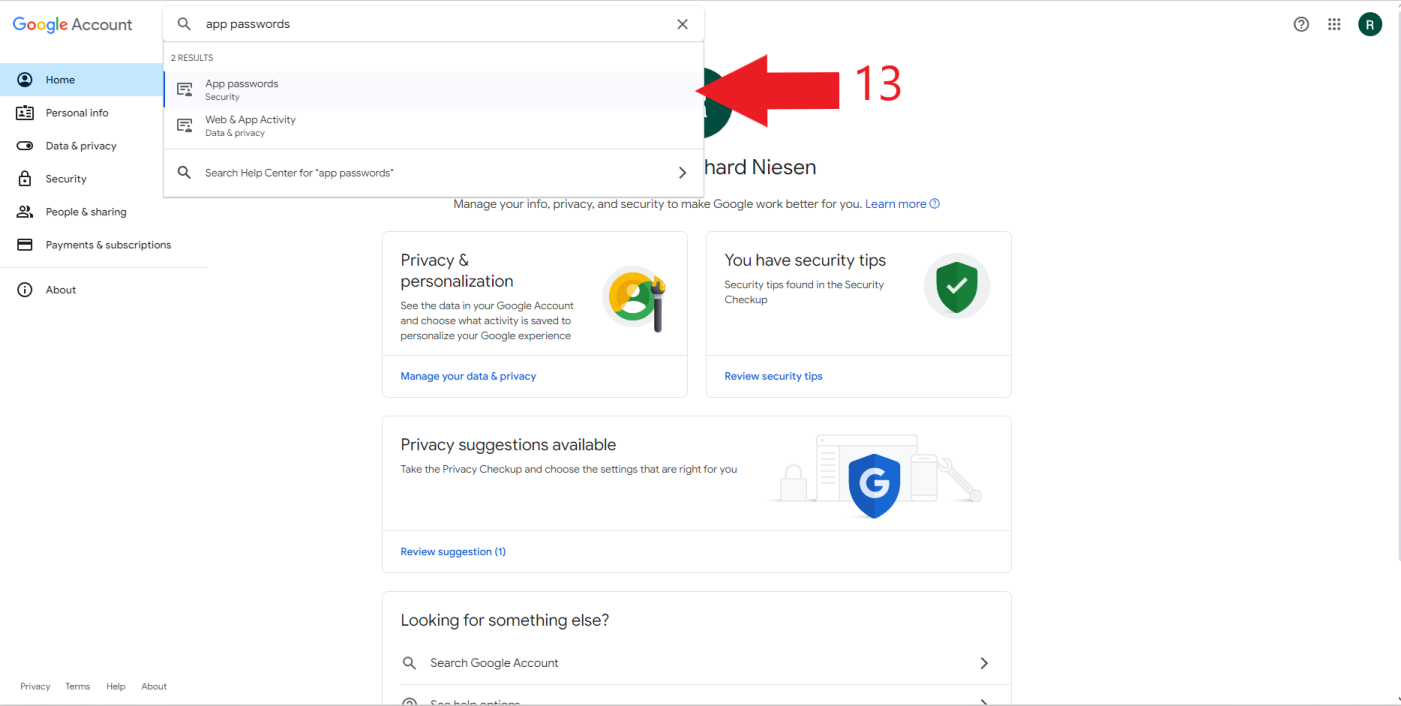
9.Back on the main page in the Search Bar enter in App Passwords and select it.
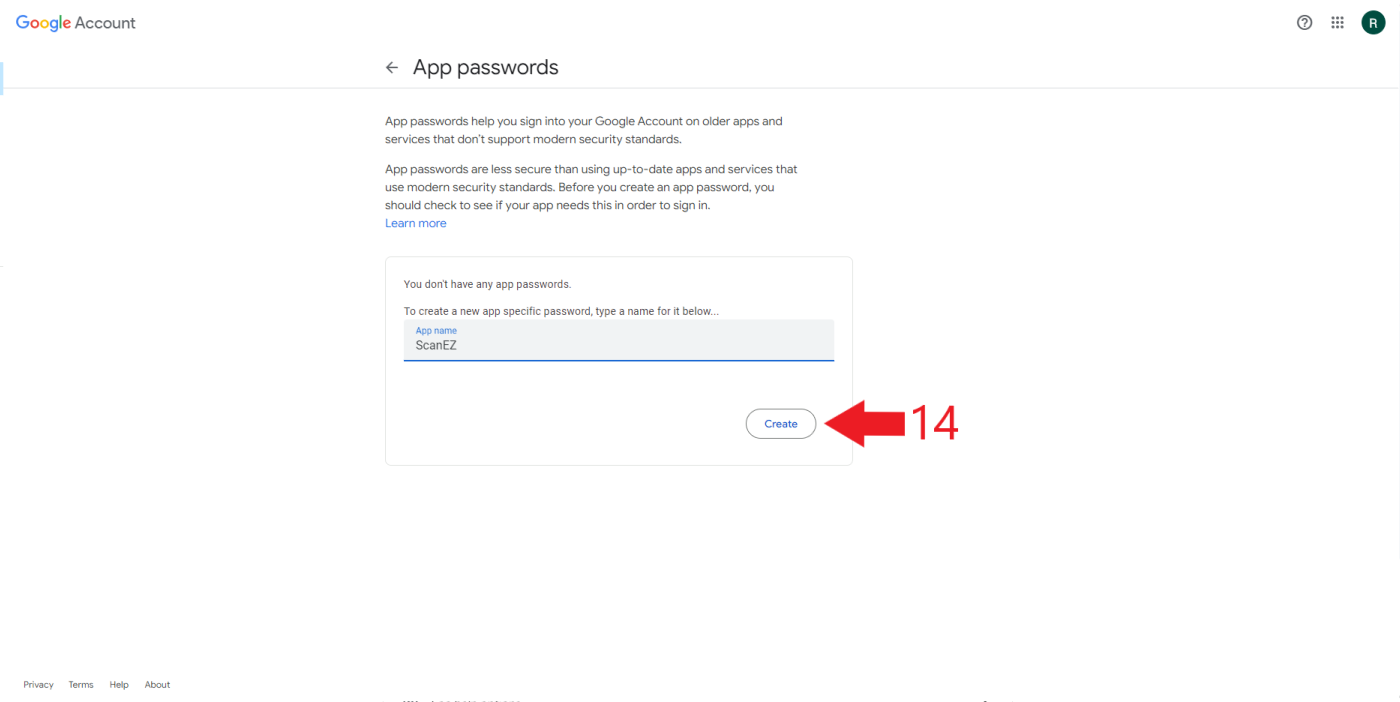
11.Enter ScanEZ as the name and Click CREATE
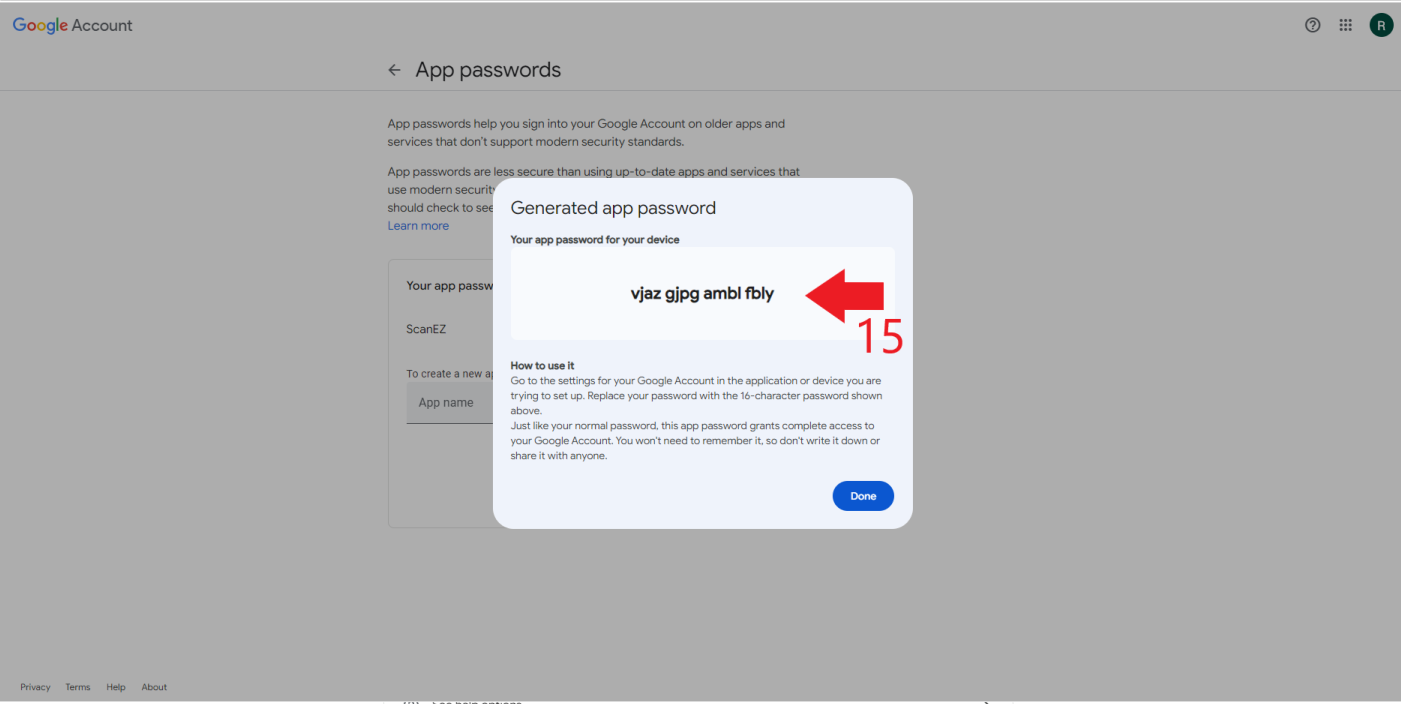
13.This window will provide you with the app password. This code will need to be sent to Today’s Business Solutions for them to enter this new password into the email smtp configurations
IF YOU LOSE OR FORGET THE CODE, REPEAT STEPS 9-12