
How to Configure Boot Order for ScanEZ Station (Yeti 21in Display)
If you need to set Windows Boot Manager as the primary boot option in your computer’s BIOS, you’re in the right place! This step-by-step guide will walk you through exactly what to do—from preparing your computer to saving your changes—so you can boot into Windows smoothly.
Before You Begin
Before we get started, it’s important to have a few things ready:
Turn off your computer completely before accessing the BIOS.
Plug in a keyboard to your computer, if it isn’t already connected. You’ll need this to navigate the BIOS menus.
How to Access the BIOS
Power on your computer. As soon as you press the power button, get ready for the next step.
Immediately start tapping the Delete key on your keyboard. Press it repeatedly until you see the BIOS screen appear.
Navigate to the Boot Settings
Use the arrow keys on your keyboard to move through the BIOS menu. Look for the tab or section labeled BOOT.
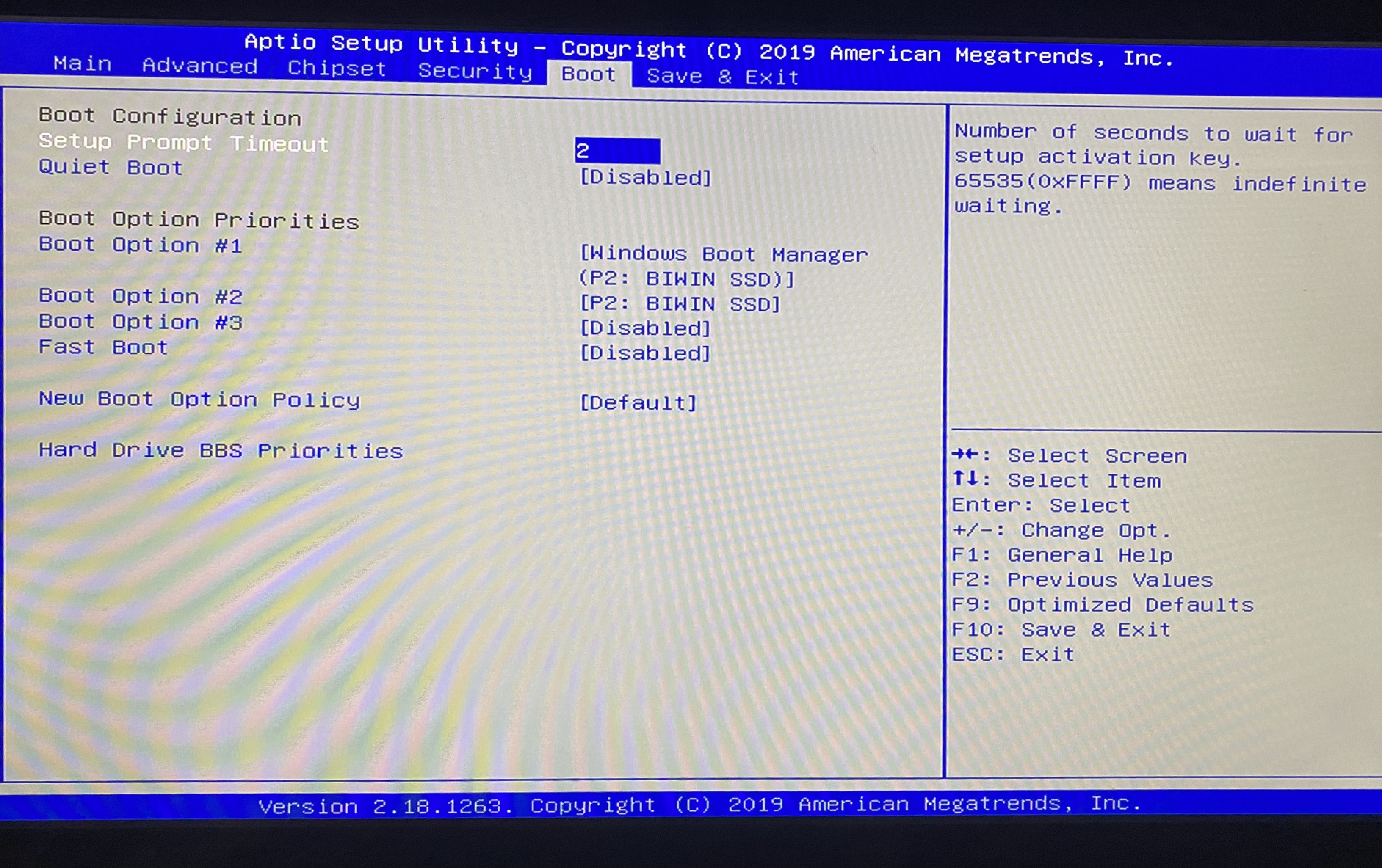
Set Windows Boot Manager as the First Boot Option
Find "Boot Option #1" or a similar option. Once you’re in the BOOT section, look for a setting called Boot Option #1 (sometimes called "First Boot Device").
Press Enter on "Boot Option #1". A list of available boot devices will appear.
Select Windows Boot Manager. Use the arrow keys to highlight Windows Boot Manager, then press Enter to select it.
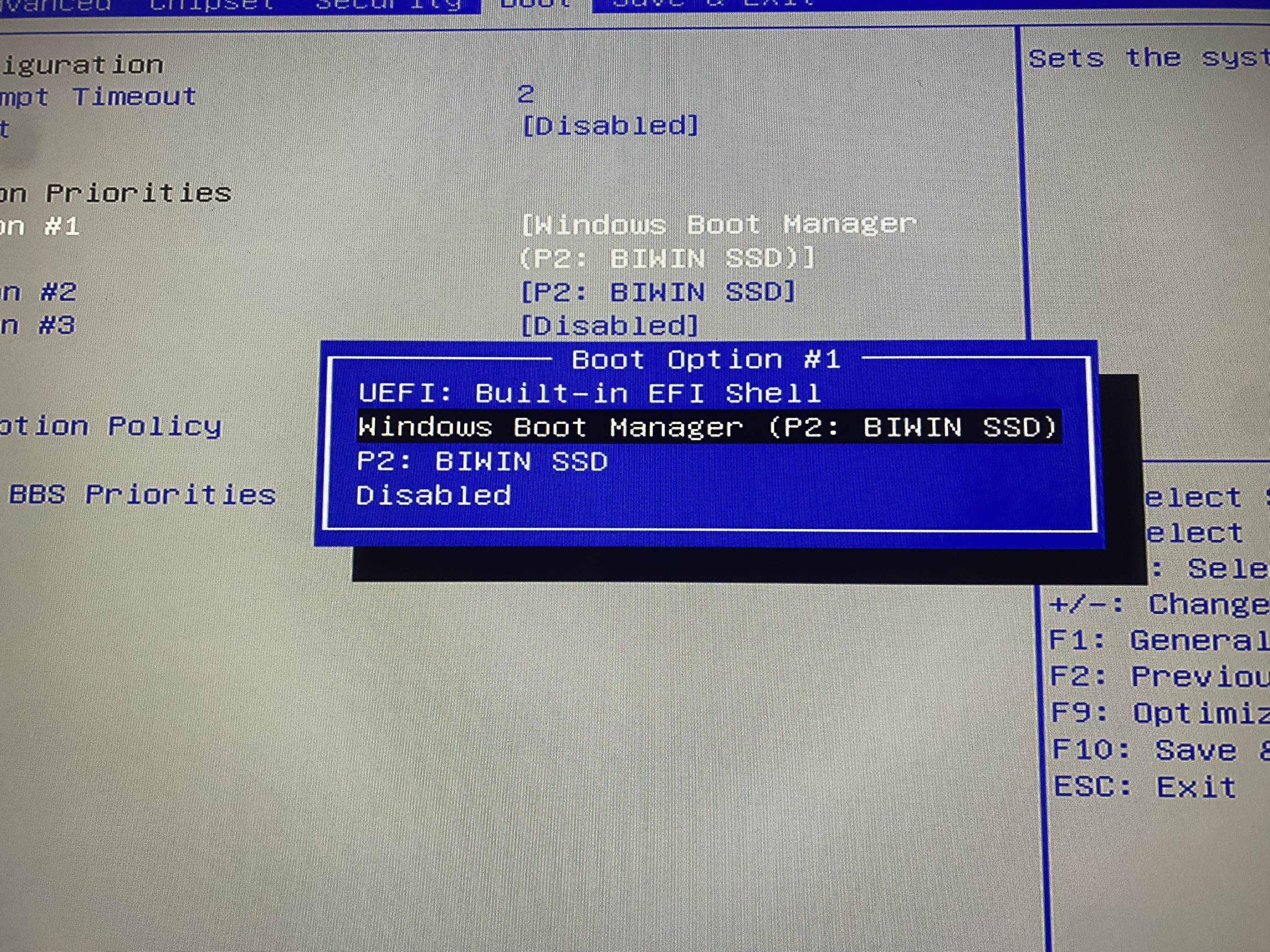
Save Your Changes and Exit the BIOS
Navigate to the "Save & Exit" tab. Use your arrow keys to move to the SAVE & EXIT section of the BIOS menu.
-
Select "Save Changes and Reset". Choose this option to save your new boot settings and restart your computer.
Your computer will reboot automatically after you confirm.
Test the Boot Order
Let your computer restart. If everything is set correctly, your computer should boot directly into Windows.
If Windows doesn’t load as expected, repeat these steps to double-check your settings. Make sure Windows Boot Manager is still set as the first boot option.
Tips and Troubleshooting
If you accidentally select the wrong boot device, just go back into the BIOS and repeat the steps to set Windows Boot Manager as the first option.
If you’re unable to access the BIOS, try restarting and pressing the Delete key earlier in the boot process.
For some systems, the BIOS layout may look slightly different. Look for similar terms like "Boot Priority" or "Boot Device Order."
That’s it! You’ve successfully set Windows Boot Manager as your primary boot device. If you run into any issues or have questions, don’t hesitate to reach out to your computer manufacturer’s support for more help.