
Configuring Boot order for ScanEZ Station - 21in Display
Before accessing the BIOS you will need to turn the unit off as well as have a keyboard plugged into the unit.
- Once you turn the unit on, keep pressing the delete key on the keyboard until the BIOS screen pops up.
- At the BIOS screen, press the arrow key on the keyboard until you are at the BOOT portion of the settings. Below is what that screen looks like:
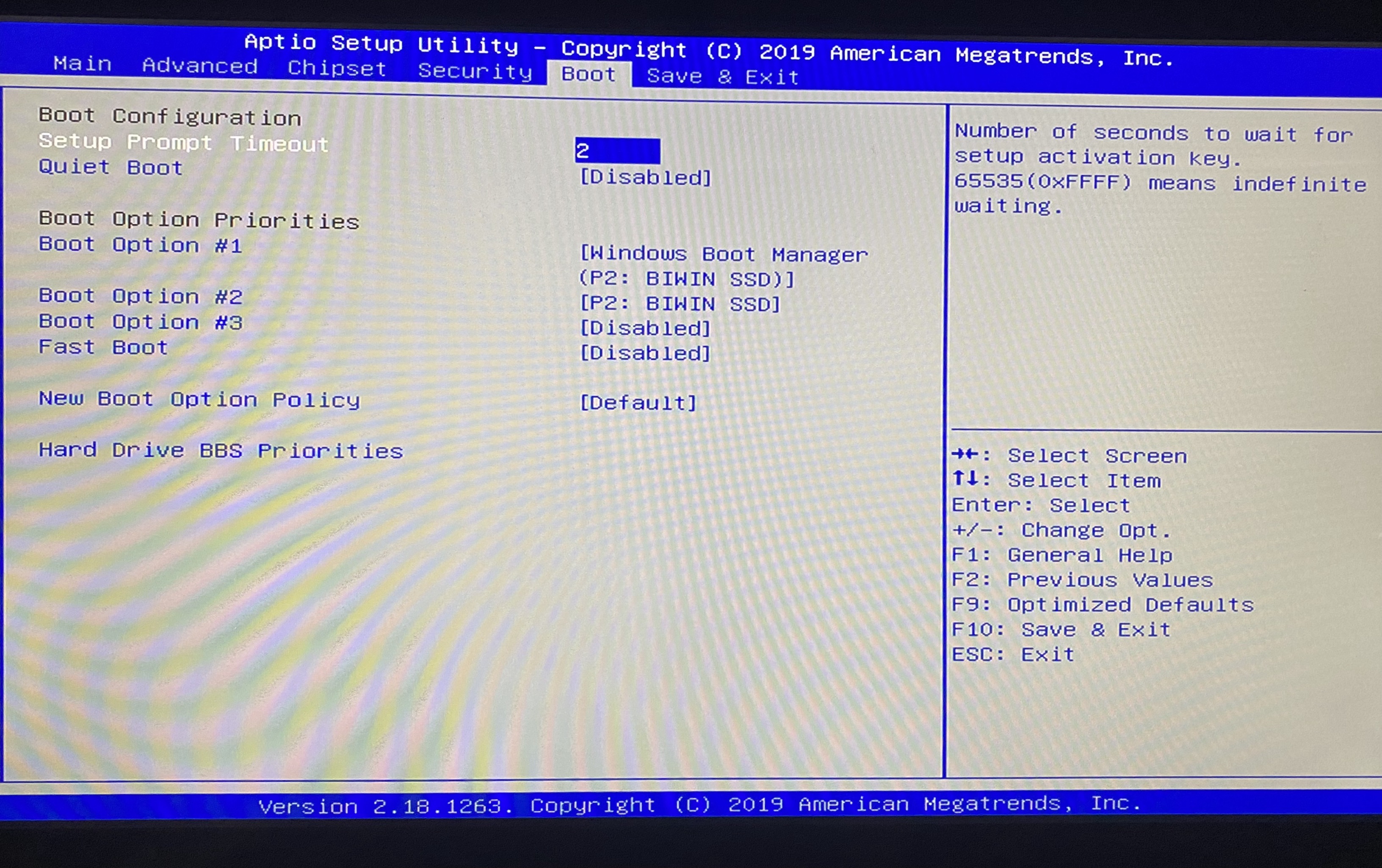
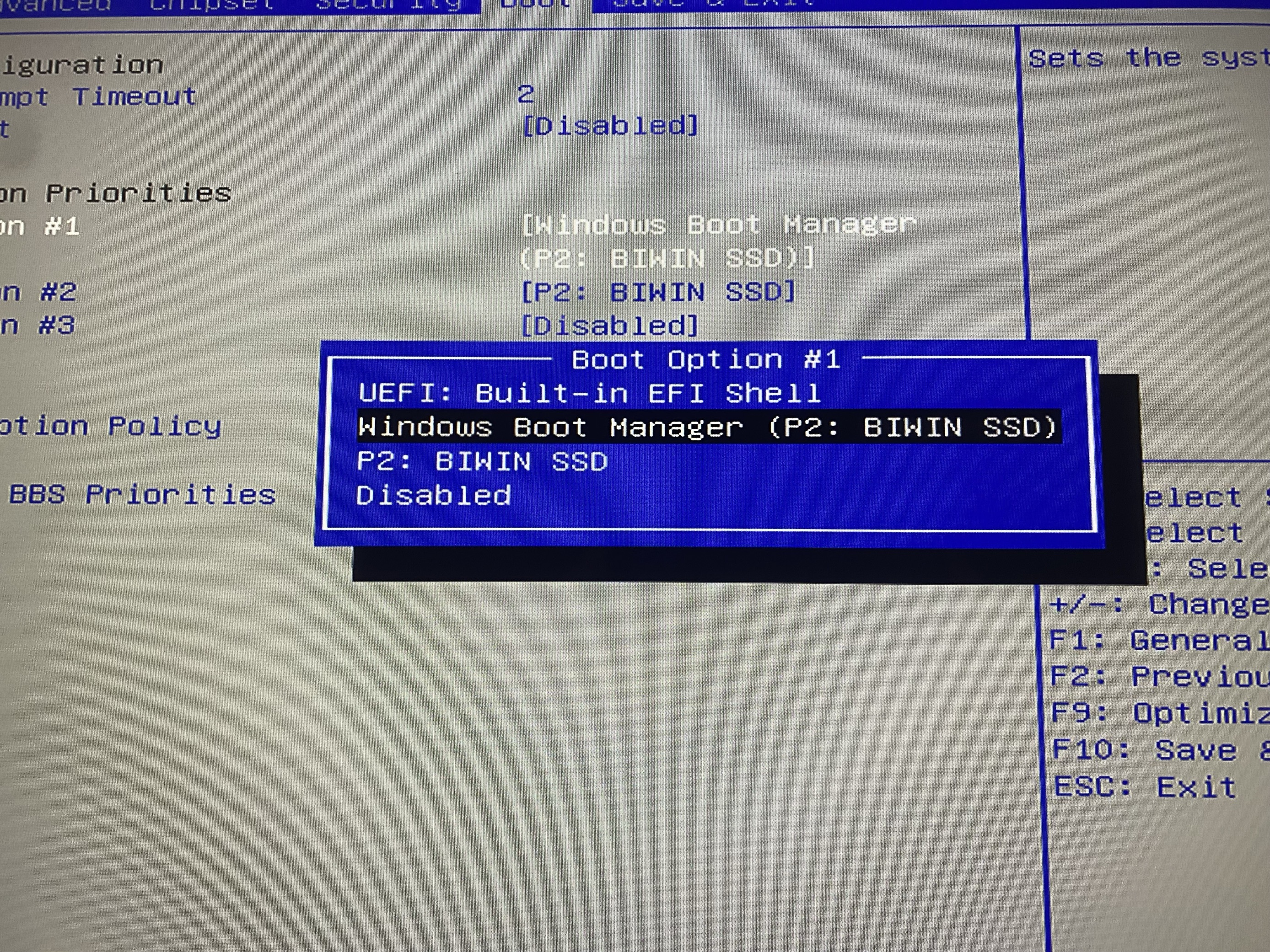
3. Navigate to BOOT OPTION #1 and press enter. You will want to select the option that says WINDOWS BOOT MANAGER. Below is an example of this option selection:
4.Once the boot option is selected, navigate to the SAVE & EXIT tab and select SAVE CHANGES AND RESET.
5.Test and make sure the unit loads Windows properly.